Quickly and Easily Add Assessment Questions to Any Project

Making assessment questions from courses can take time.

With the AI Question Generation in dominKnow | ONE, learning content can be quickly analyzed with questions being created and added to your course. 

The AI Question Generator can create four types of questions:

  • True or False
  • Multiple Choice
  • Fill in the Blanks
  • Multiple Pulldowns

Once added, AI-generated questions become standard test question pages that can be edited, moved reordered and deleted like any other question page.

The AI Question Generator walks you through four easy steps:

  • Analyze the content
  • Review the analysis
  • Preview and answer the questions
  • Add them to your project.
Like all dominKnow | ONE services that use AI, the AI Question Generator is available as an opt-in feature. Client organizations need to request it be turned on. 

Additionally, the content in your ONE project is only analyzed for the purposes of generating questions. The analyzed data and the resulting reviewable questions are not stored by the service and are not used for training the AI service. 

If From AI is not available within the Add a Question Panel, then the AI question generation is not enabled for your site.

You can work with your dominKnow Account Manager to request it be turned on or request documentation for your organization's AI approval processes to get approval for its use.

Analyze the Content

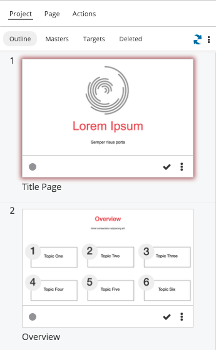
In the Project Outline, select a Learning Object or Page.

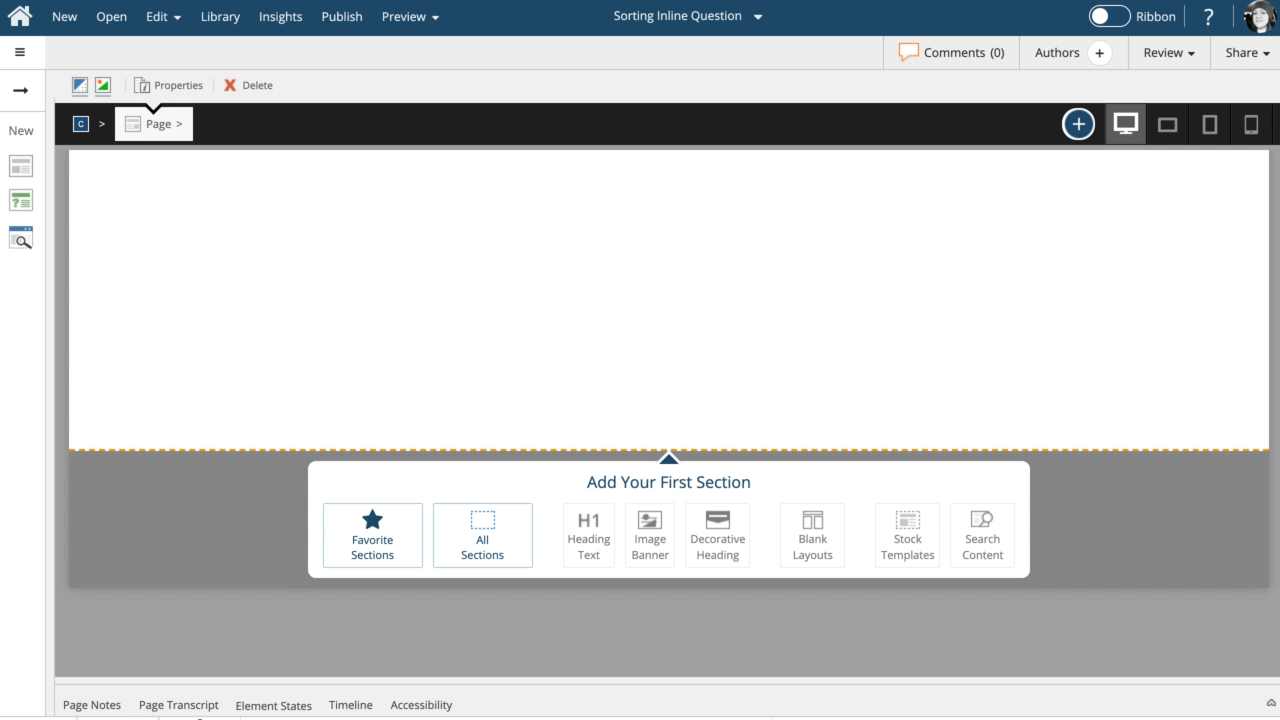
Open the Add a Question panel:

  • Ribbon On: On the Home tab, in the New section, select Question.
  • Ribbon Off: Select the Question icon from the vertical New bar beside the outline.

When the Add a Question panel is open, select From AI.

The Analyze Project Content window will open.

Choose what to analyze:

  • Entire Project, Specific Module or Learning Object. For a module or learning object, choose it from the drop-down list below the options.
  • Check the summary below the list. It shows how many modules, learning objects, pages and existing questions will be analyzed.
  • When you are ready, select Analyze Content.

NOTE: Larger projects take longer to analyze. Up to 20 learning objects can be analyzed at a time. If your project has more, analyze one module or learning object at a time. 

Review the Analysis and Choose your Questions

When the analysis is complete, the Review Analysis window will open.

The Review Analysis window lists every learning object that was analyzed, grouped by module. For each lLearning object it shows:

  • How many questions it already has, and how well they cover its content (Thin, Moderate or Strong)
  • The AI's reasoning, which you can read below the learning object title. 
  • The number of questions recommended for it. 

Learning objects for which the analysis recommends questions are already selected. Any learning objects the analysis skipped show the reason why it was skipped, for example:

  • Introduction
  • Already Covered, or
  • Insufficient Content

To leave out a learning object, clear its checkbox. For each selected learning object, set the number of questions to generate.

You can generate up to 30 questions for each learning object. The most you can set will be limited by how much of its content your existing questions don't already cover.

Check the total above the list. It shows how many learning objects and questions you've selected.

When you are ready, select Generate Questions.

Selecting Change Scope will return you to the Analyze Project Content panel. 

Selecting Cancel will cancel the AI Question Generator process.

Preview and Add Questions

The Question Generator window will open.

It lists the generated questions on the left and previews the selected question on the right. Each question shows its type, its text, and the learning object and page it was generated from.

To preview and add questions: 

  • Select a question in the list to preview it. Its answer key opens below it, showing the question feedback and the choices or accepted answers, with the correct ones marked.
  • To see the content the question was based on, select the page link below the question.
  • Select the checkbox beside each question you want to add. To select all the questions, select the checkbox at the top of the list.

Once you are ready, select Add Selected at the bottom of the left-side menu. 

Add to your Project

The Add to Project window will open, listing each question and the learning object it will be added to.

Select Confirm.

The questions are added to each respective learning object your project, and the first new question will be selected in the outline.

Any feedback the generator did not write uses your project's default feedback.

If fewer questions came back than you asked for, a message at the top of the list tells you. If a learning object produced no questions, select Show to see why. If a learning object couldn't be generated, select Retry to try again.

If you close the window, any generated questions you haven't added are discarded.

  0     0

Similar Projects

Questions  ( 0 )