Add a Glossary definition to a word
Steps to add a Glossary definition to a word.
Learners will see the word underlined. When they roll over the word, a shortened version of the definition will be shown.
If they click the word, a full definition will be shown in a Pop Up panel above the page.
For courses, the term will also be added to the course's Glossary list available on the Menu of the Course Player.

Product: dominKnow | ONE | Version: 7.3
Step 1
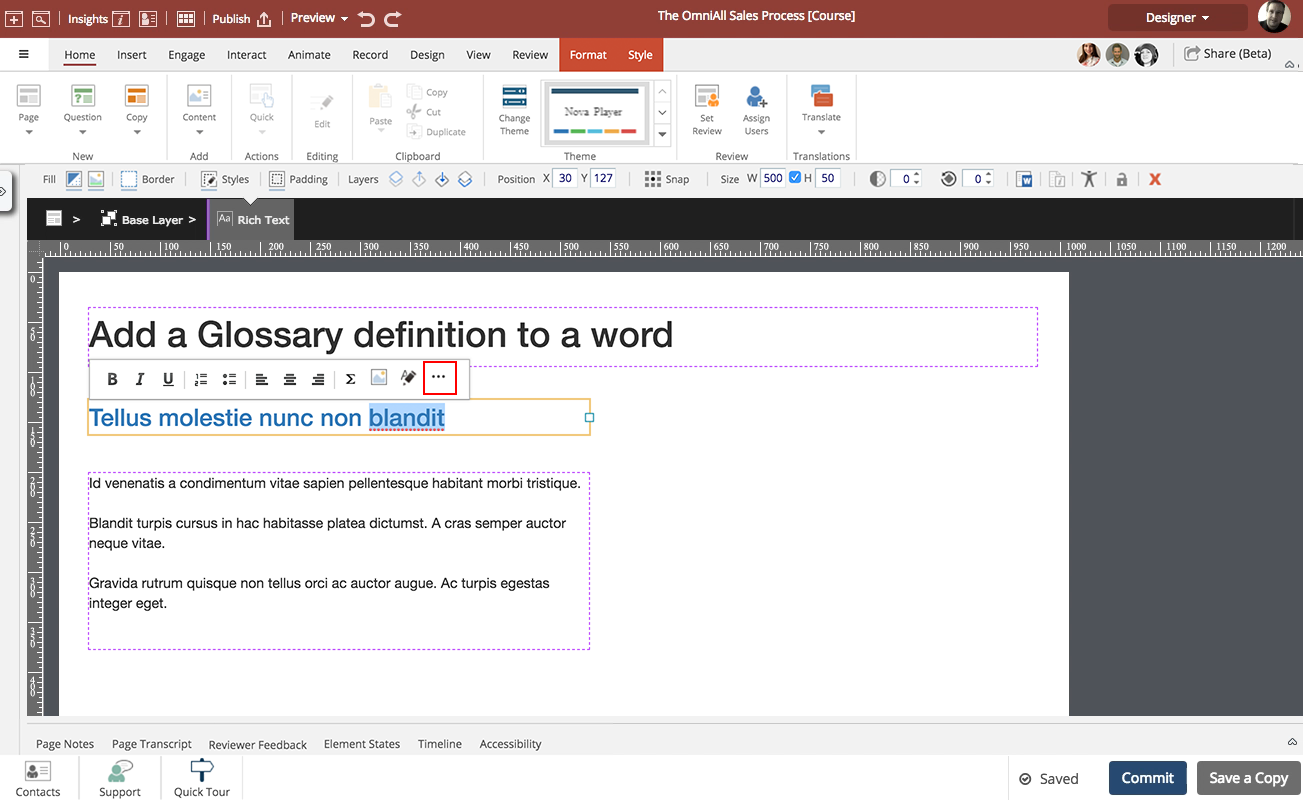
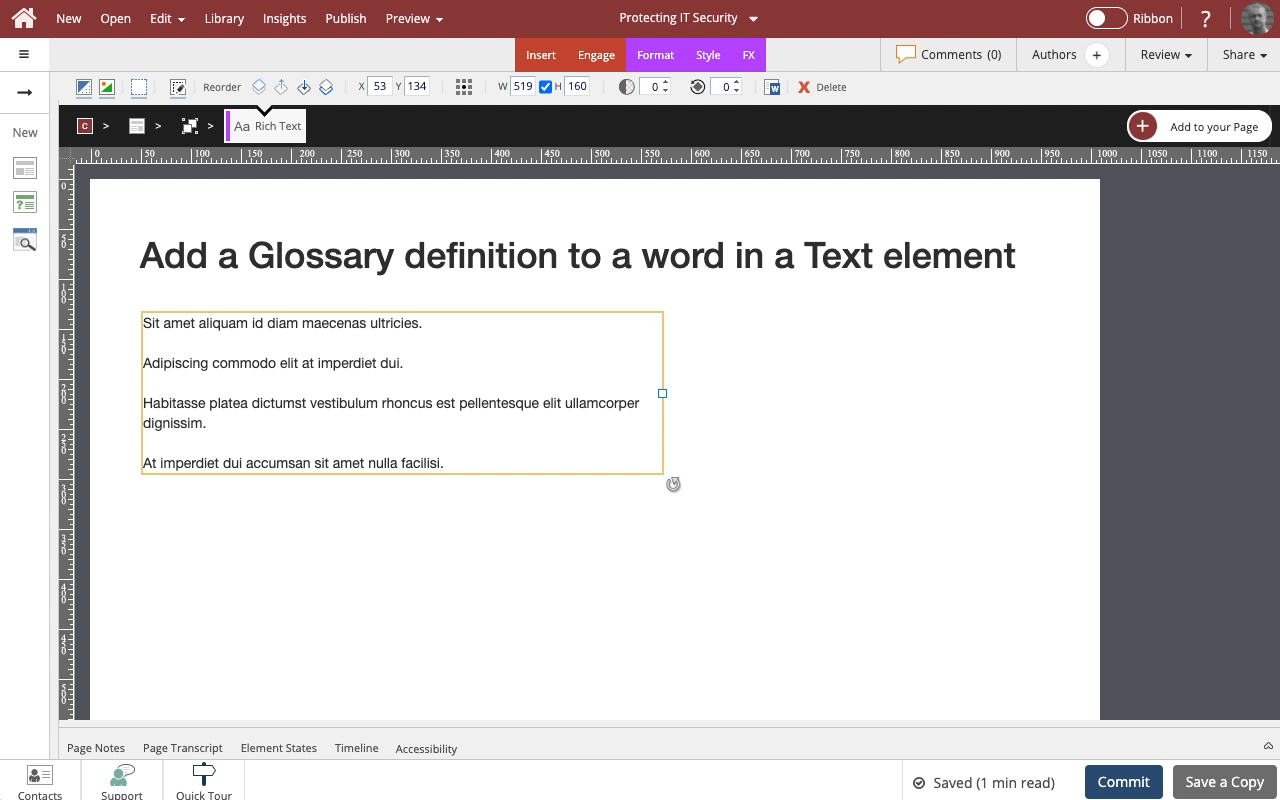
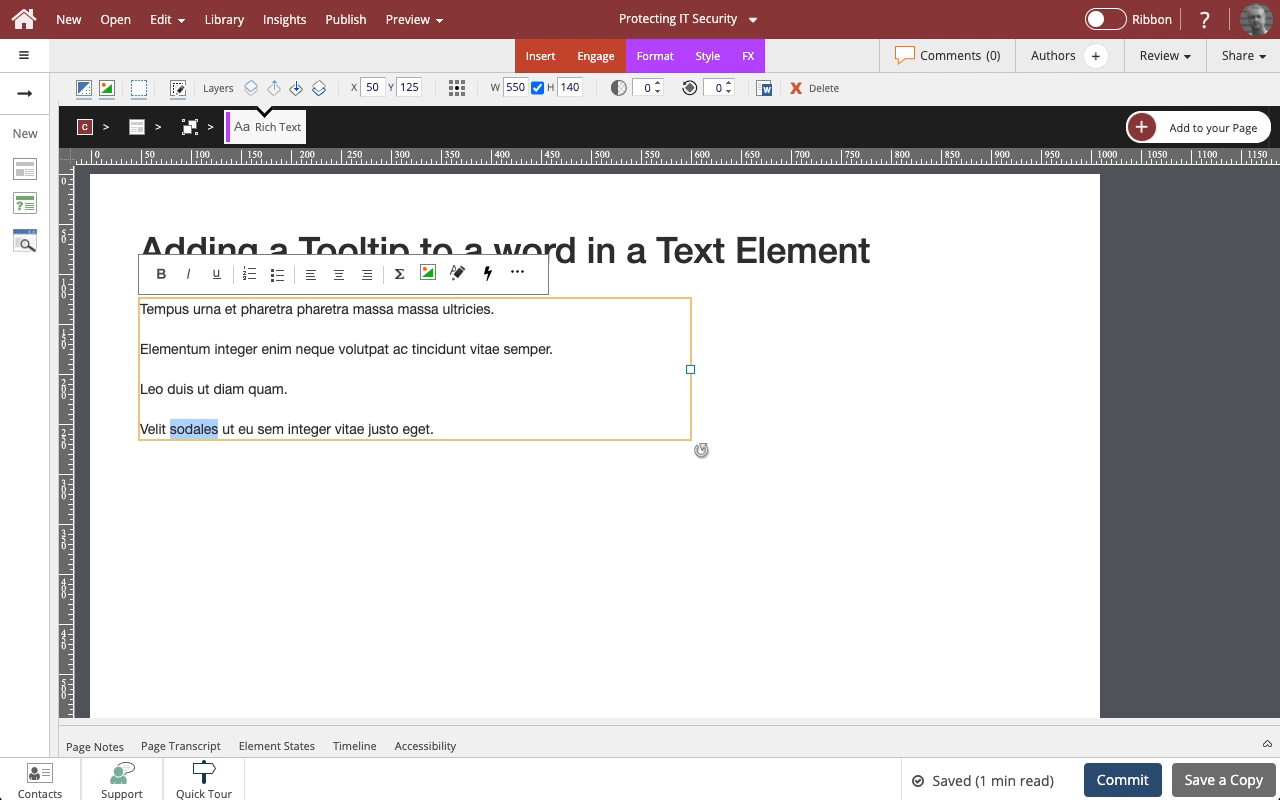
While editing a text element, select the word that will have the Glossary defintion added.
You can access the Glossary function in two ways.
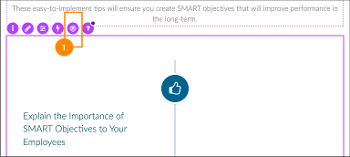
The first way is to select the three-dot menu on the text editing mini tool bar.
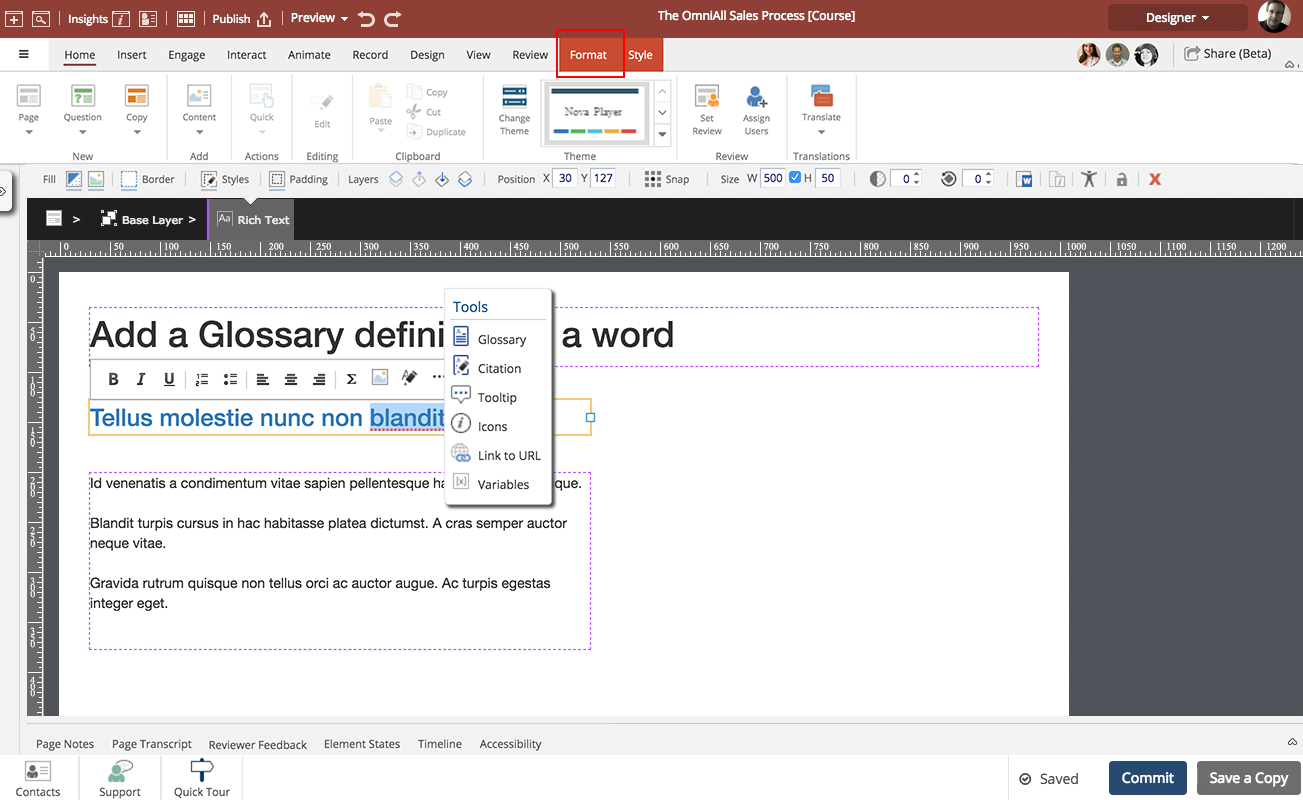
Step 2
The Glossary function is available on the Tools list that appears.
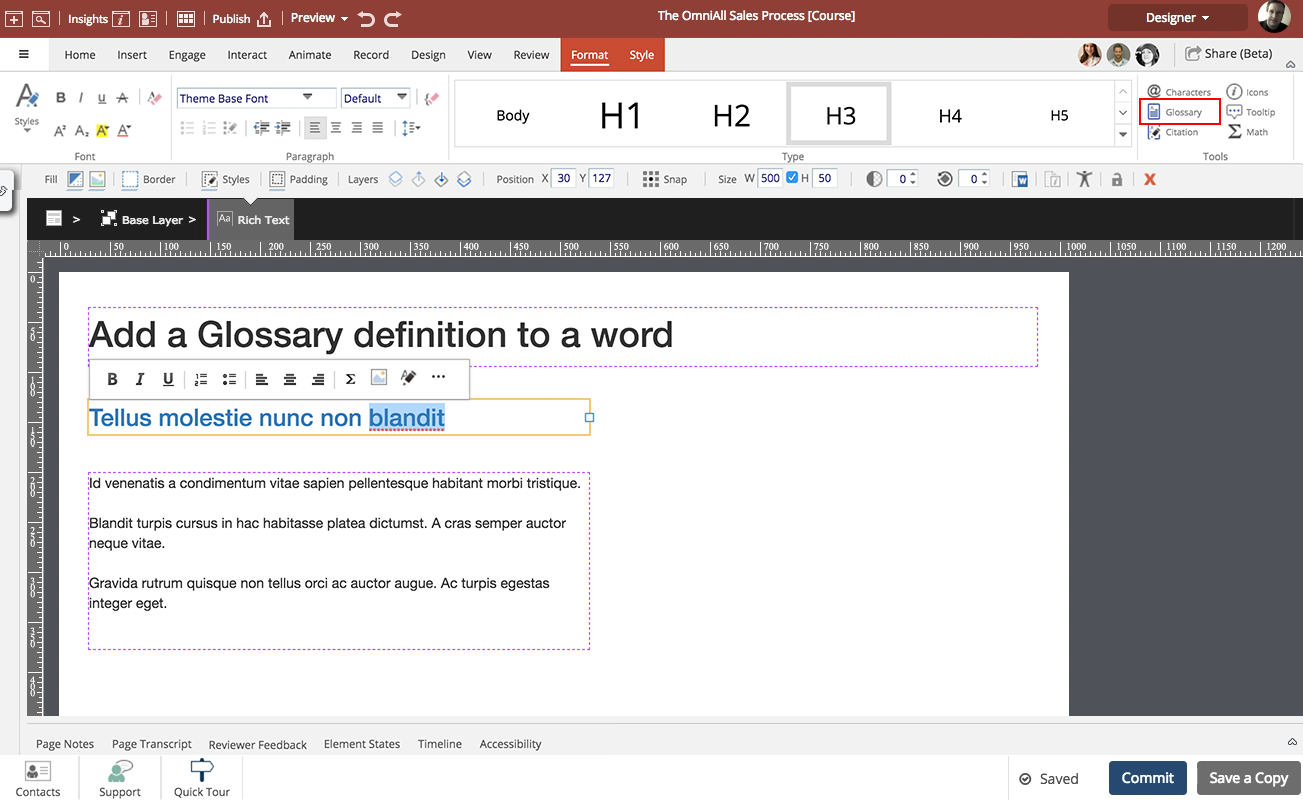
The second way to access the Glossary function is to select the Format tab.
Step 4
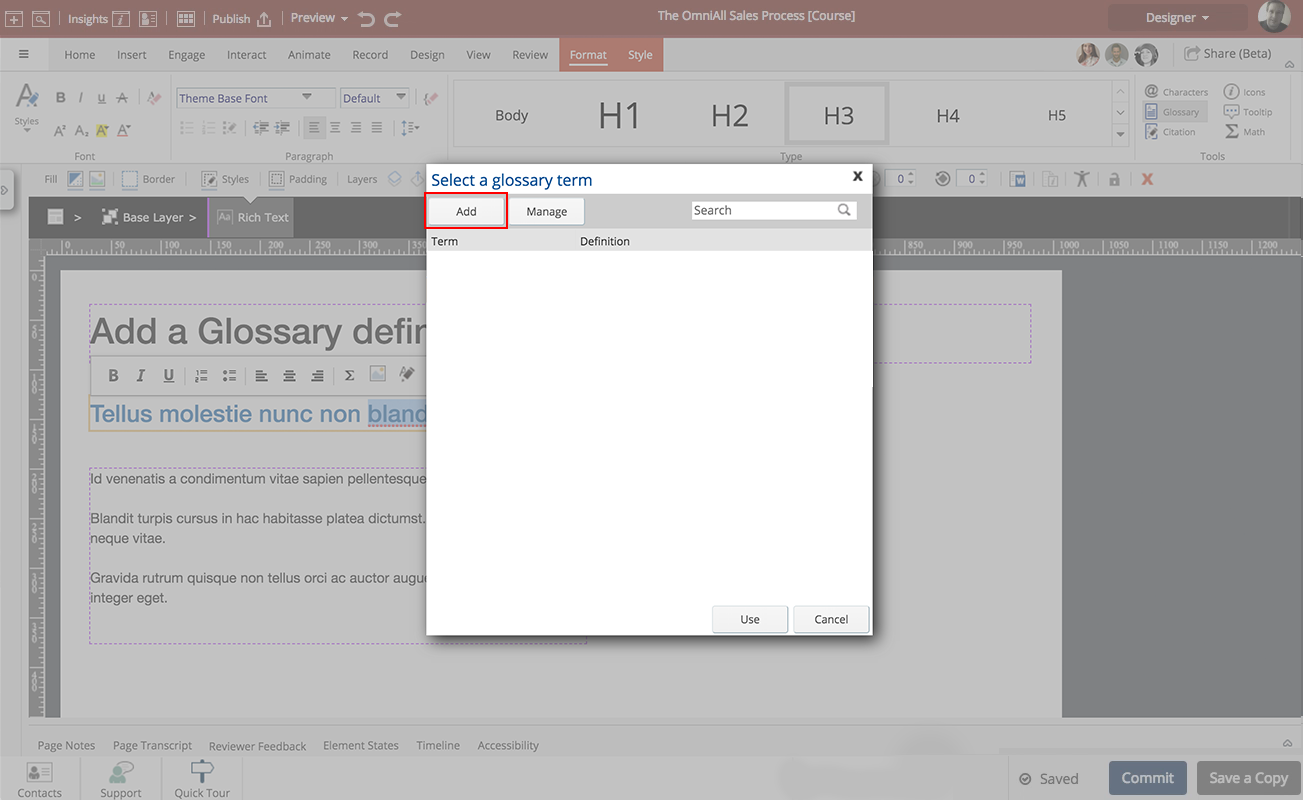
The Select a Glossary Term panel will open.
If the term has been added previsously it will be listed under the Terms. You can select it to assign it to the word in your text element.
In this example, we need to add this as a new term.
Select Add.
Step 5
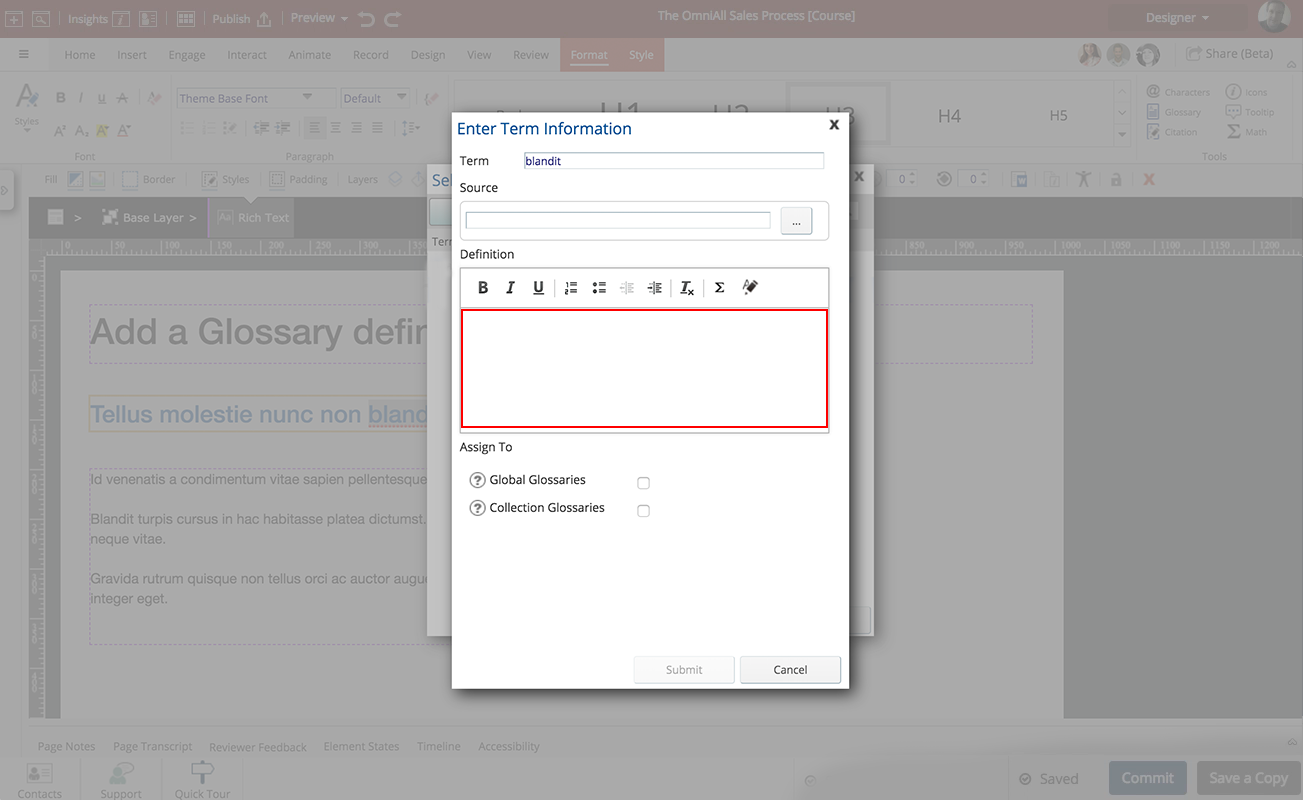
The Enter Term Information panel will open.
The Term field will be auto-filled with the word you highlighted in your text element.
You can include a source (such as a URL) for your term by using the Source options.
Click into the Definition field and we'll add a definition for you.
Step 6
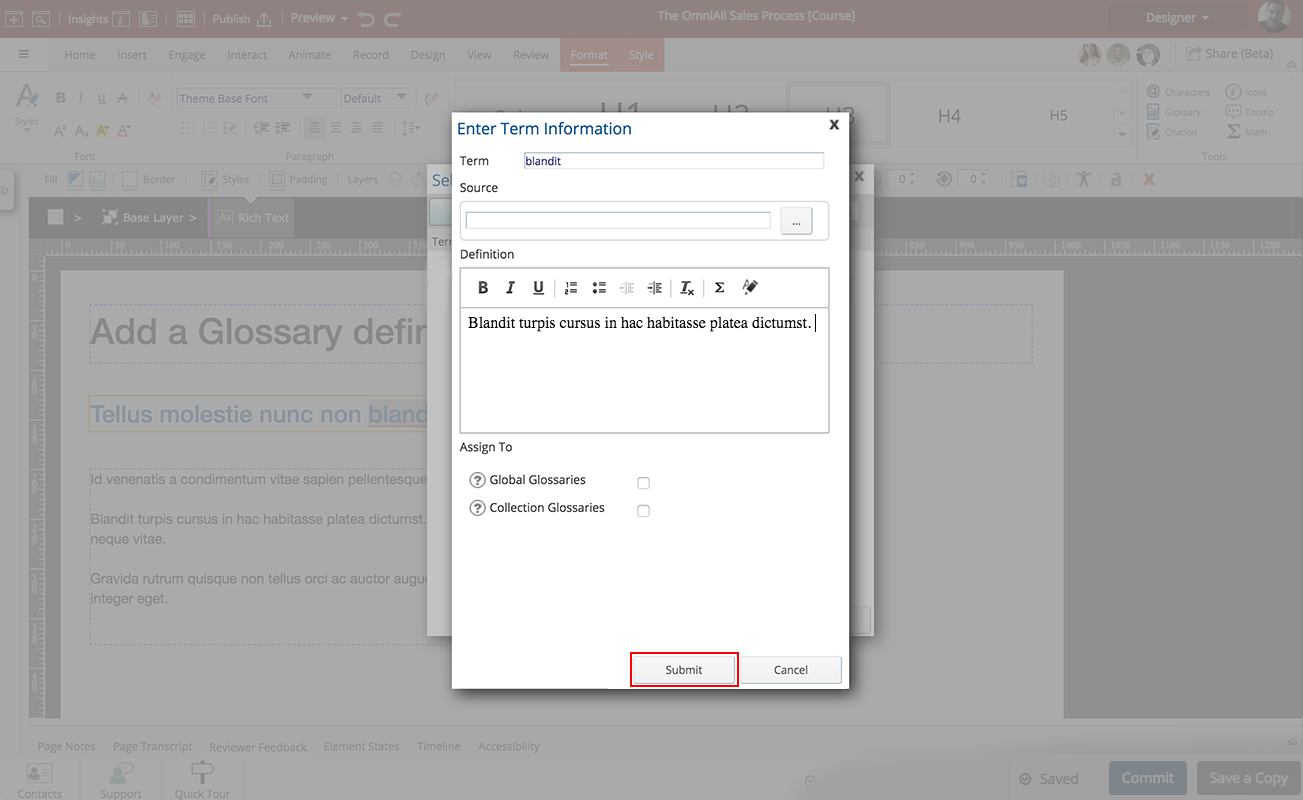
You can choose to have the term added to the site's Global Glossary.
If the Project is also part of a Collection (or more than one Collection), you'll have the option to add this term to the Collection glossaries.
Select Submit.
Step 7
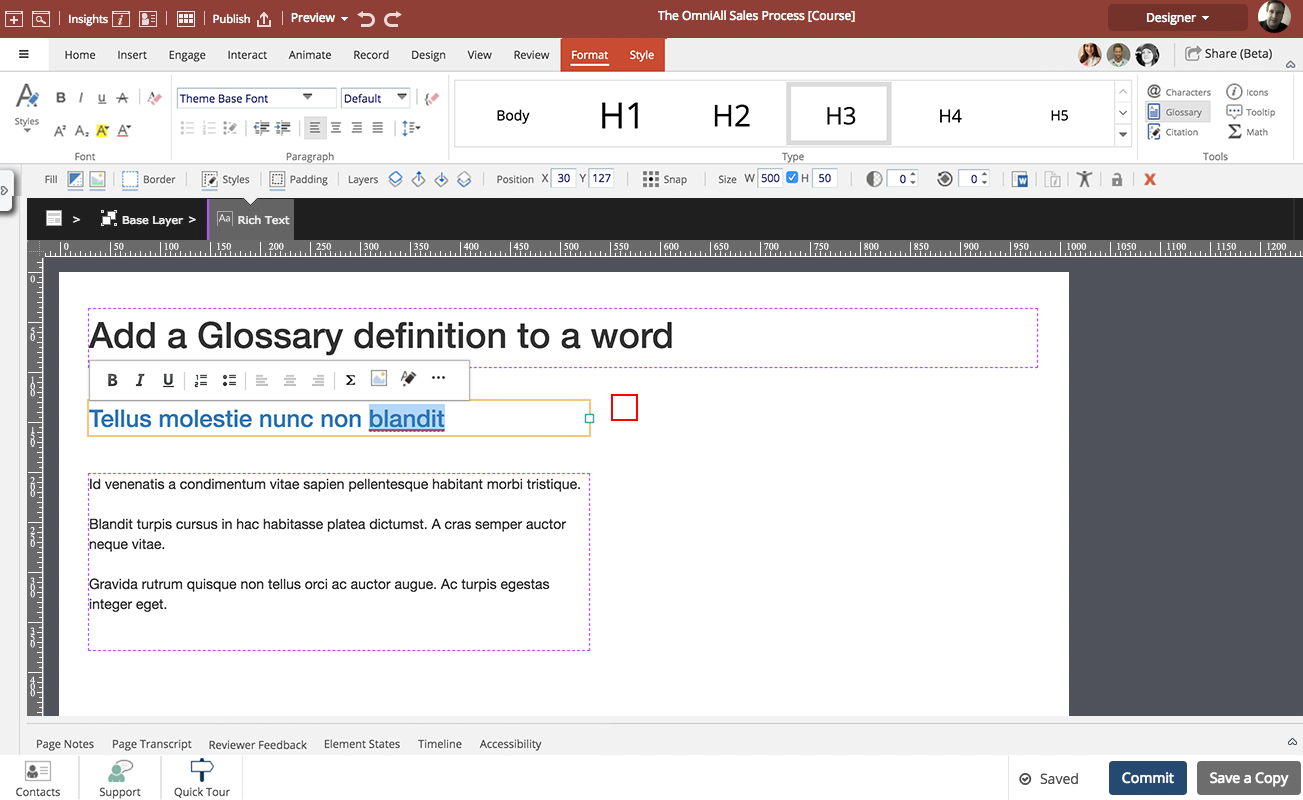
After Submit, you are still in edit mode in the text element on the page.
Select outside the text element to leave edit mode.
Step 8
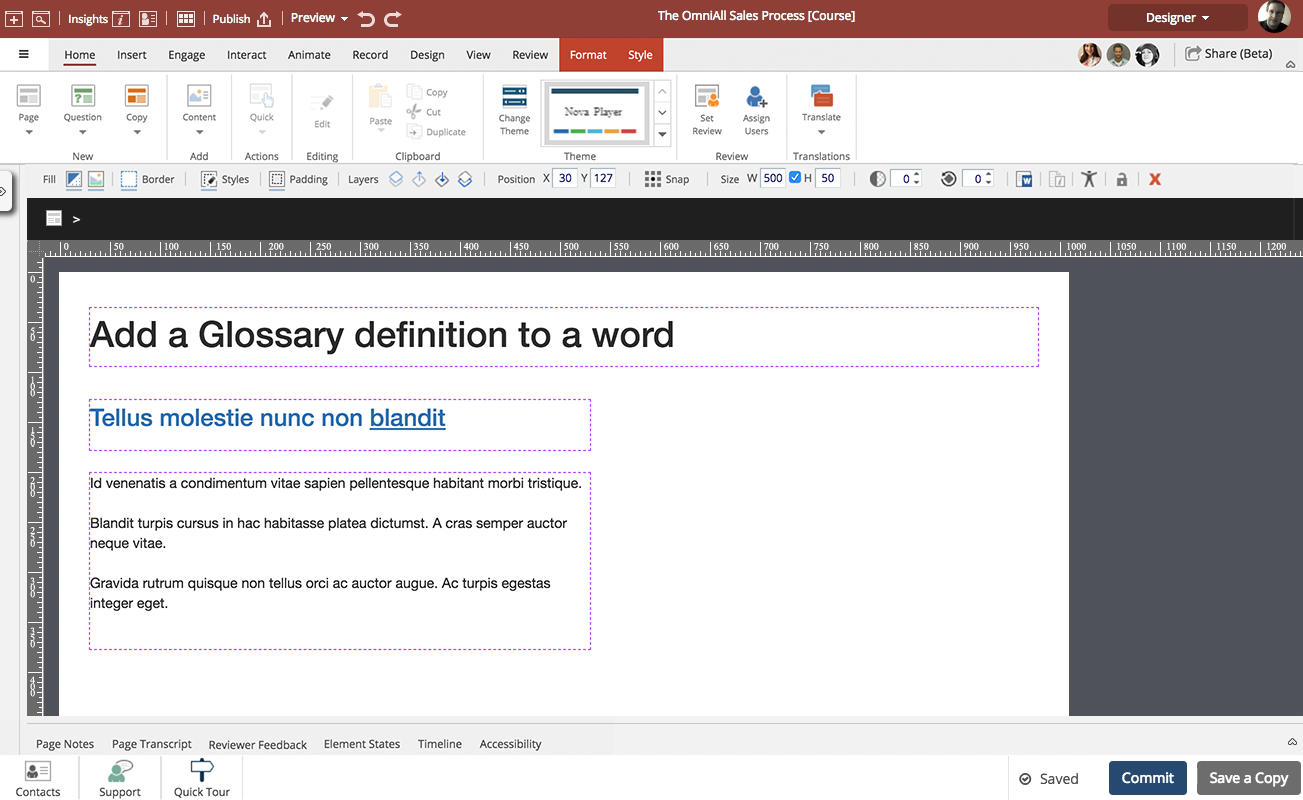
The word is now shown as underlined, to indicate it has been assigned a glossary term.
Learners can roll over the word to see a shortened definition or they can click it to see a full definition appear as a Pop Up over the Page.
Also, the term is added to the course's Glossary list on the Menu of the Course Player.






Comments ( 0 )
Sign in to join the discussion.