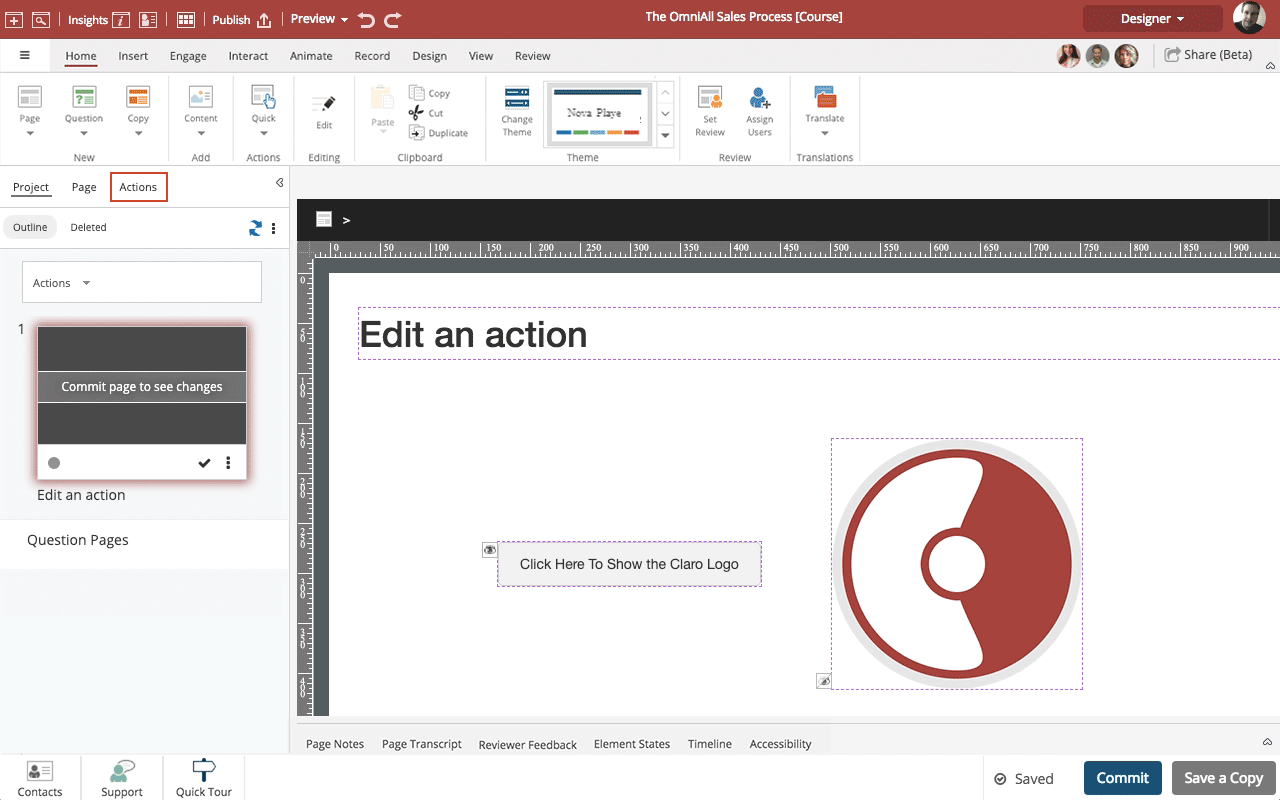
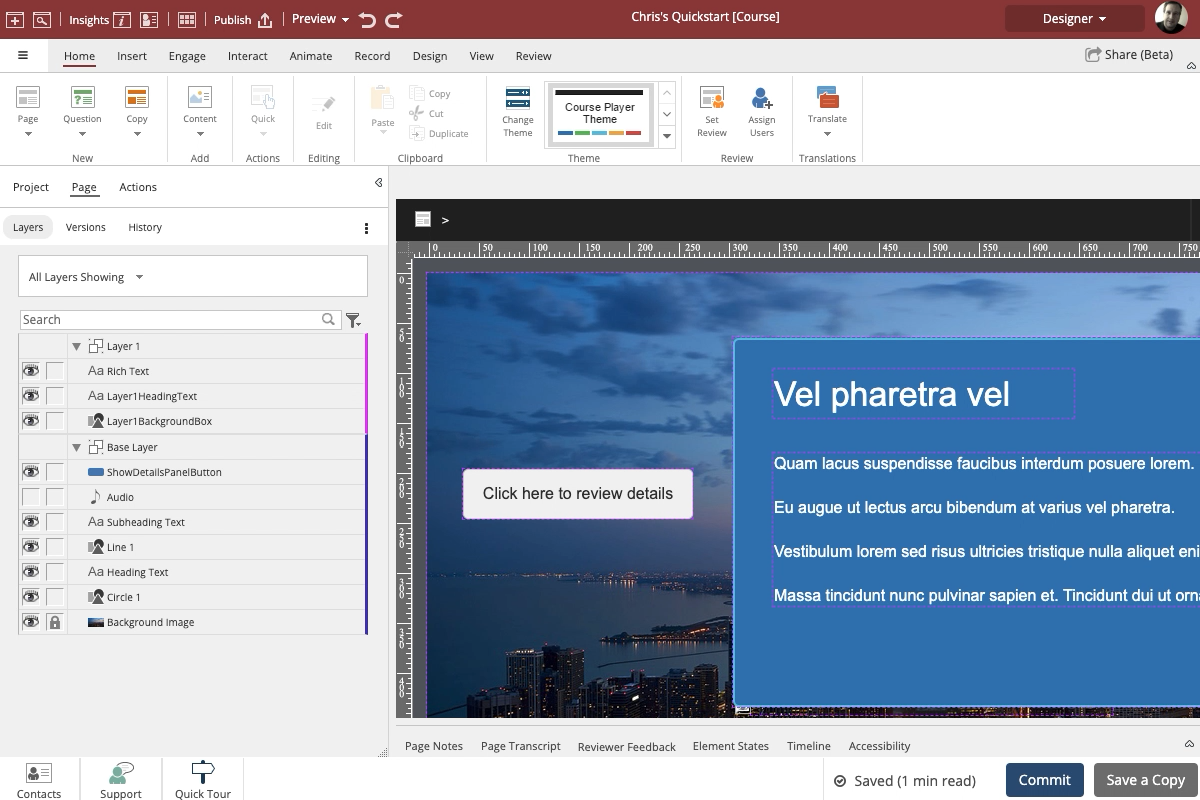
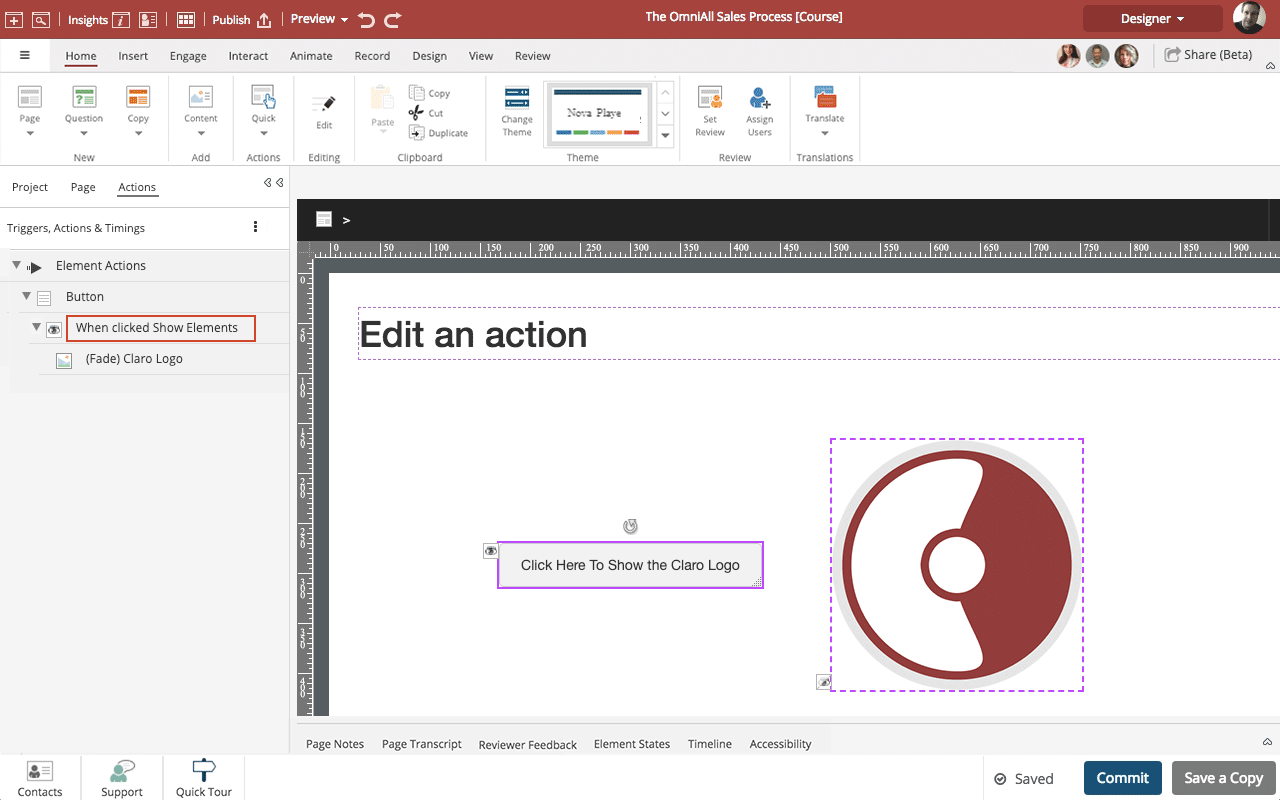
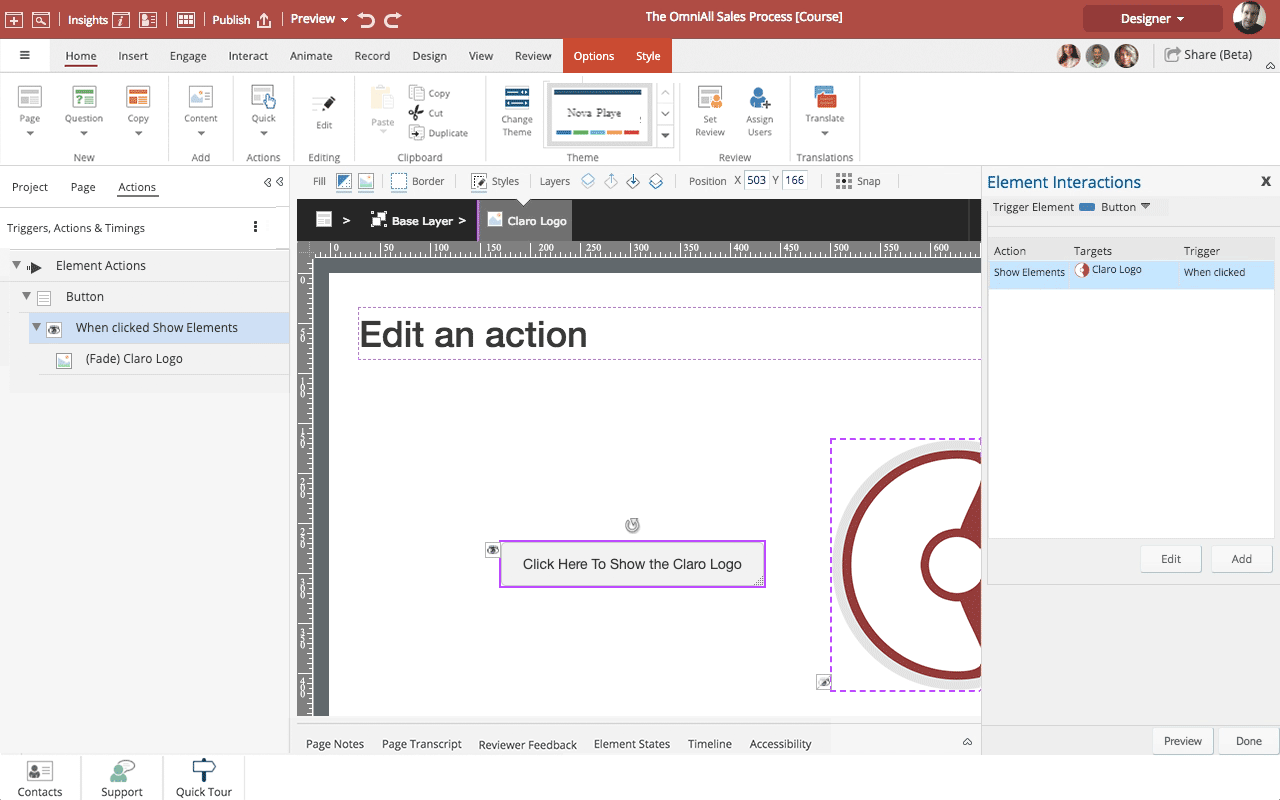
As you add Actions to a Page, they are listed on the Actions tab on the left side of the Stage.
You can use this tab to open Actions to edit them.
This tab is also helpful for understanding all the Actions or events on a Page, especially if you aren't the original author but are trying to make updates.
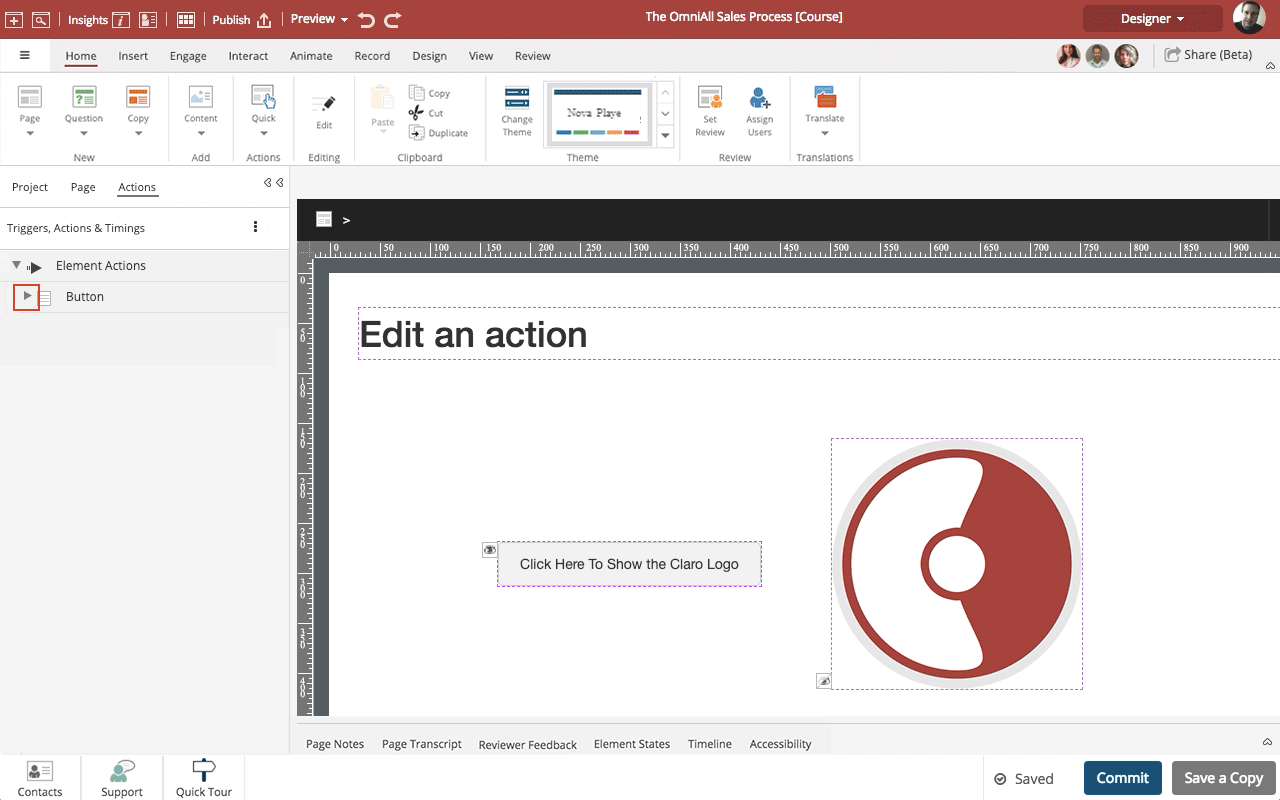
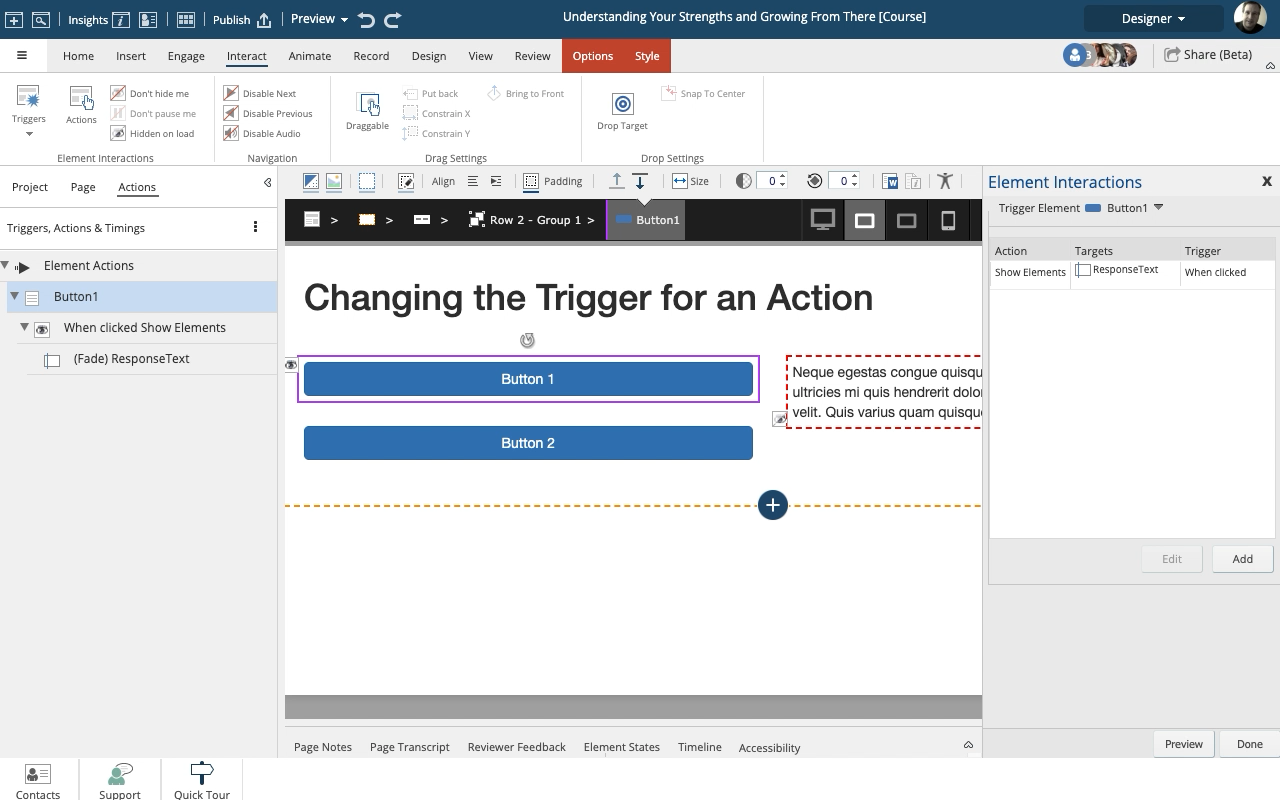
You can now see there is a Show Action set up for this element. If there were multiple actions, they would all be shown here.
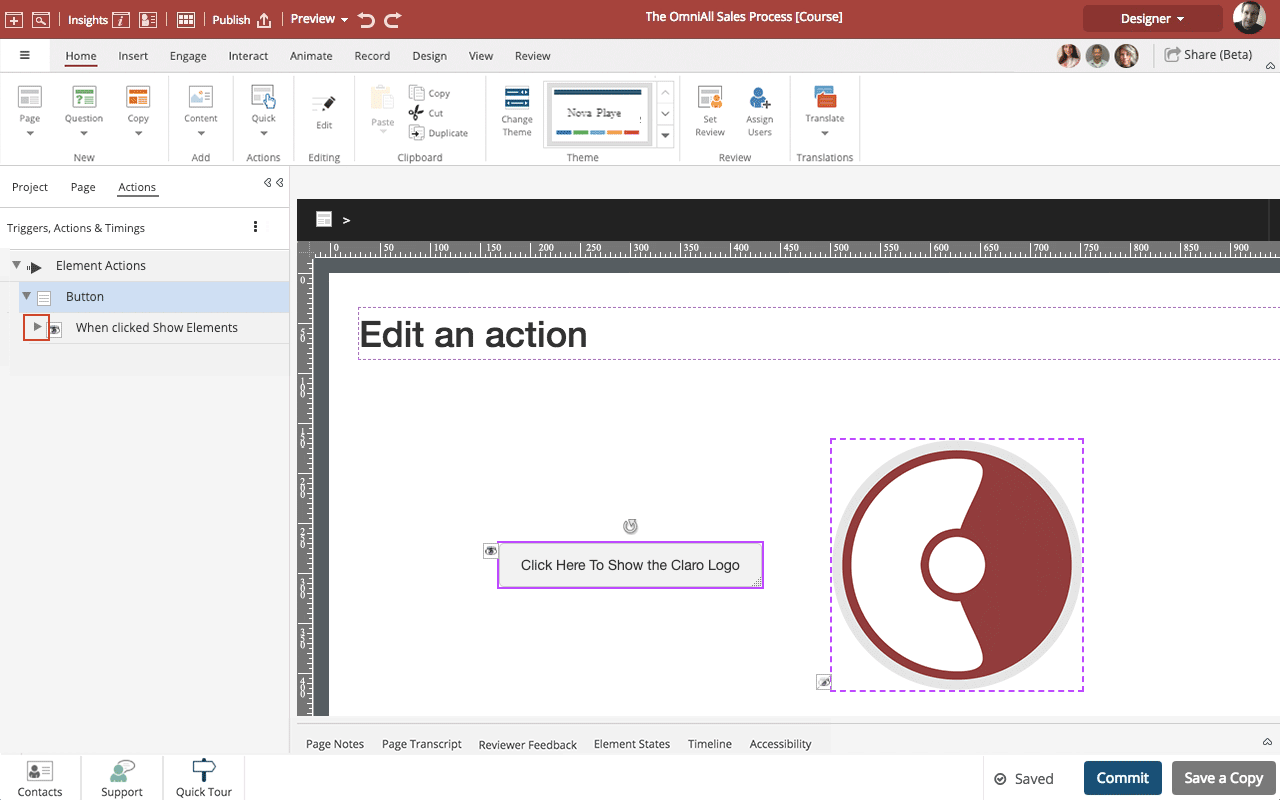
Select the triangle beside When clicked Show Elements.
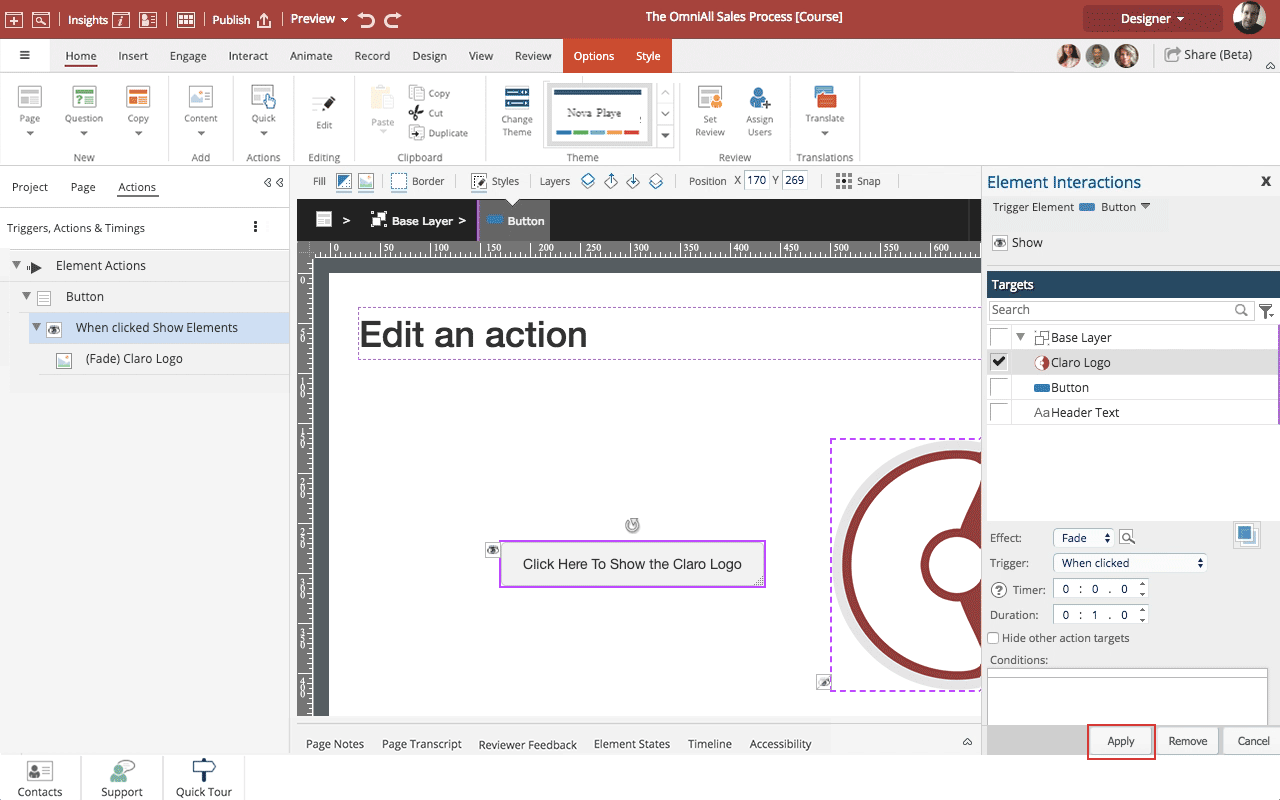
The Element Interactions panel opens, and you can now make edits.
The Remove button will remove (delete) the action altogether.
When you are fiished editing select Apply.
The Preview button at the bottom of the Element Interactions panel will open a Current Page Preview so you can test out the edited interaction.
You can also add more Actions to this Trigger by selecting the Add button.
Steps to set an action to show a page element when the learner clicks on a hotspot added over an image.
NOTE: If you have an action with an on-click trigger set on an element layered over an image (for example, a hotspot) plus an action with an on-click trigger set on the image element as a whole, both actions will be fired when the learner clicks on the layered element.
After you've set up an Action you can change the Trigger at any time.
In this example we have previously set up an action to show a text element when Button 1 is clicked. We'll change it to be triggered by Button 2 instead.
You can add hotspots as a layer over an image. If you move the image the hotspot will remain in the same location in relation to the image.
Once you have added a hotspot you can use it as a trigger for a wide range of Actions such as showing or hiding content.
NOTE: If you have an action with an on-click trigger set on an element layered over an image (for example, a hotspot) plus an action with an on-click trigger set on the image element as a whole, bo...
Hi, I'm trying to change the background colour of an input text box when the string that they input equals a pre-defined value (i.e. I'd like to have the input text box turn green when they enter the correct string). I can get the two parts of this problem working independently (colour change and string check trigger) but can't get them to work together. I've been able to successfully target and change the input text box background using the theme Add CSS functionality, and i can successfully...
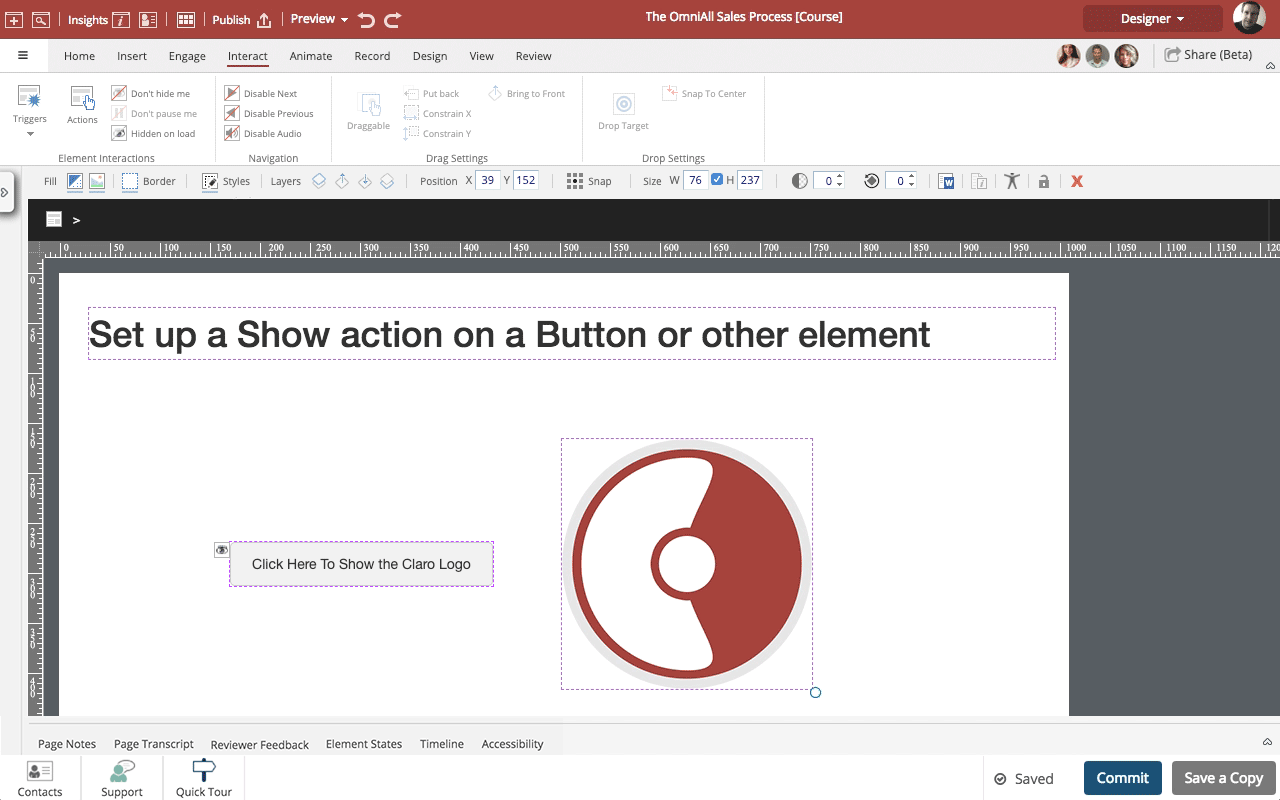
Steps to set up a Show Action where the learner will click on a button to show another element on the Page.
This exampe uses a Button but any element can be set up as the item the learner will interact with, including text elements, image elements and more.
Similarly, this example Shows an image element but any element can be selected as the Target of the Show Action. You can also select multiple elements as targets, to Show more than one thing at a time.
Confirm
Comments ( 0 )
Sign in to join the discussion.