Step 1


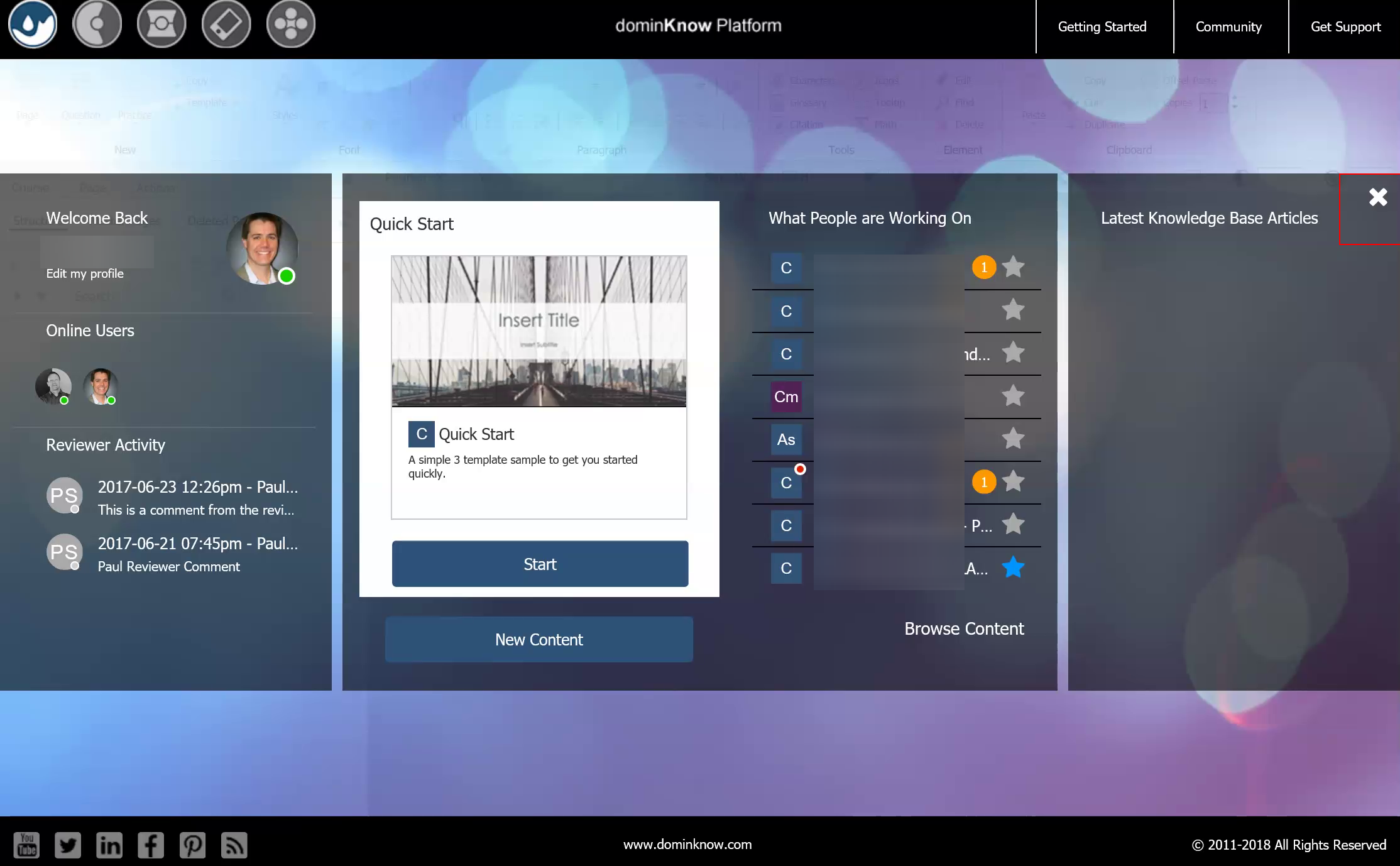
After logging in, click on X on the Splash page to close the Splash page.

Step 2


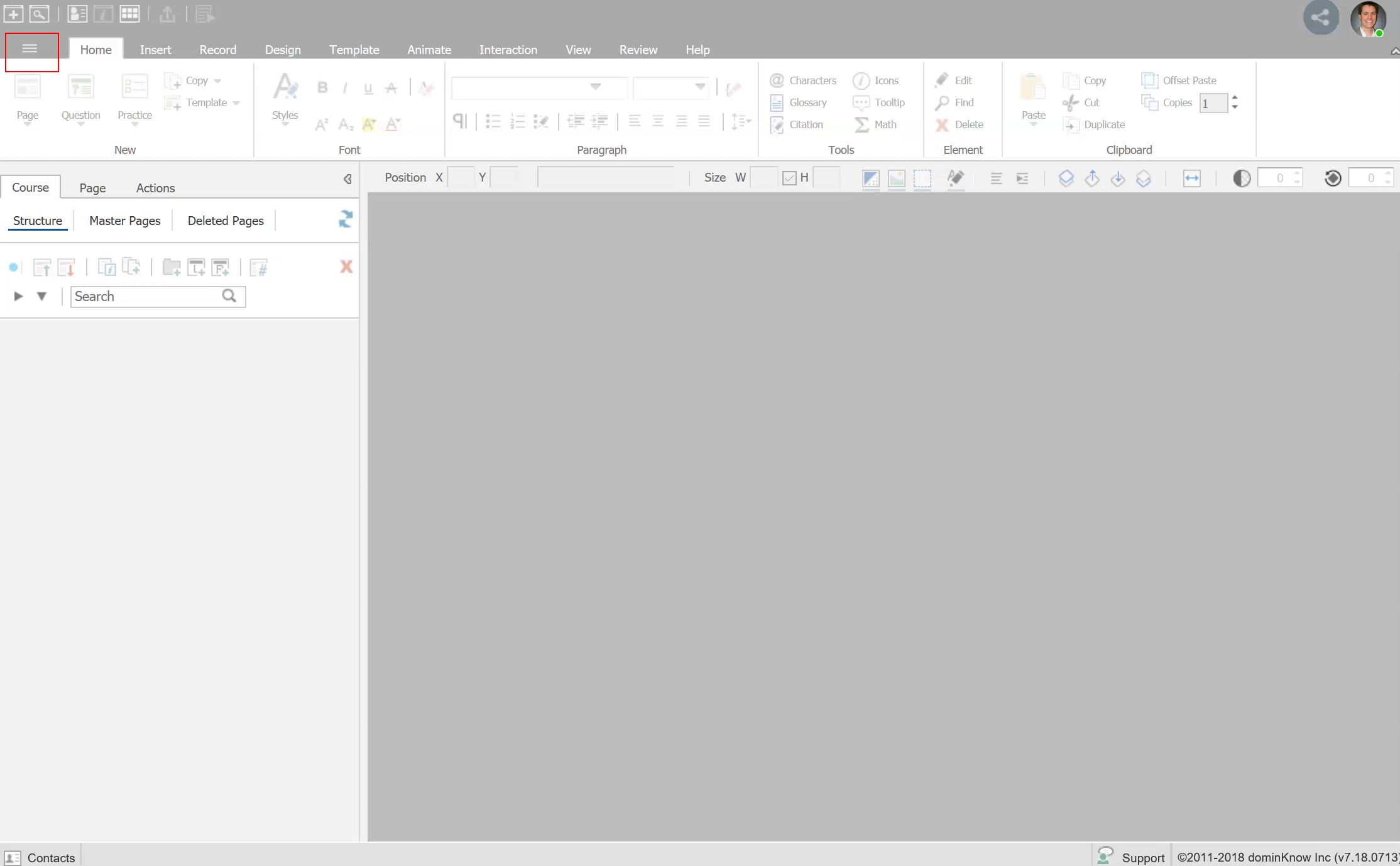
Click on the Application Menu.

Step 3


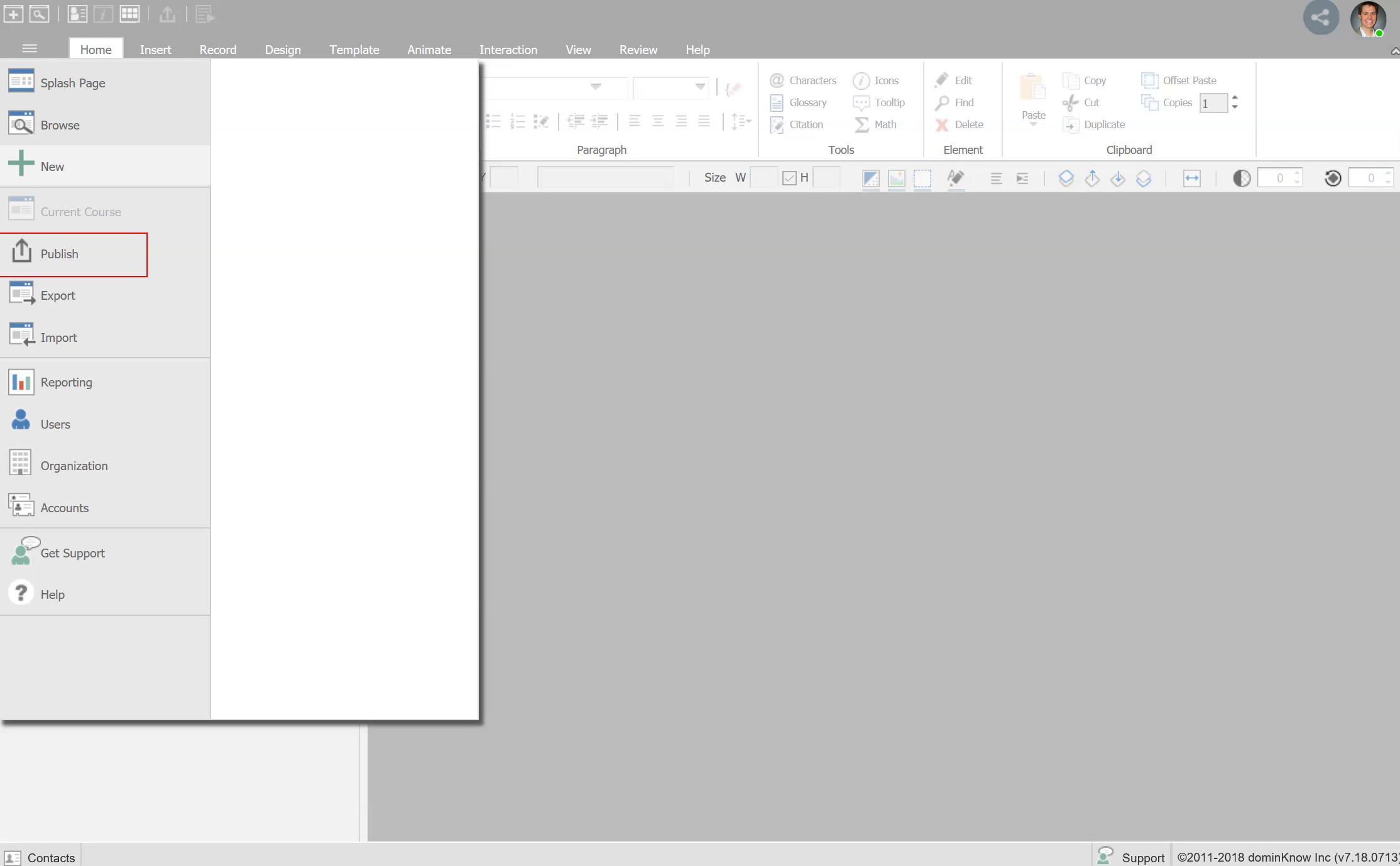
Click on Publish

Step 4


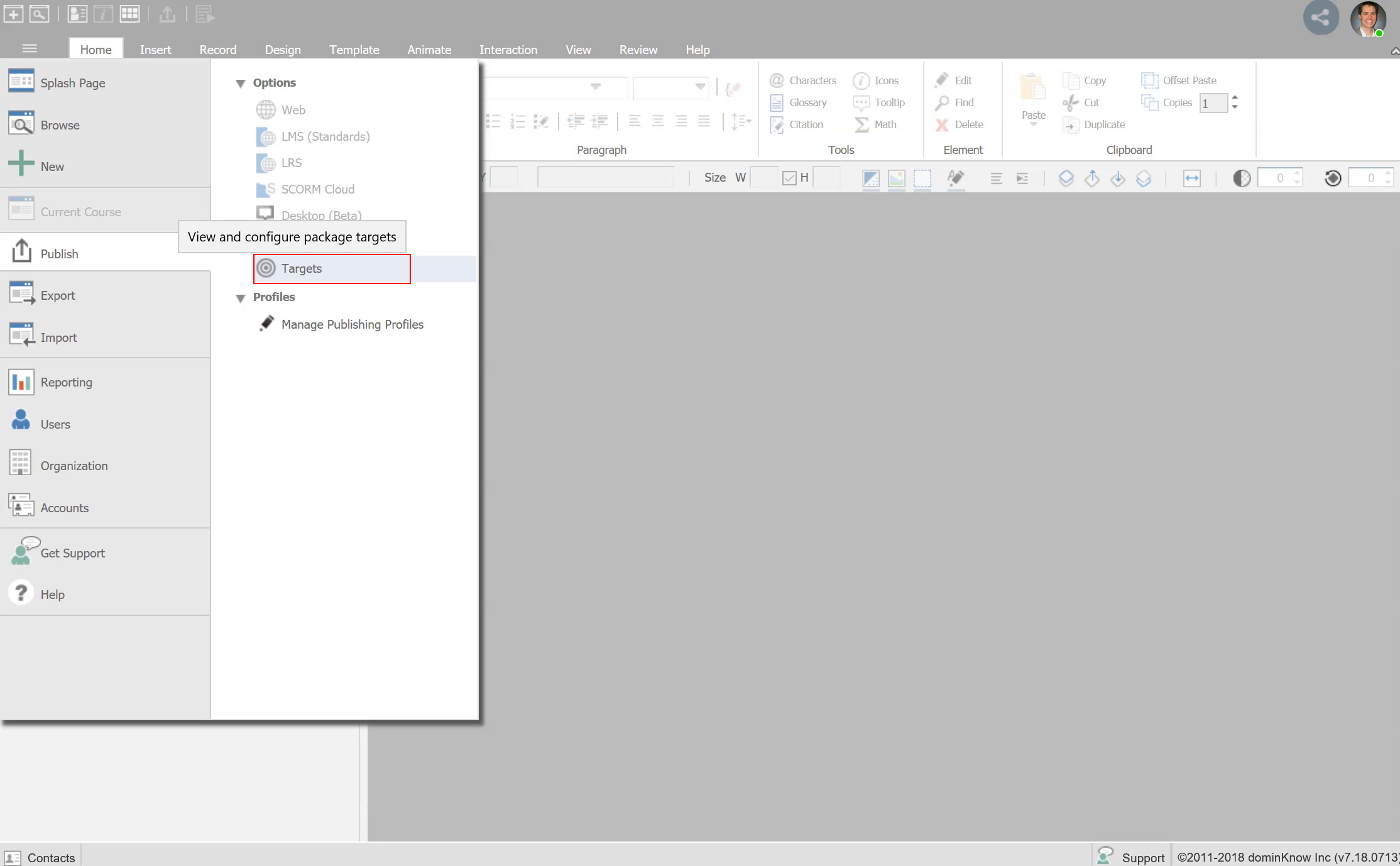
Click on Targets

Step 5


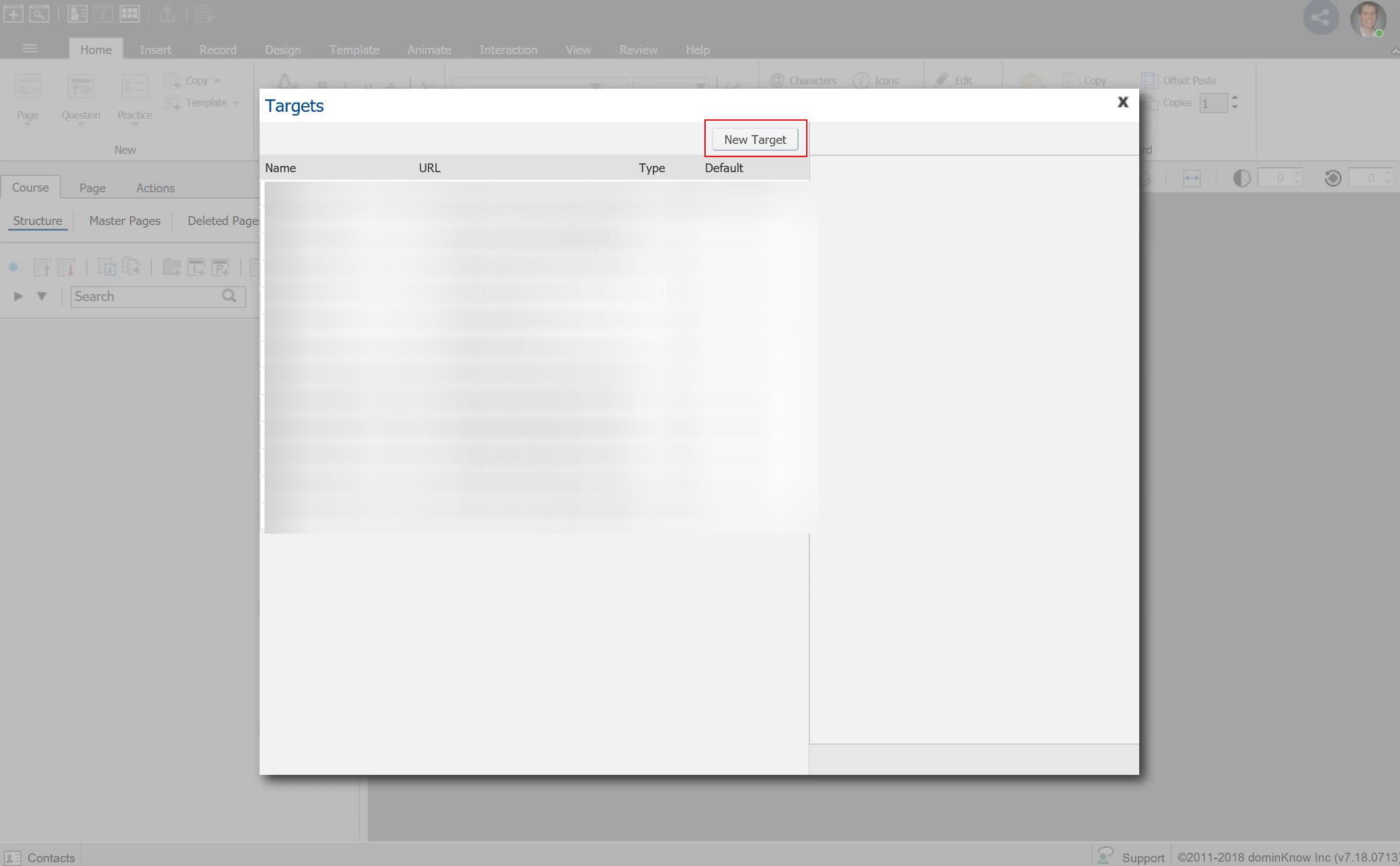
Click on New Target

Step 6


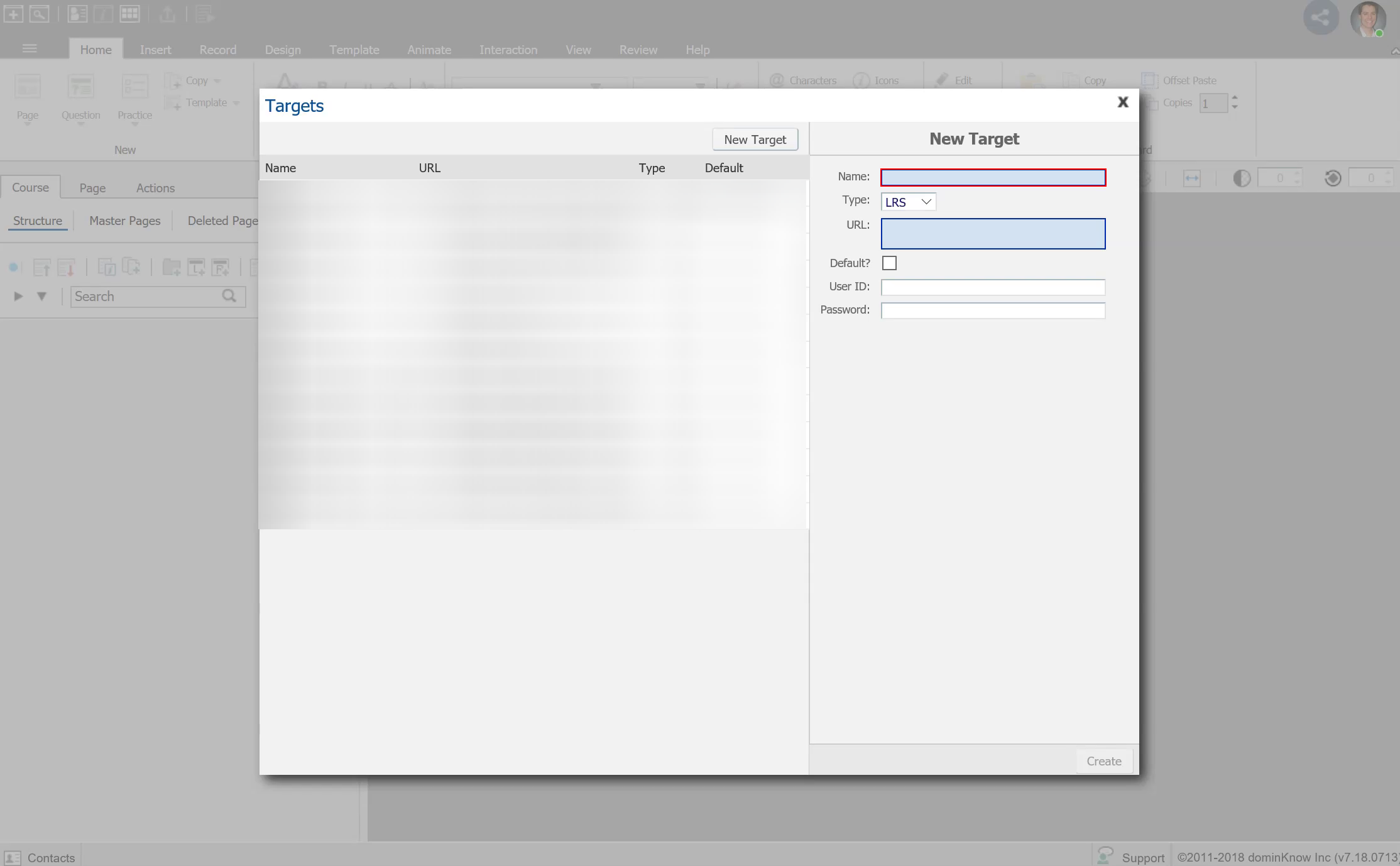
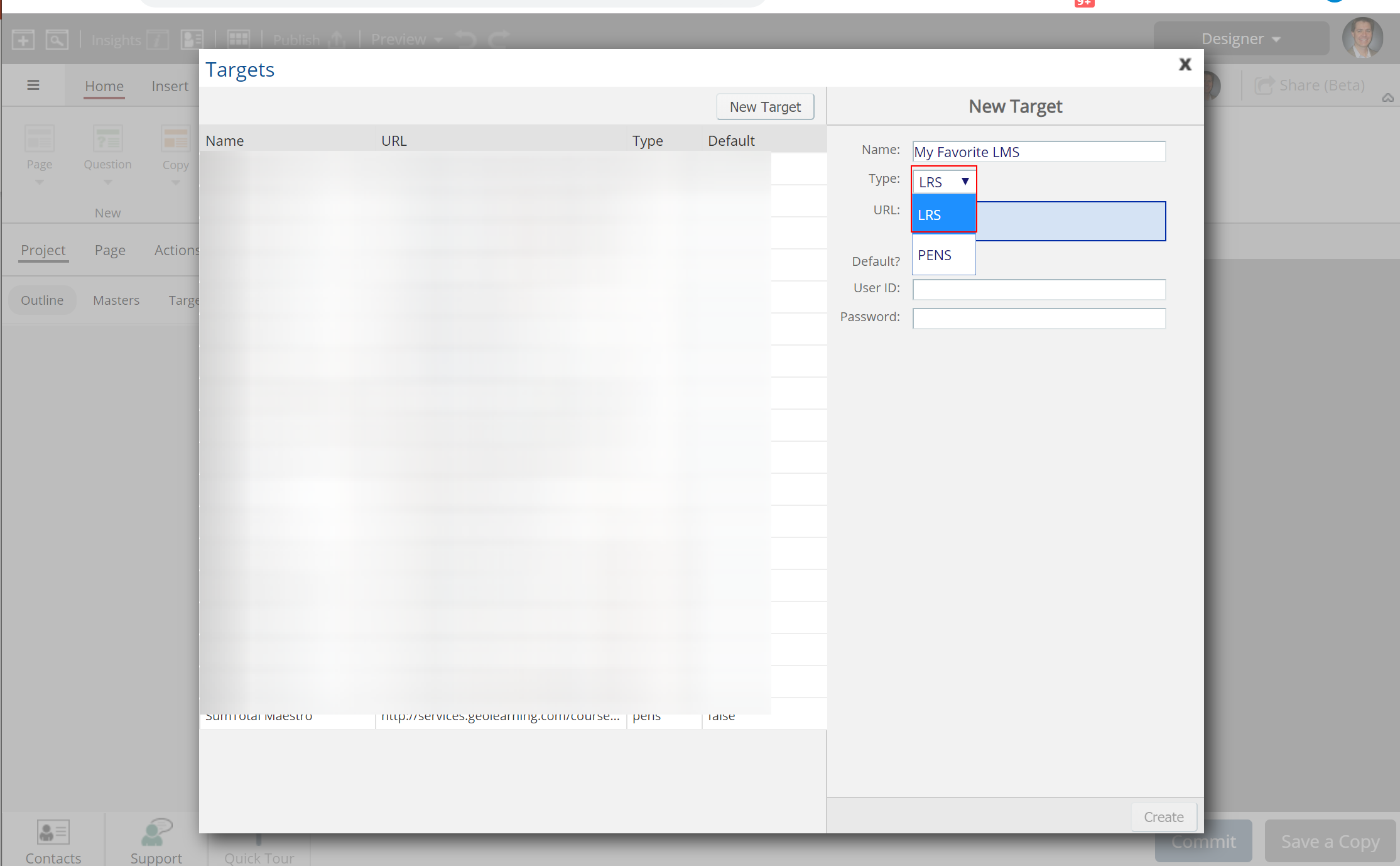
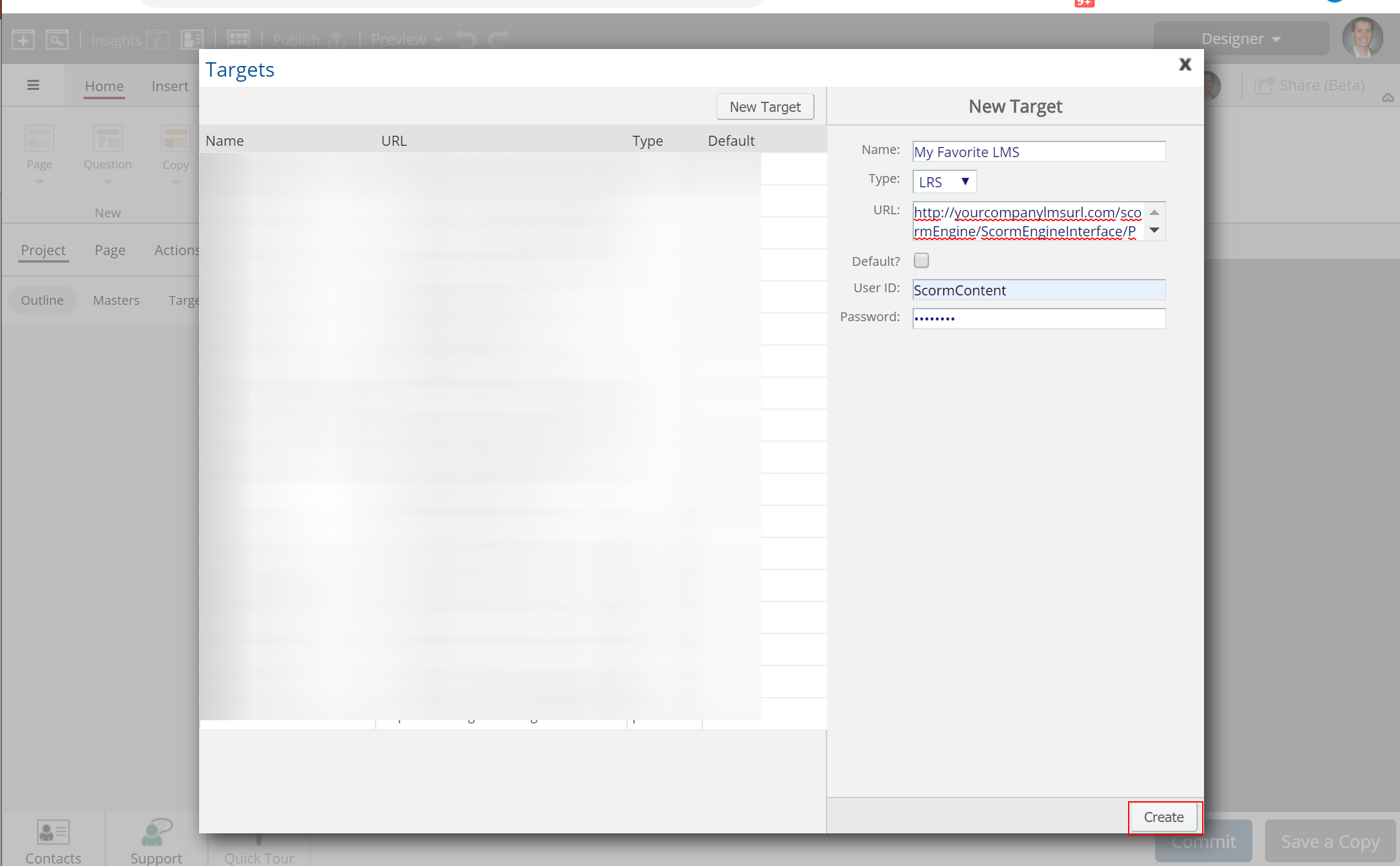
Click on Name and enter the desired name of your PENS target. This is the name that will appear in your drop down.
Step 7


For Type, select PENS from the drop down menu

Step 8


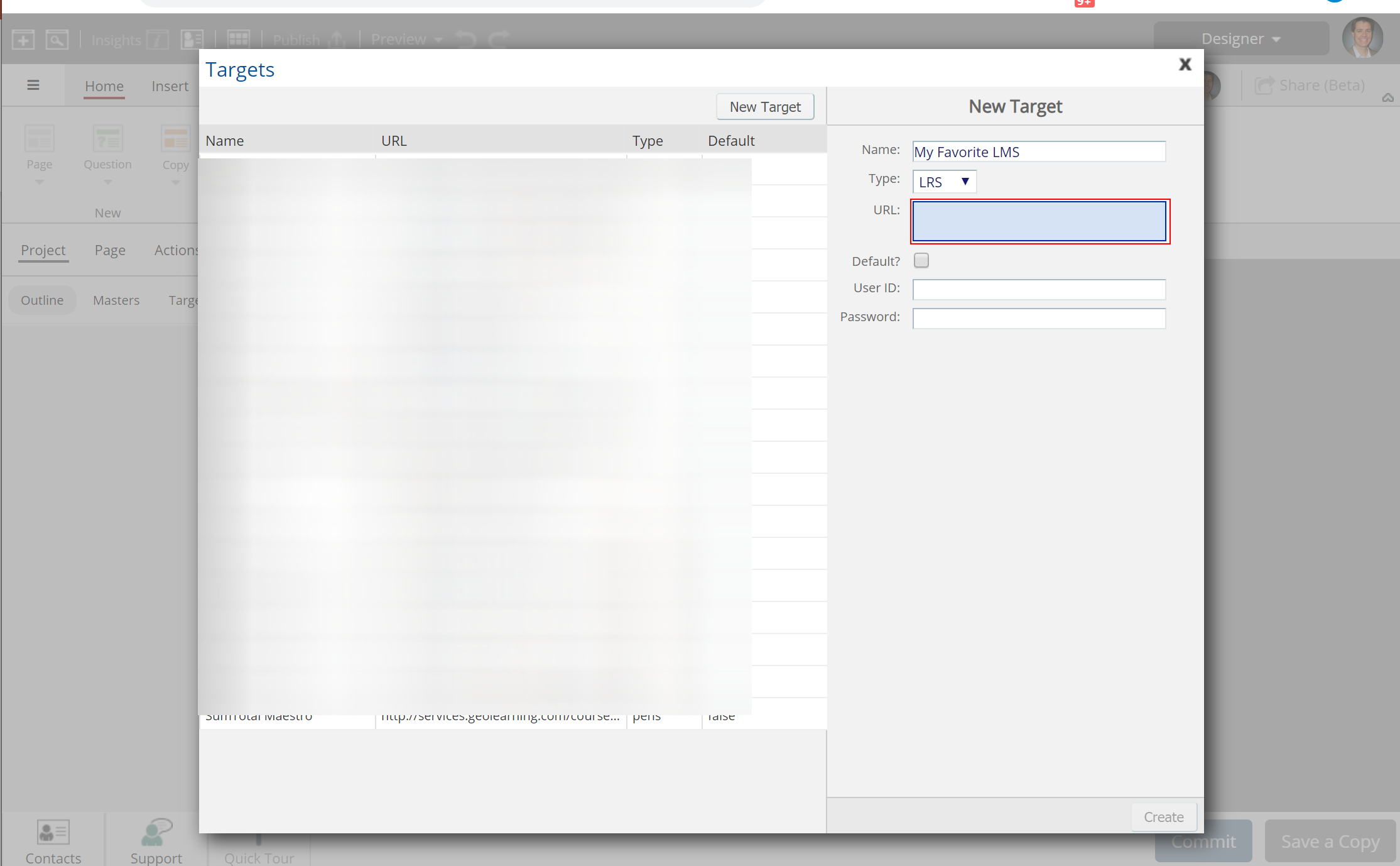
Click on URL and enter your PENS end point - For example http://yourcompanylmsurl.com/scormEngine/ScormEngineInterface/PENS.aspx. If unsure check with your LMS provider
Step 9


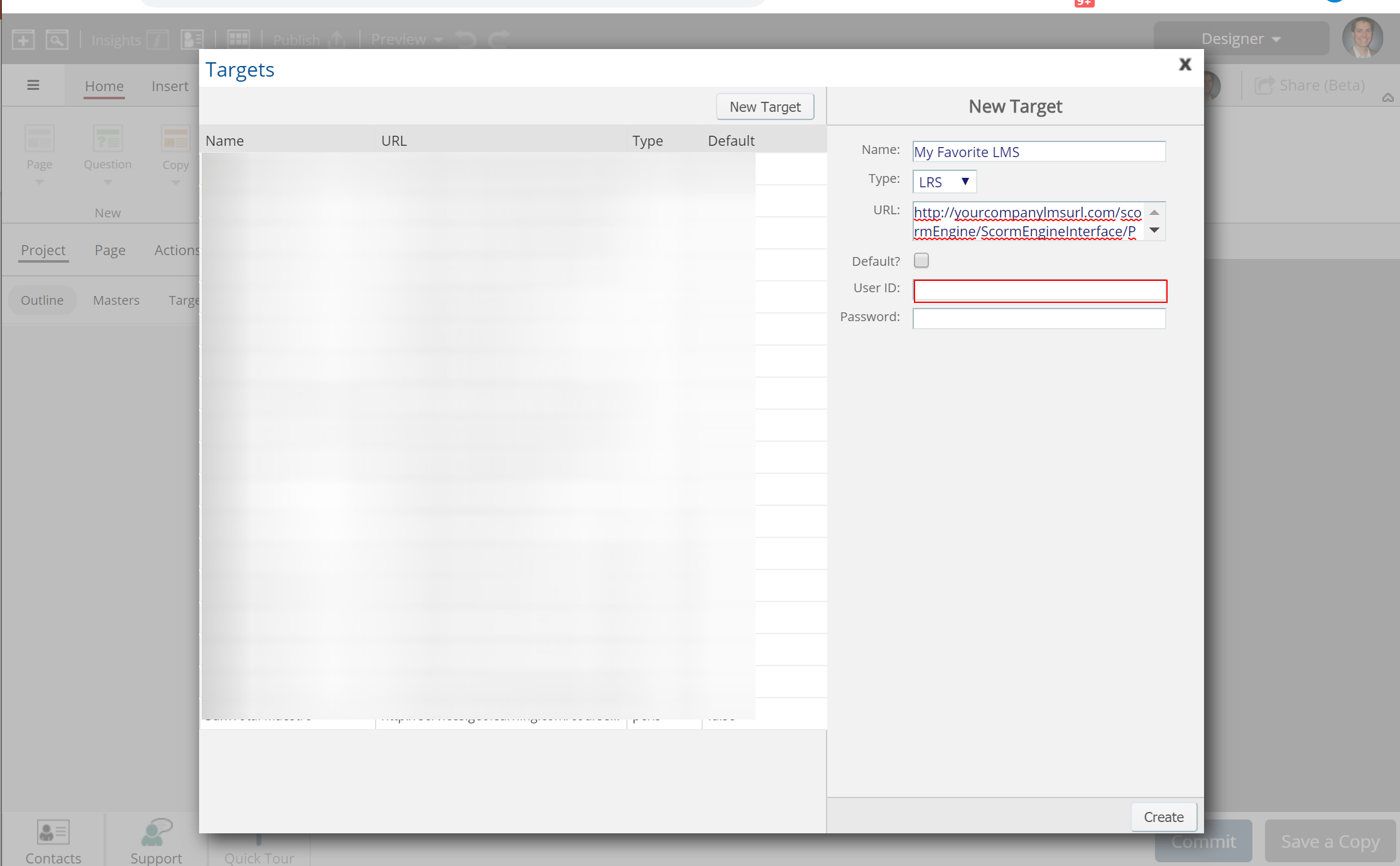
Click on User ID: Enter the correct ID to send data to the LMS and then enter the corresponding password.
Step 10


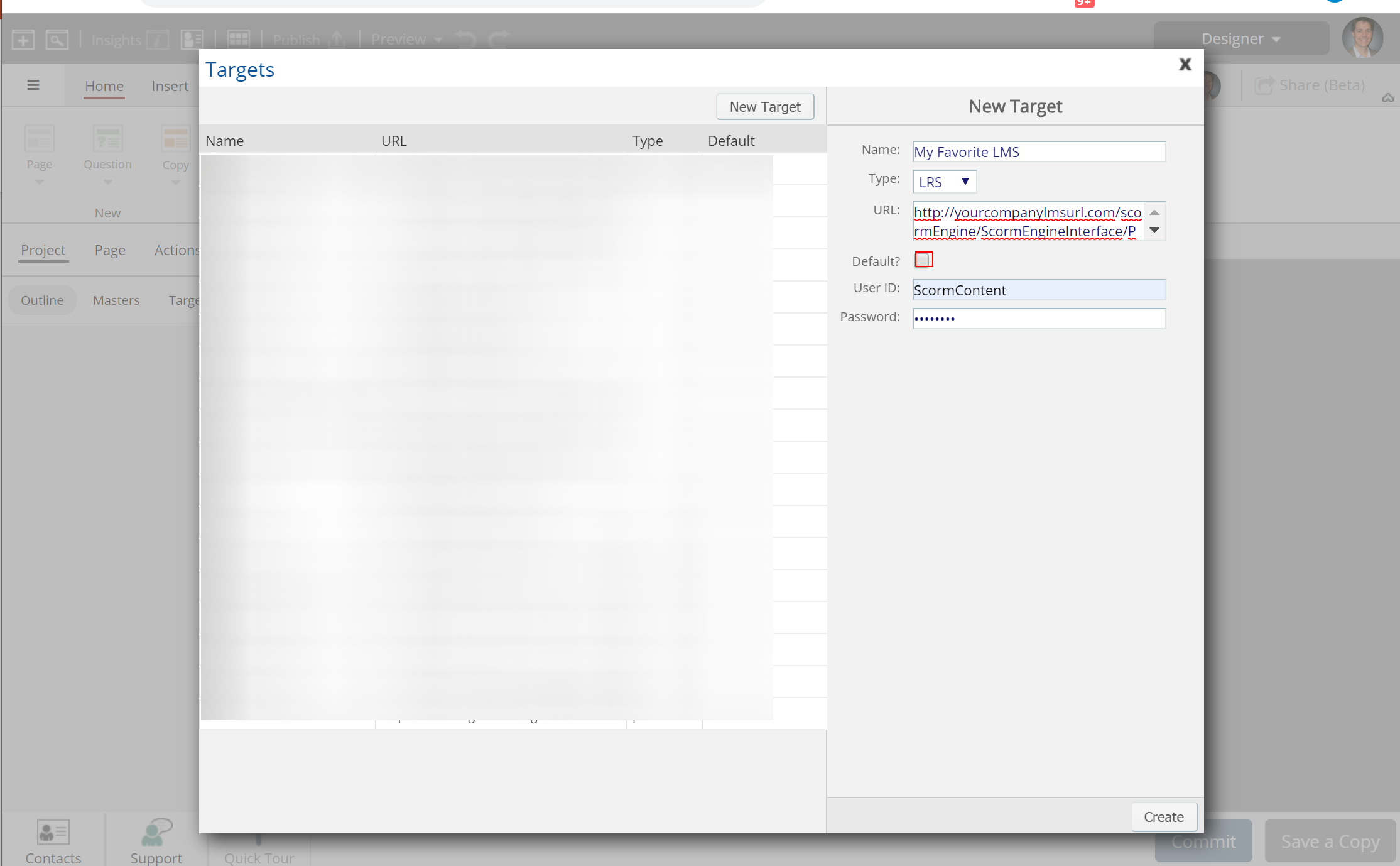
Select check box: Default if you wish this to be the default choice when publishing.

Step 11


Press button: Create to save the PENS target

Step 12


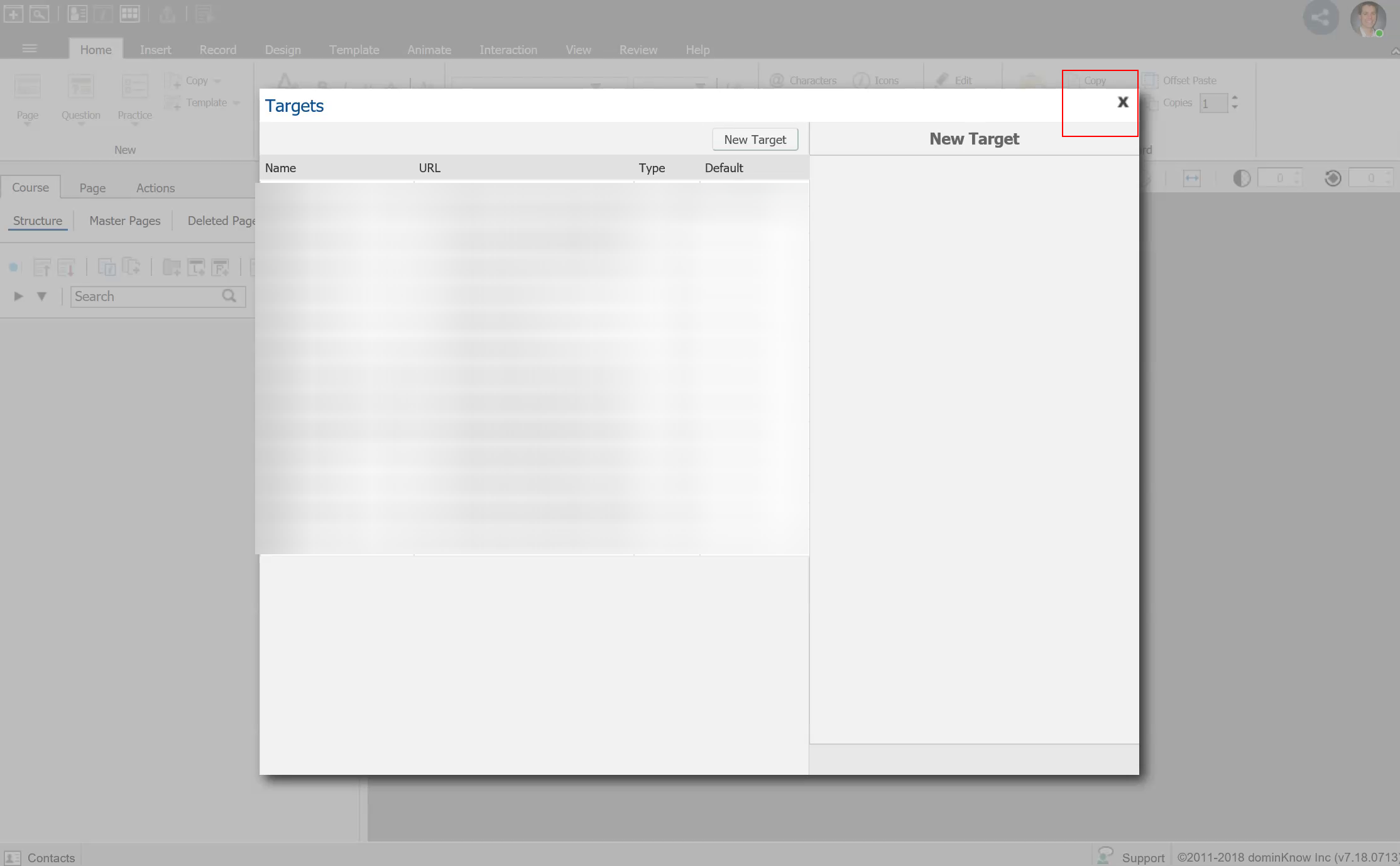
Click on X to close the Targets setup screen

Step 13


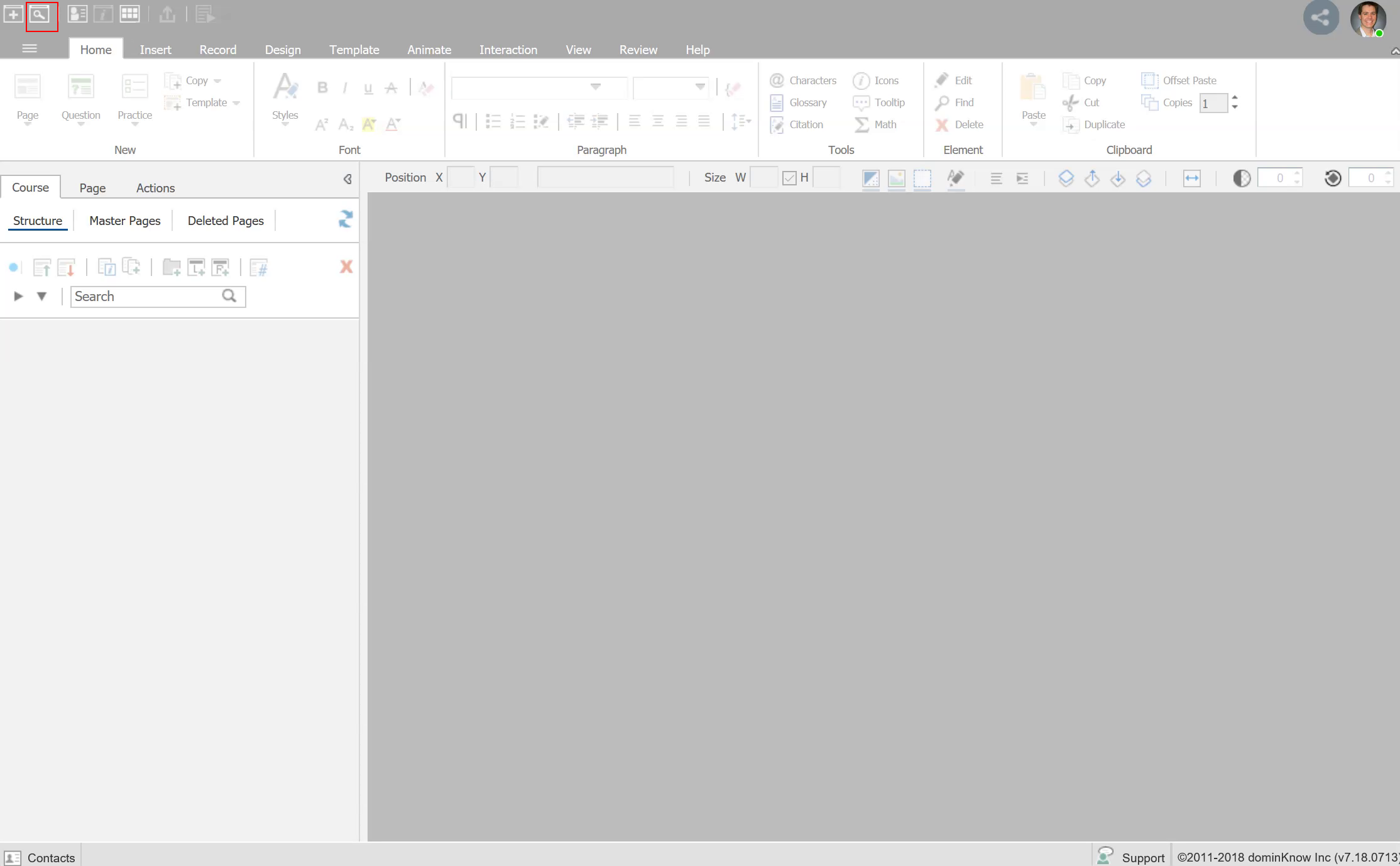
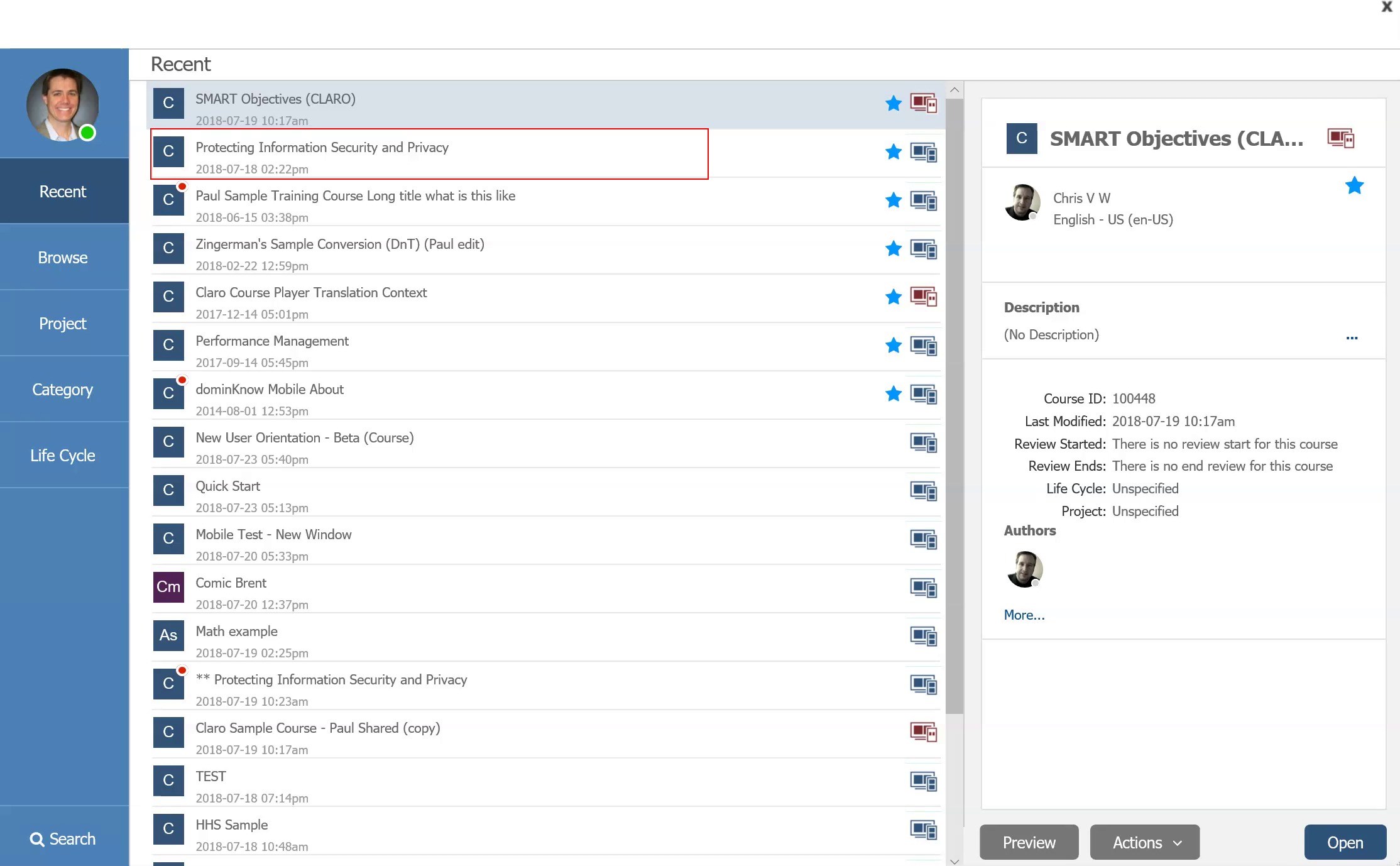
Click on Browse to locate the course you wish to publish

Step 14


Double click to open the course

Step 15


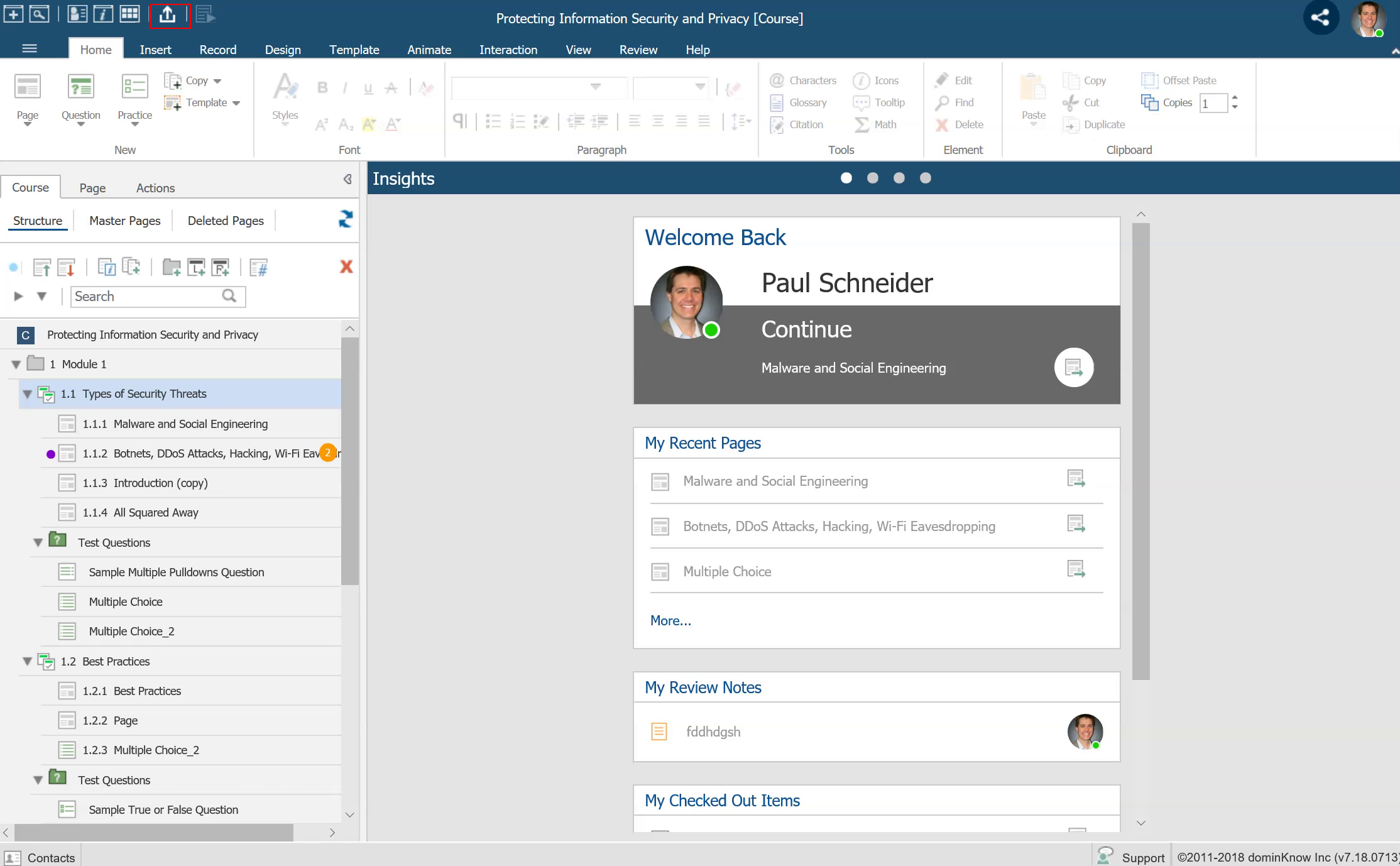
Click on the Publish quick link

Step 16


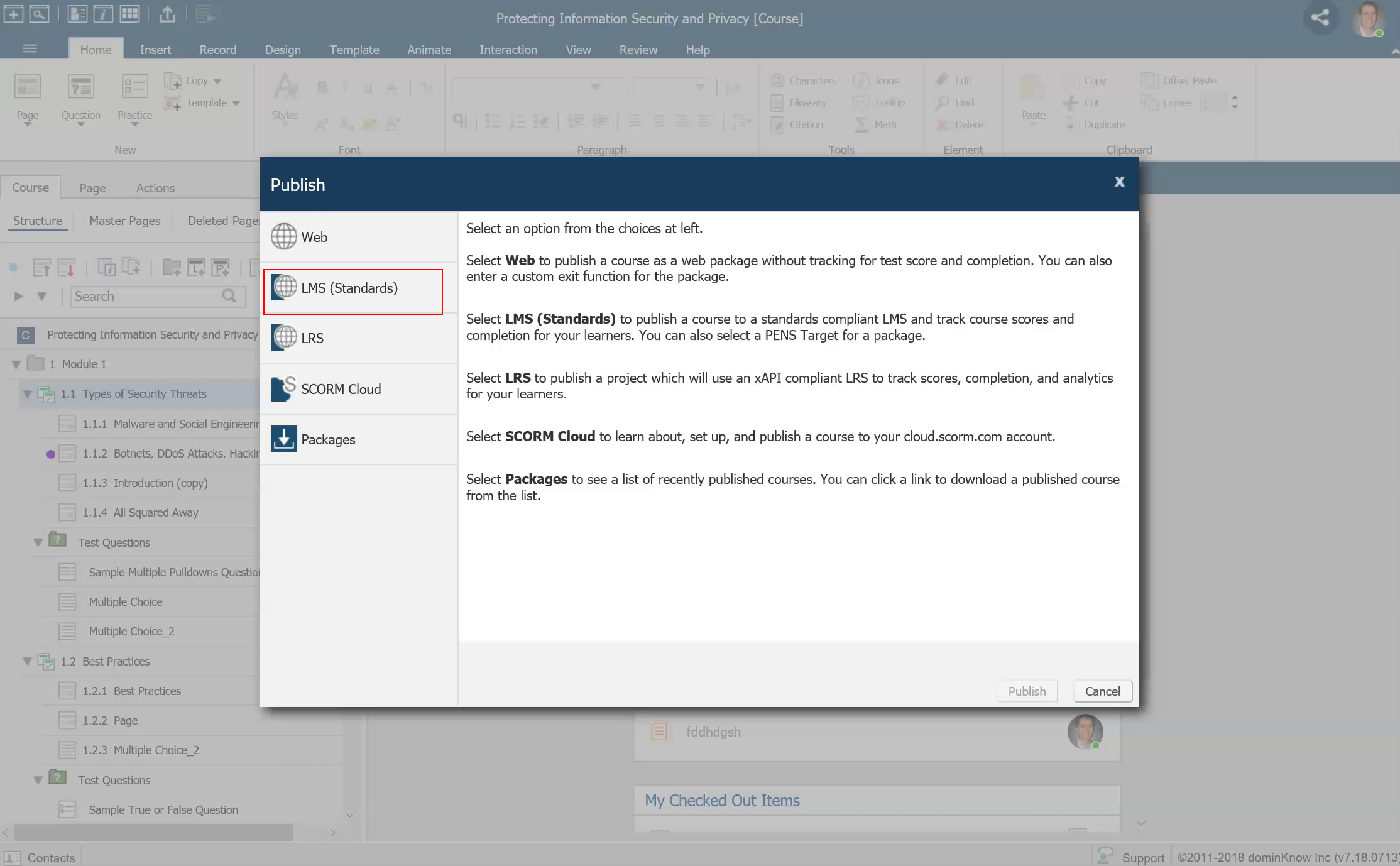
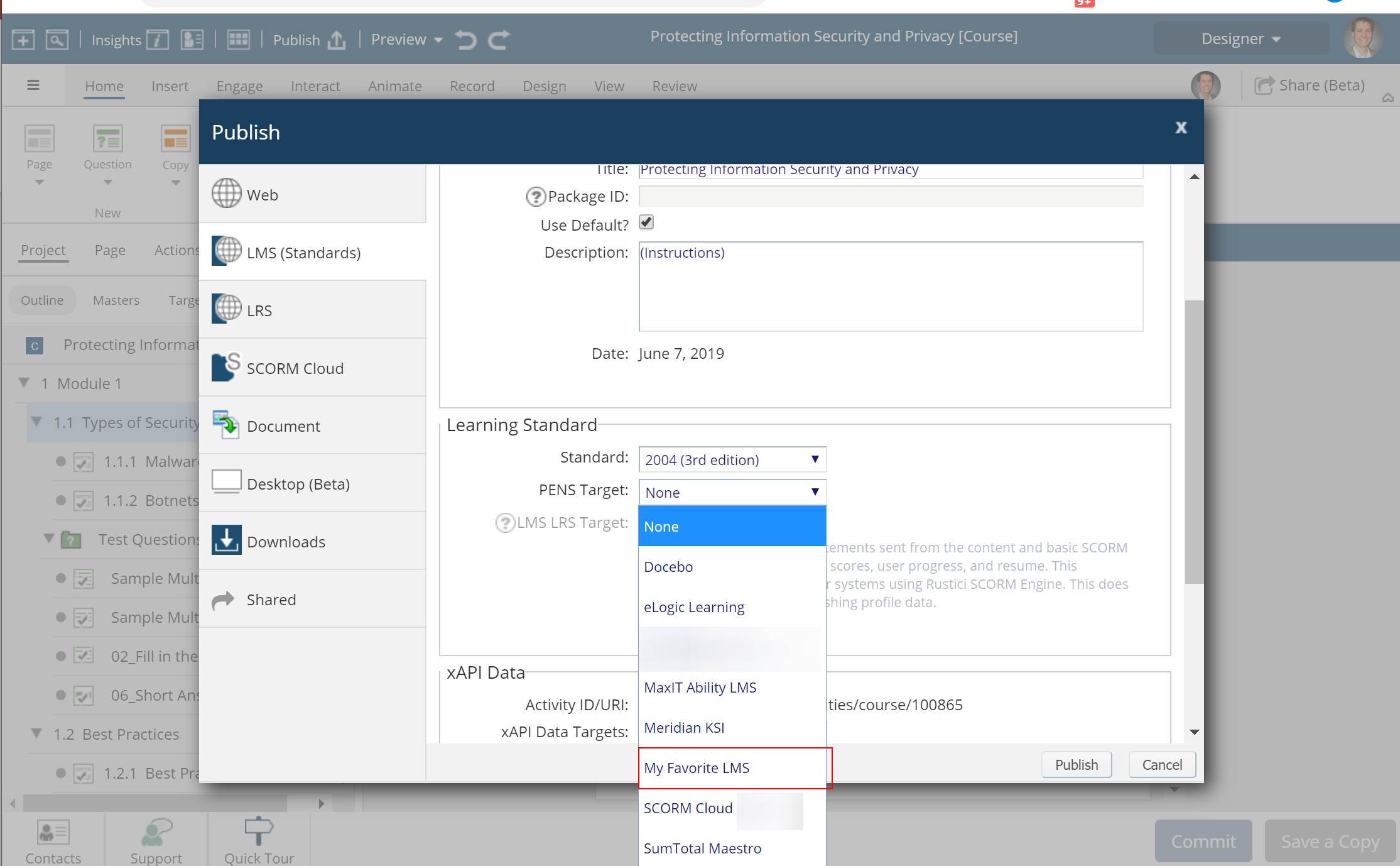
Click on LMS (Standards)

Step 17


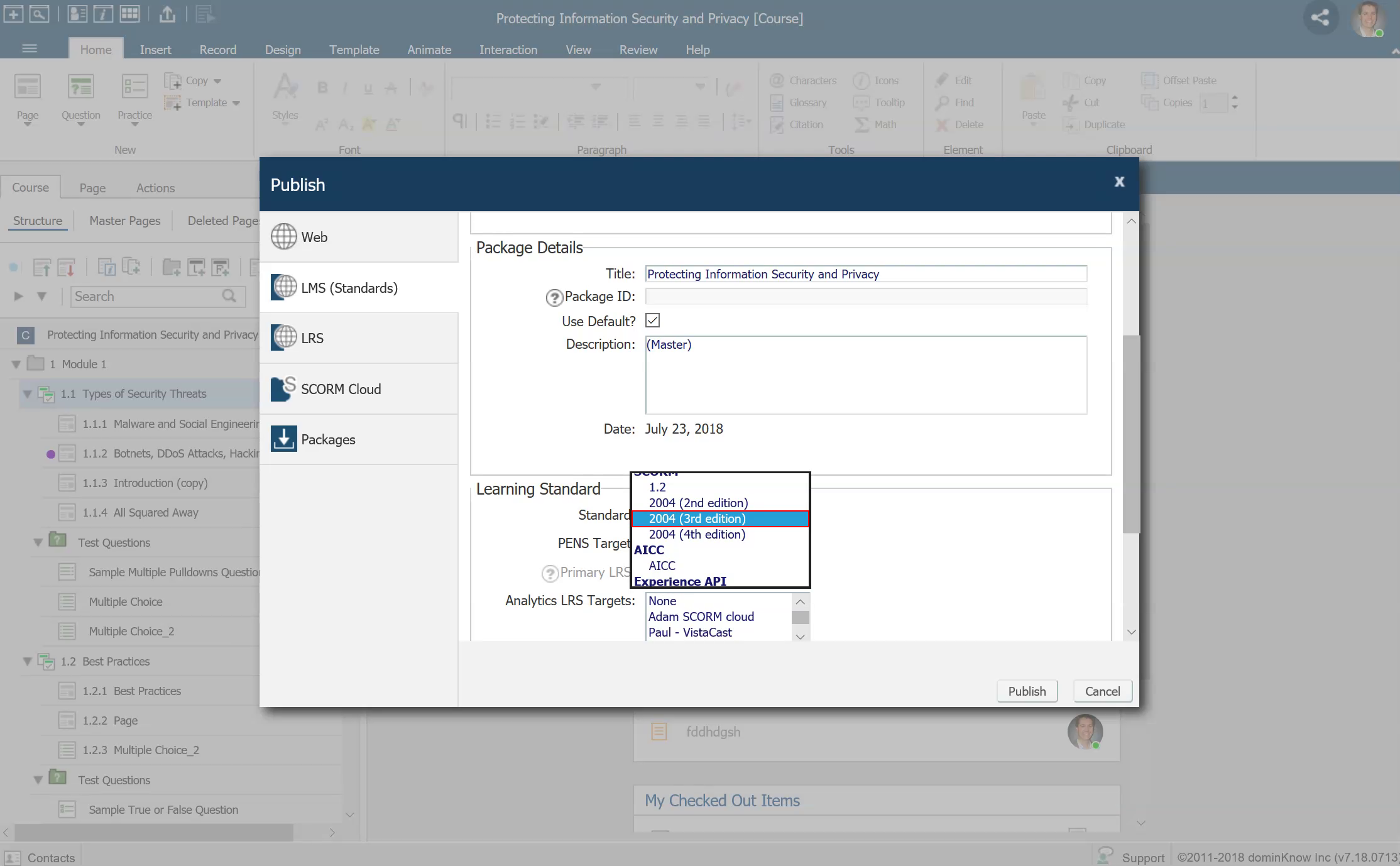
Click on 2004 (3rd edition)

Step 18


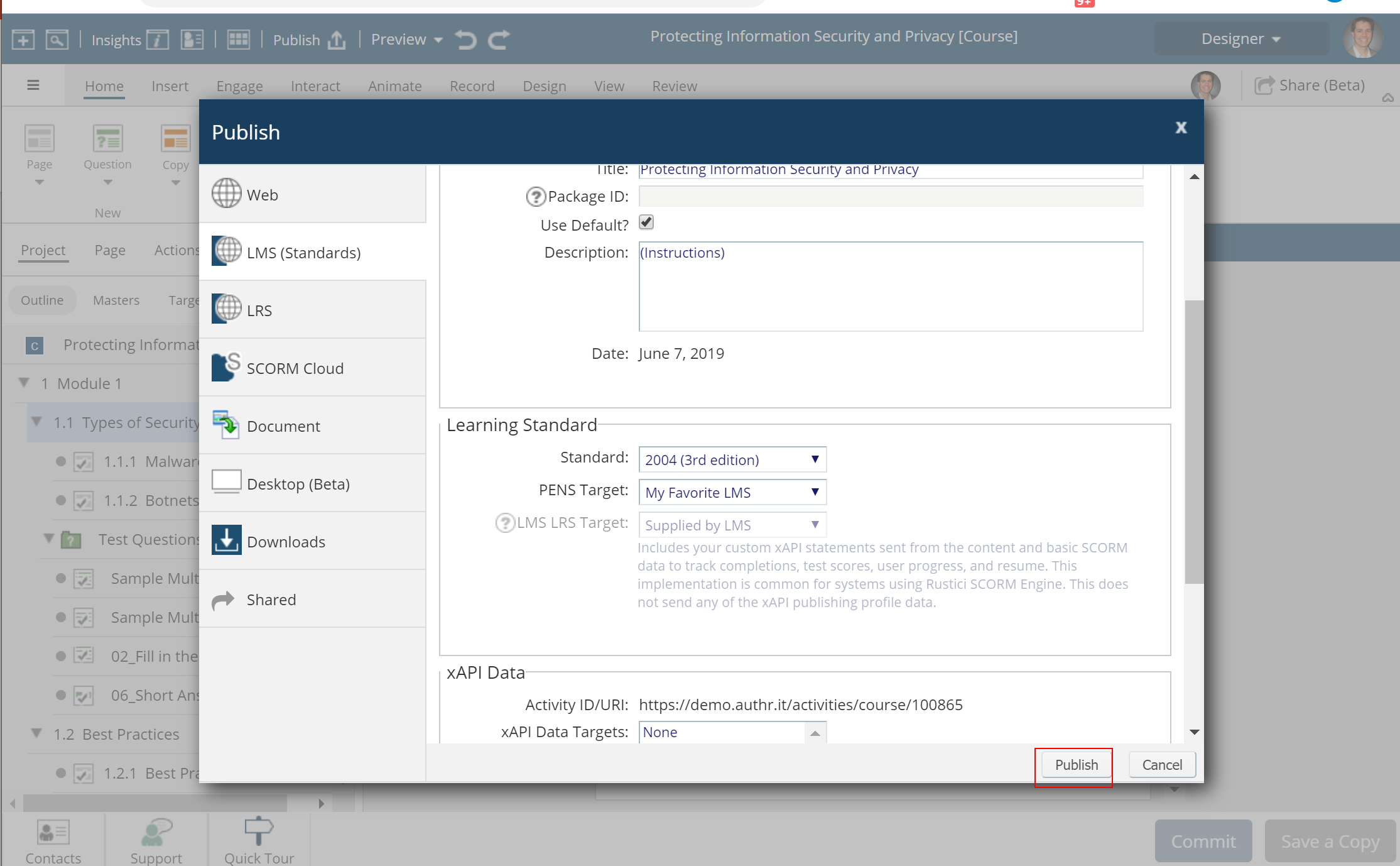
Click on My Favorite LMS (the PENS name you selected)

Step 19


Click on Publish and the course will be sent over to the LMS
  0     0

Similar Projects

Questions  ( 0 )