Edit a Reveal Component
Steps to edit a Reveal component.
You can add any content to the Reveal component, add multiple tabs, as well as control many display properties.

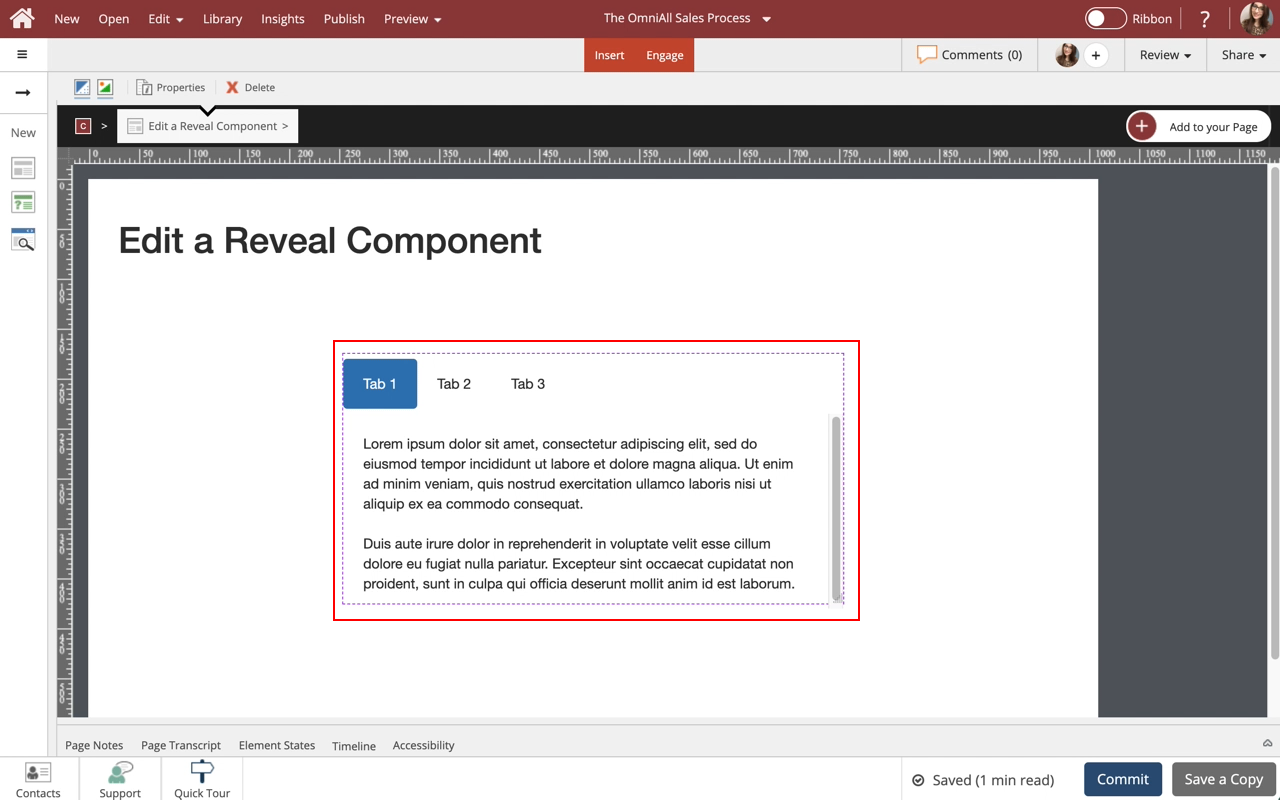
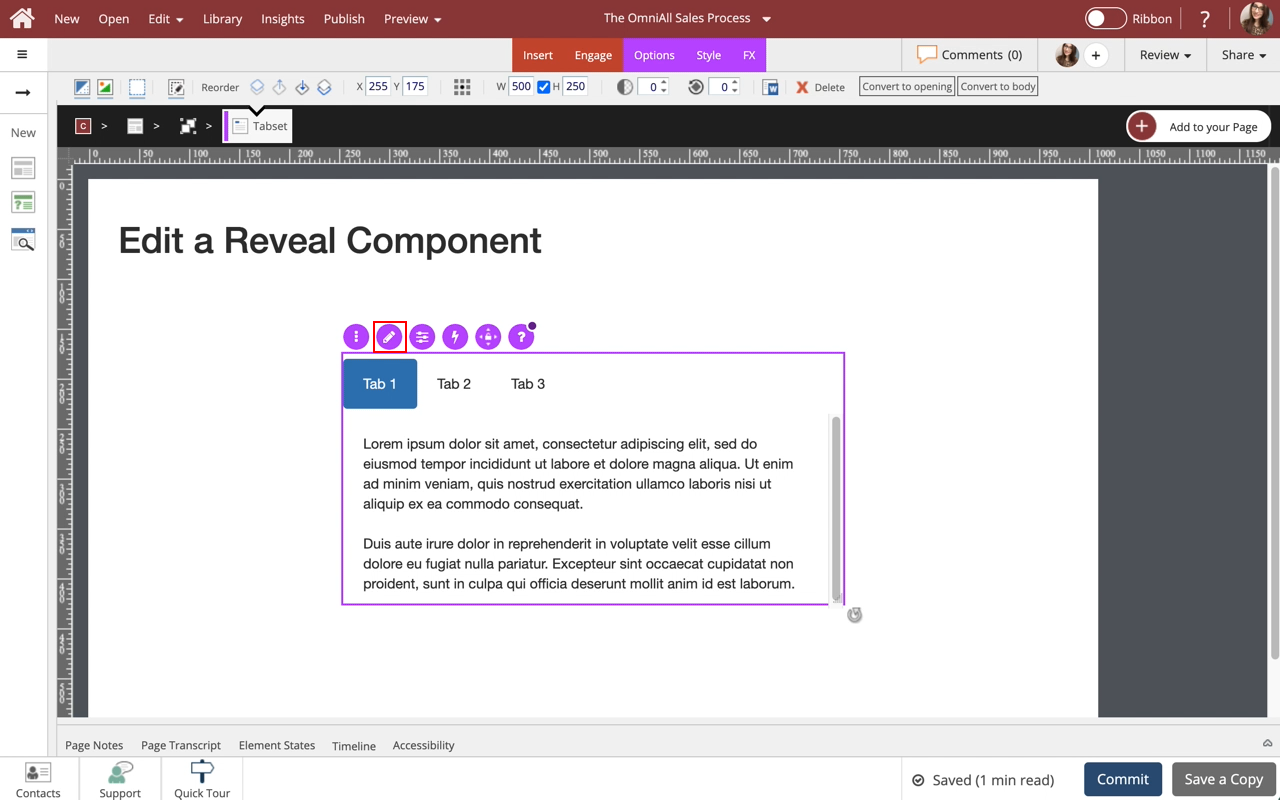
Step 2
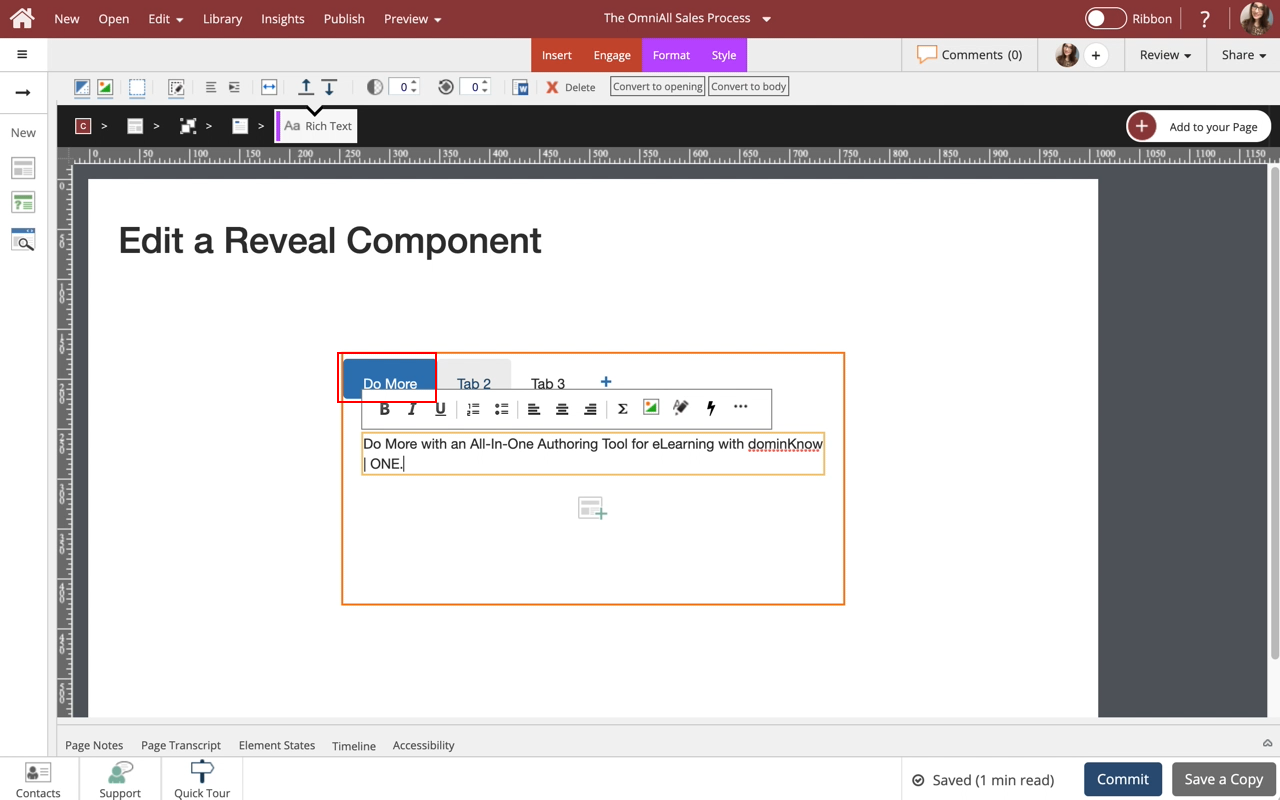
To edit the content within the Reveal, select the Edit Icon in the Inline Toolbar, or double-click the Reveal.
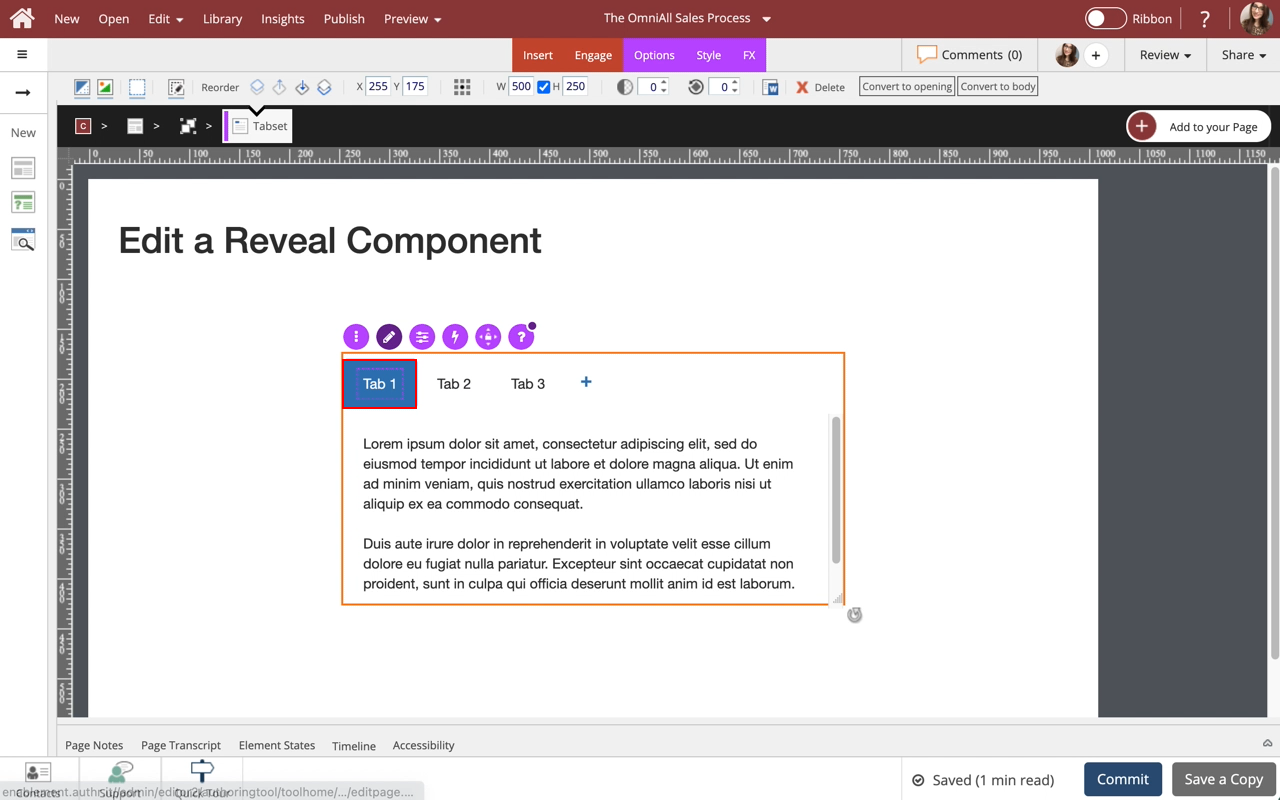
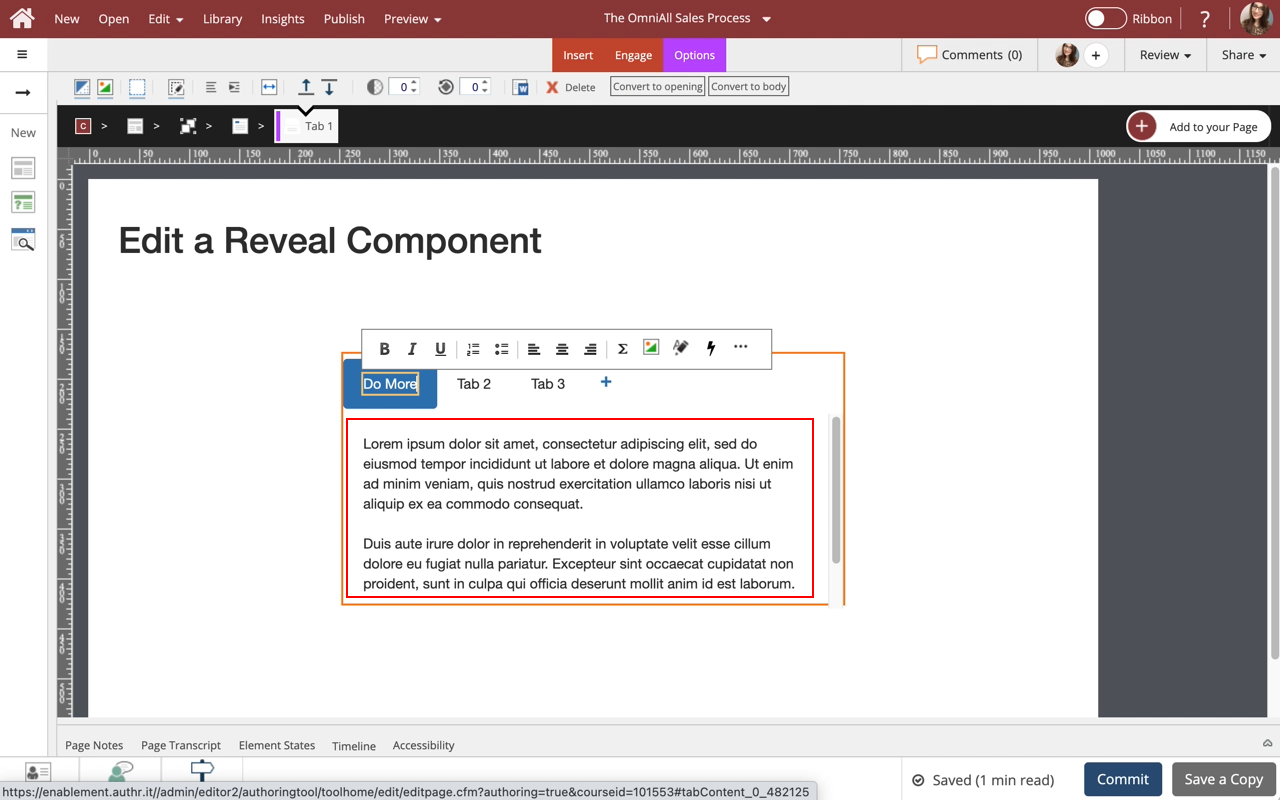
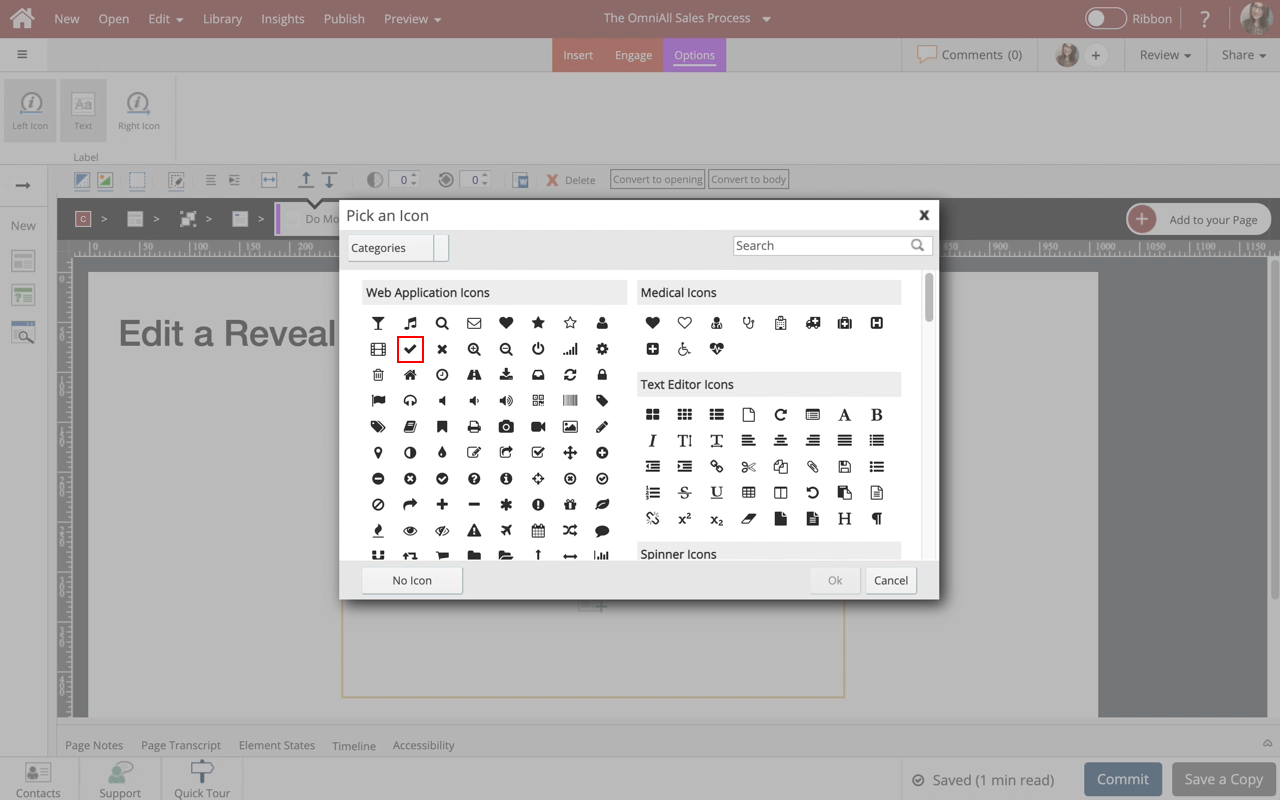
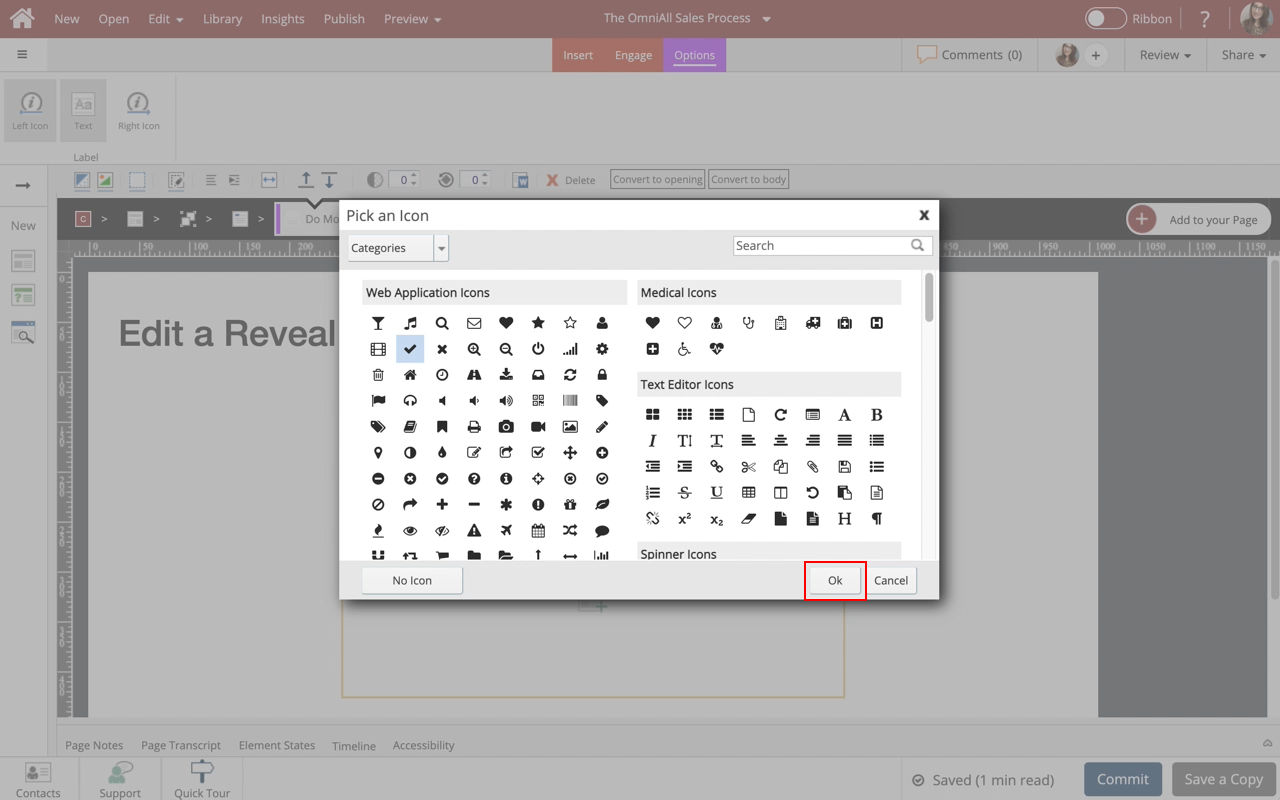
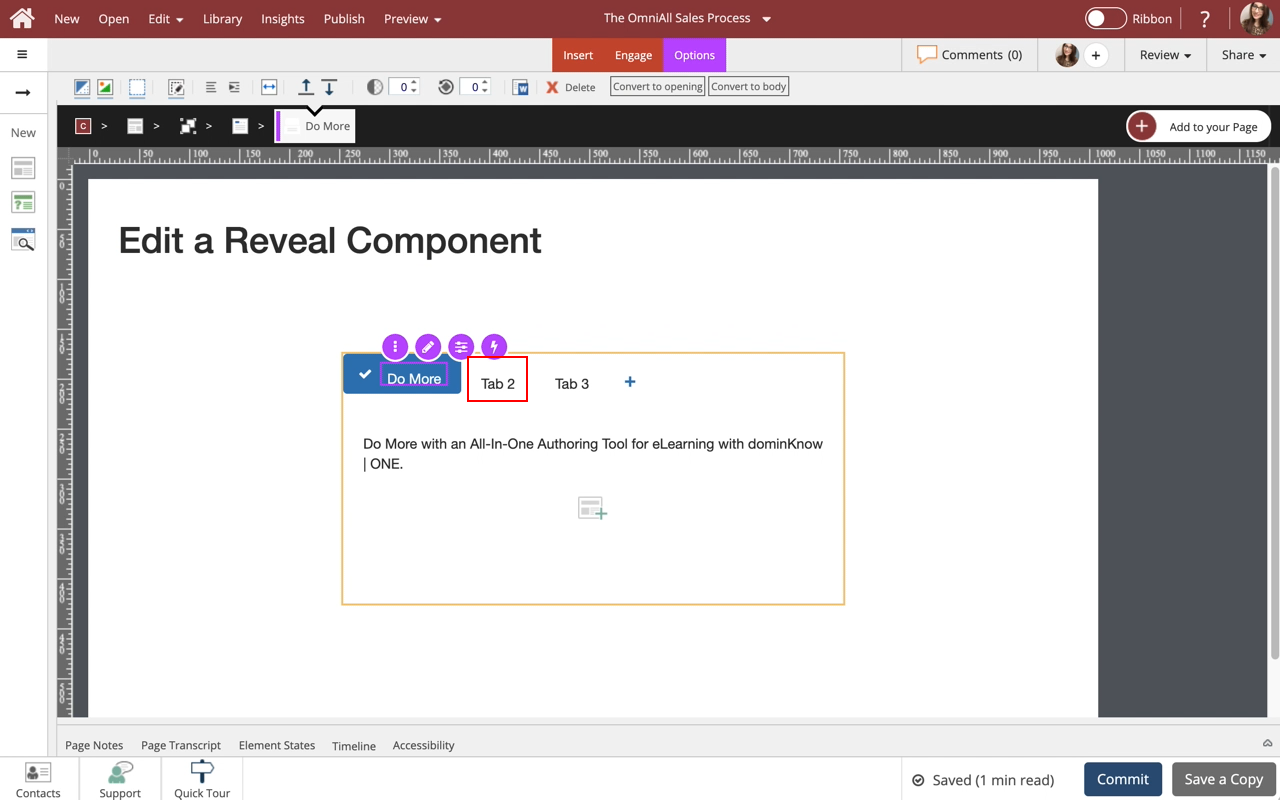
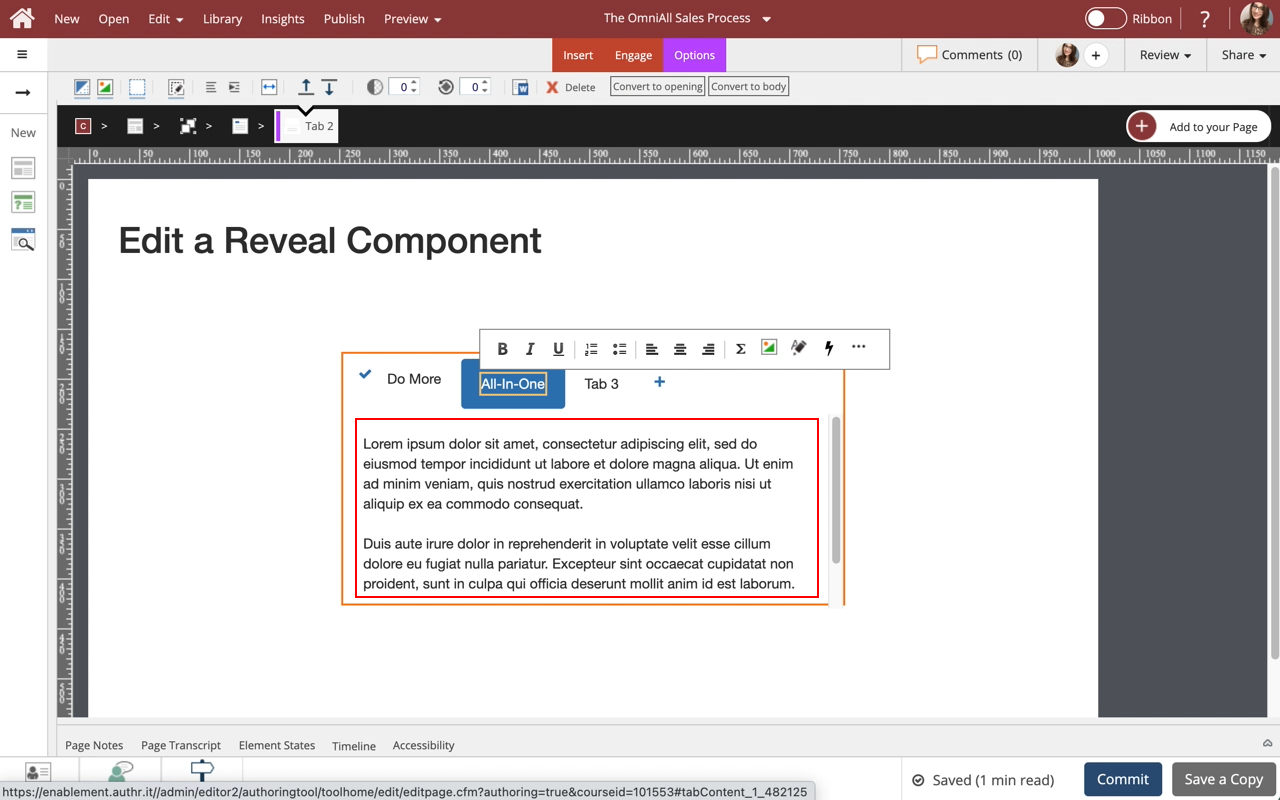
Step 12
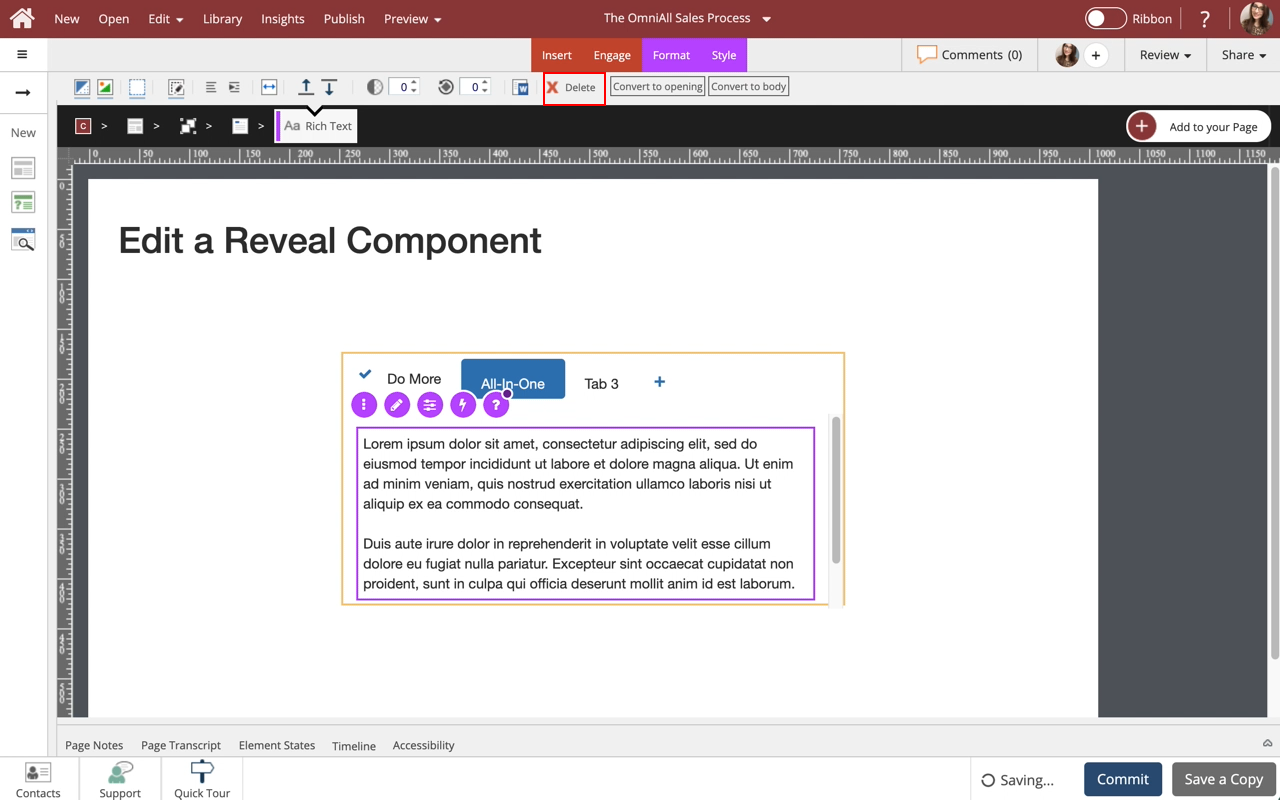
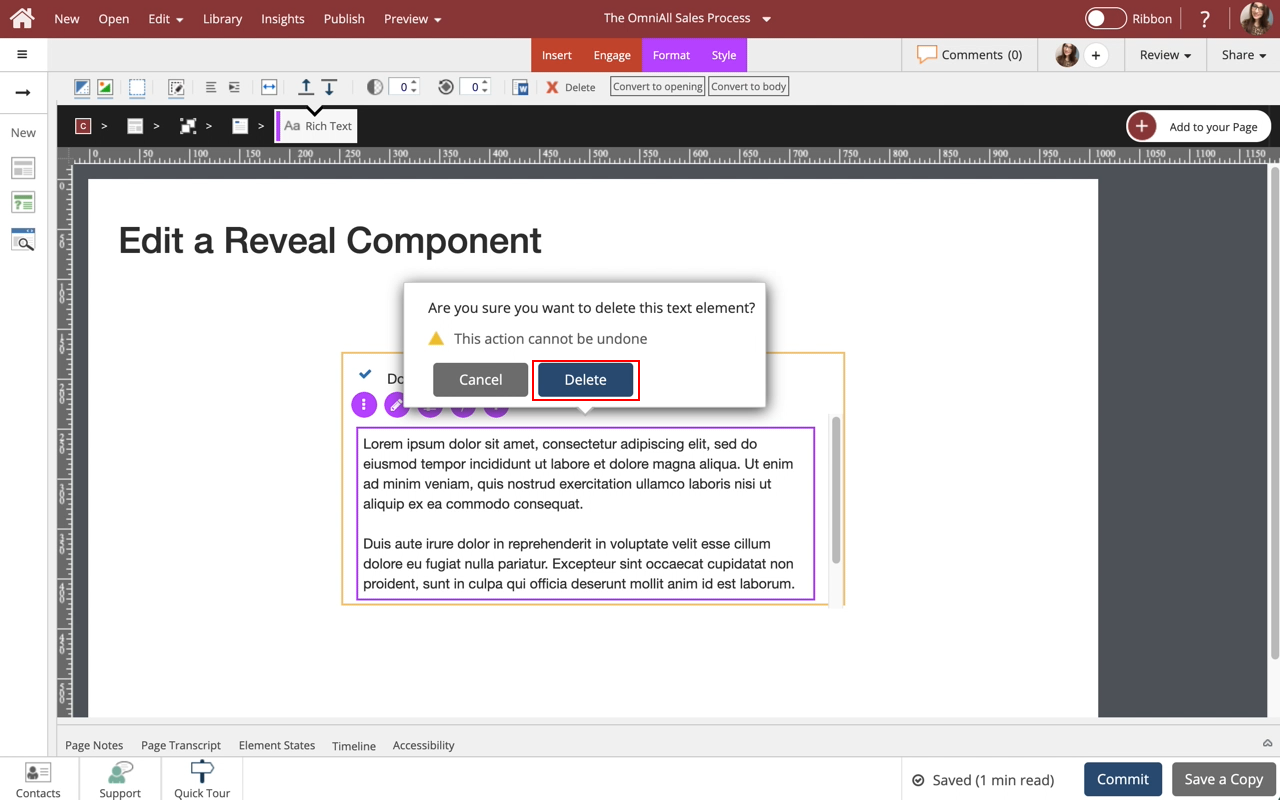
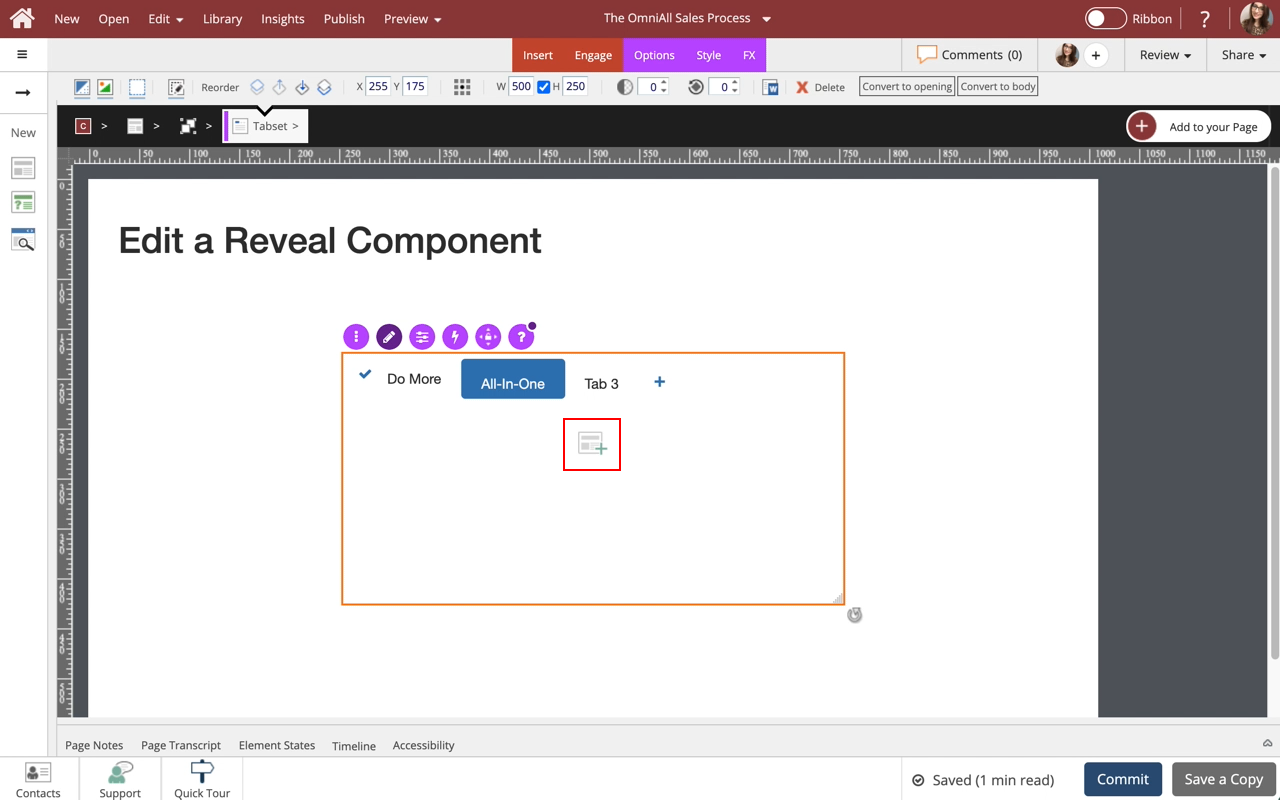
To delete a content layout within a tab, select the Text Placeholder within the All-In-One tab.
Step 16
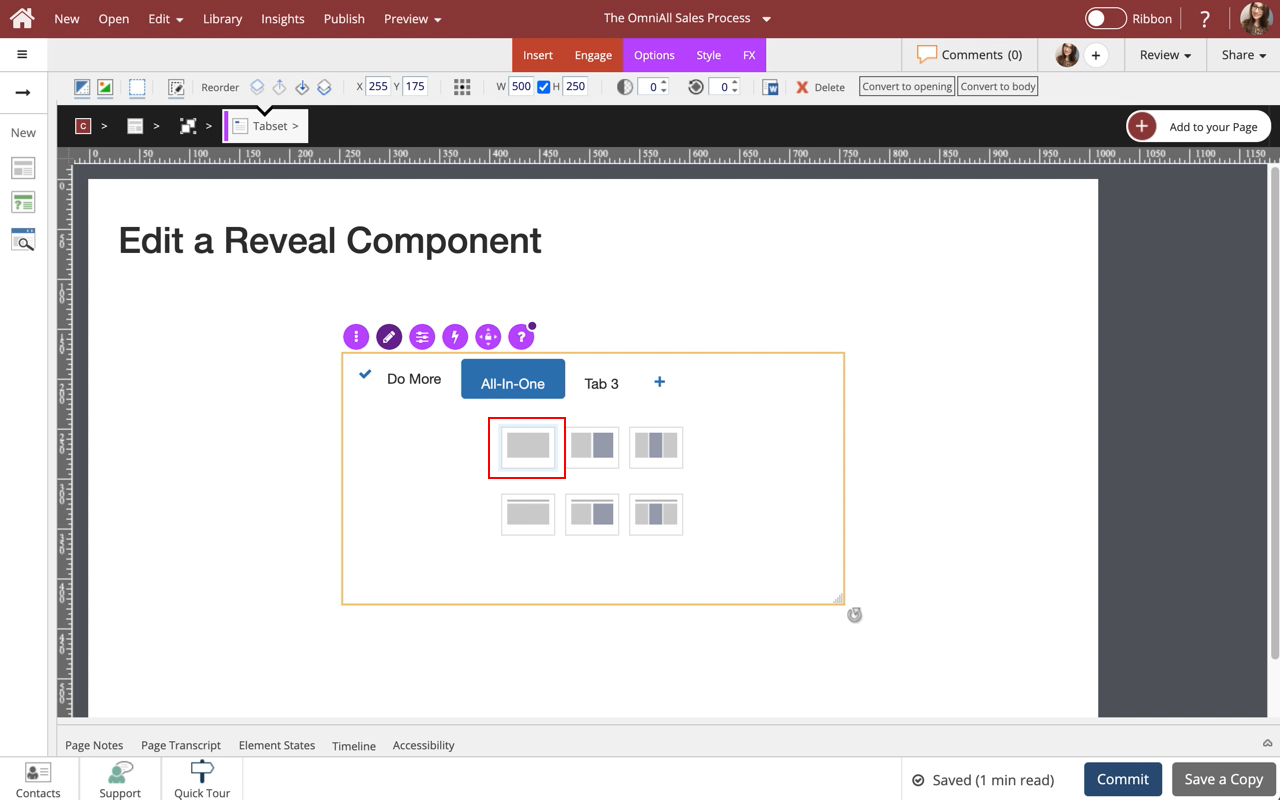
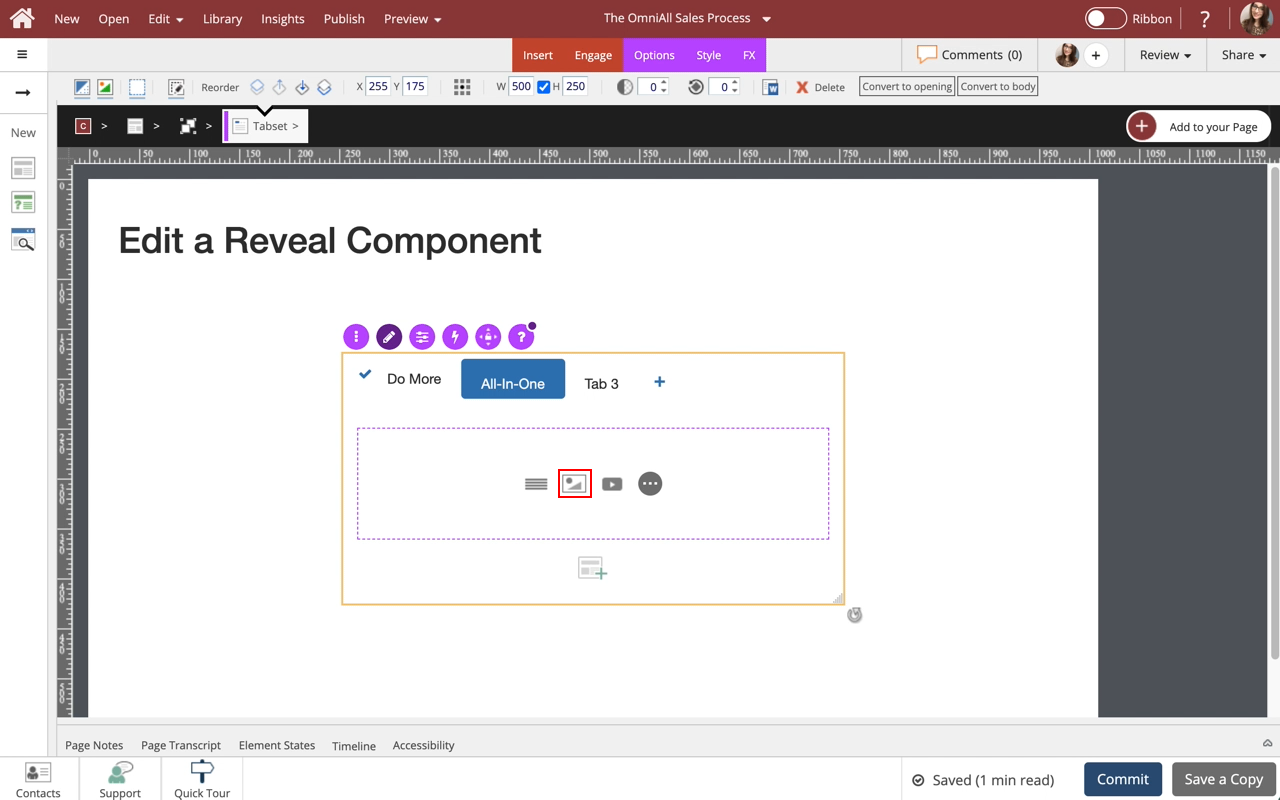
You can use the options to add specific content to this new layout.
Select the Single-Body Content option.
Step 20
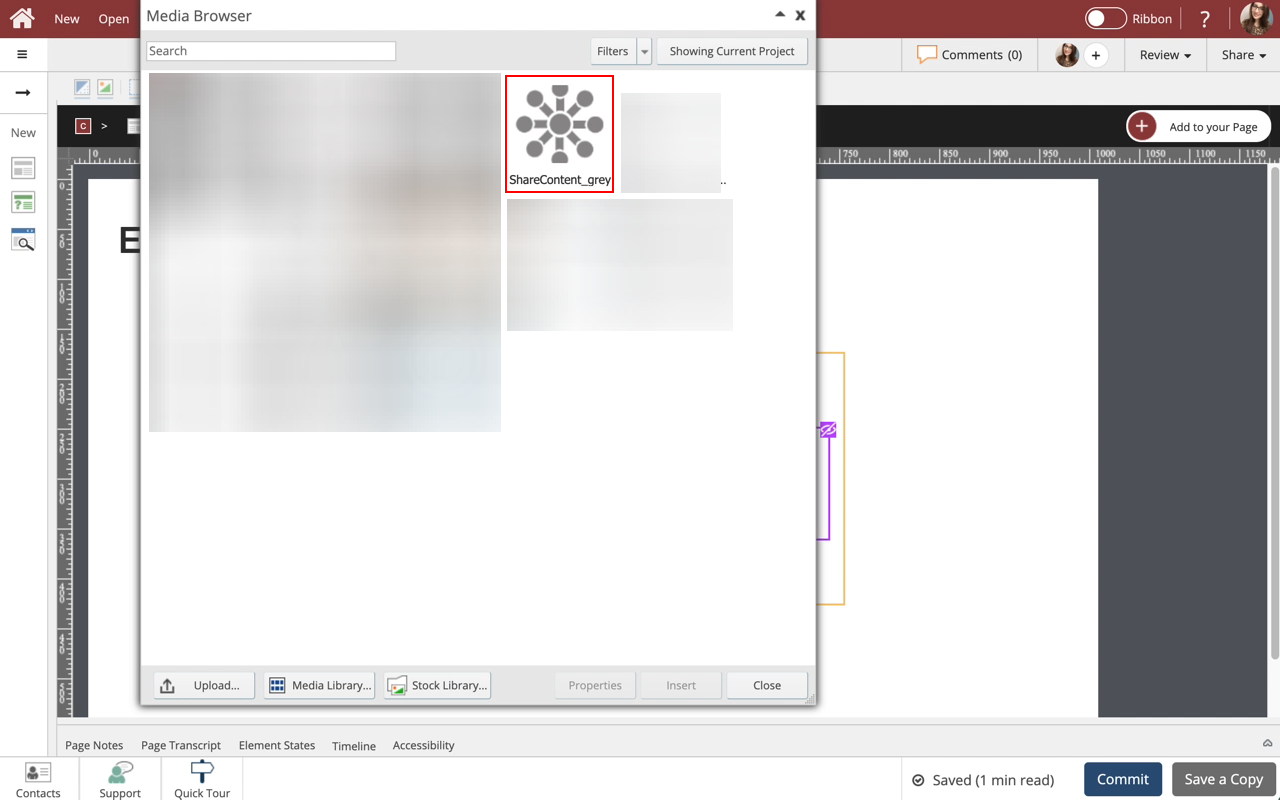
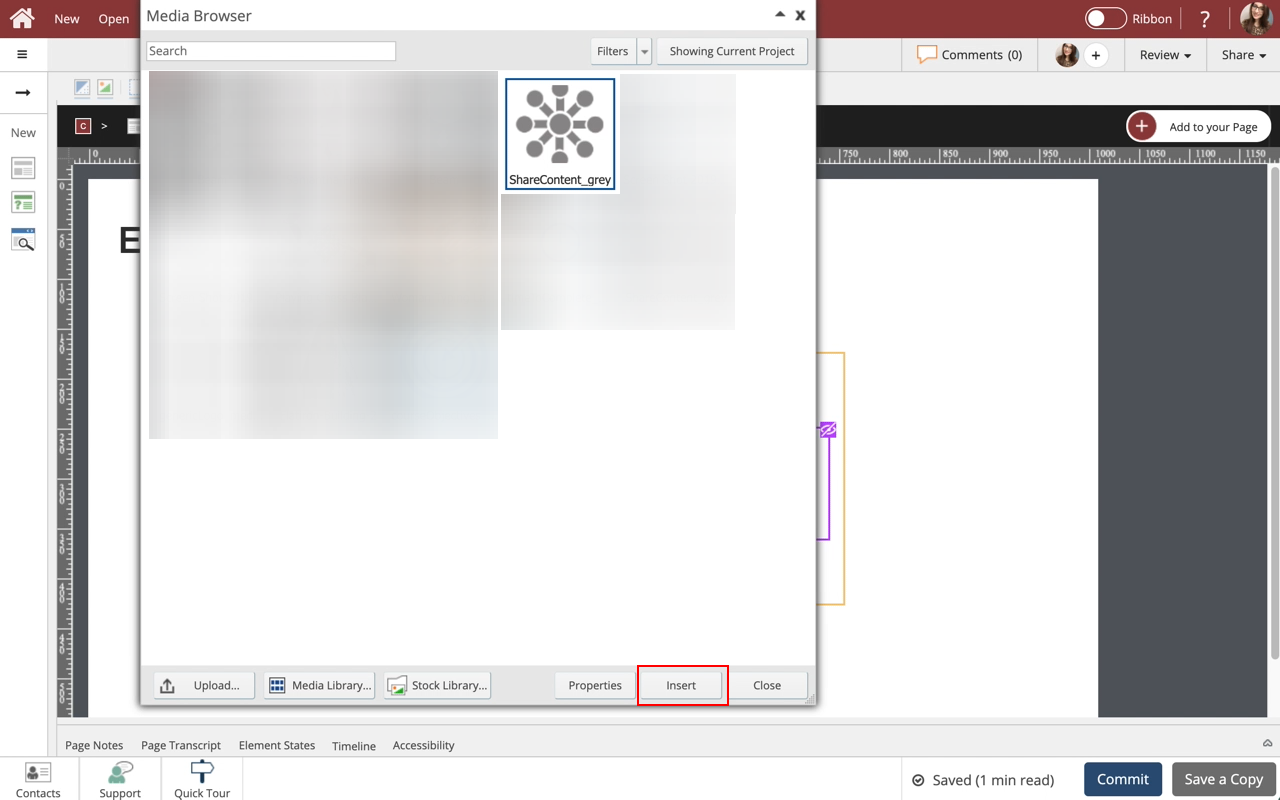
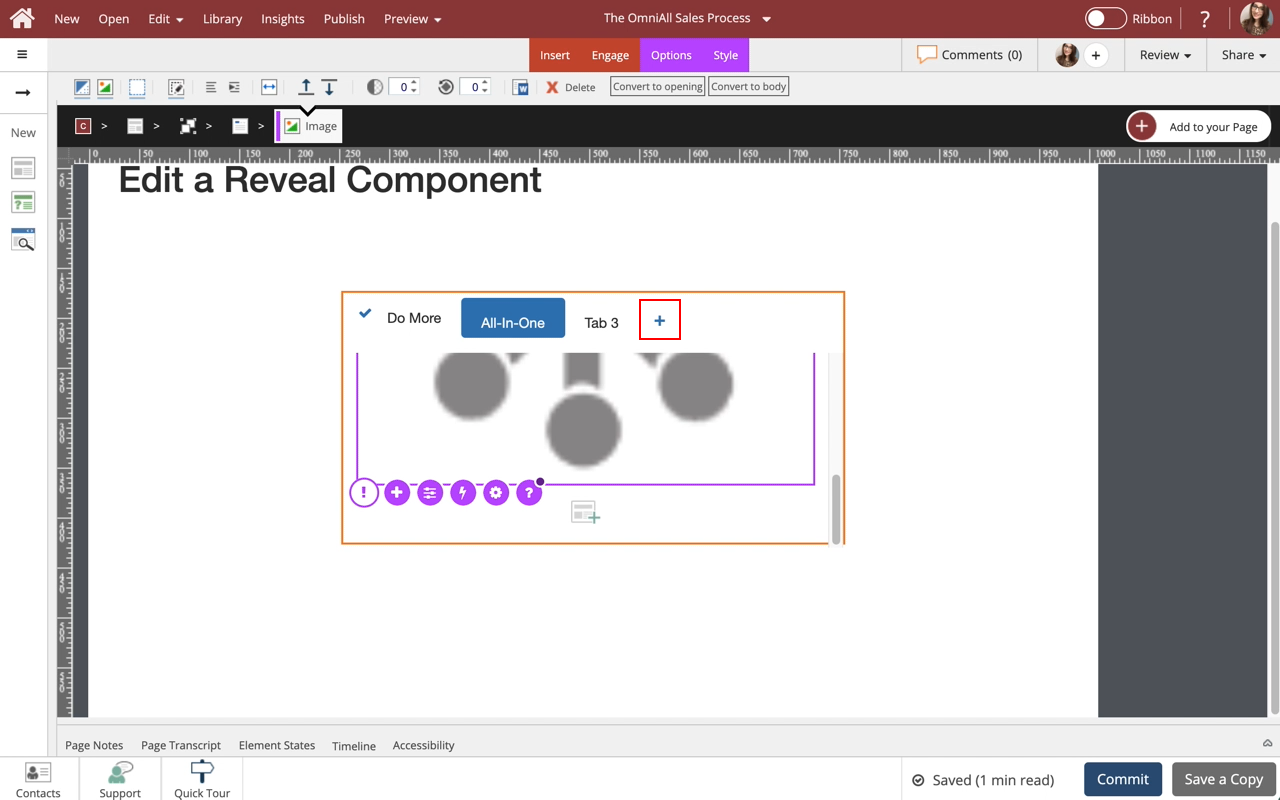
The image is added. Use the + icon at the bottom of the component to add more content layouts to the Tab.
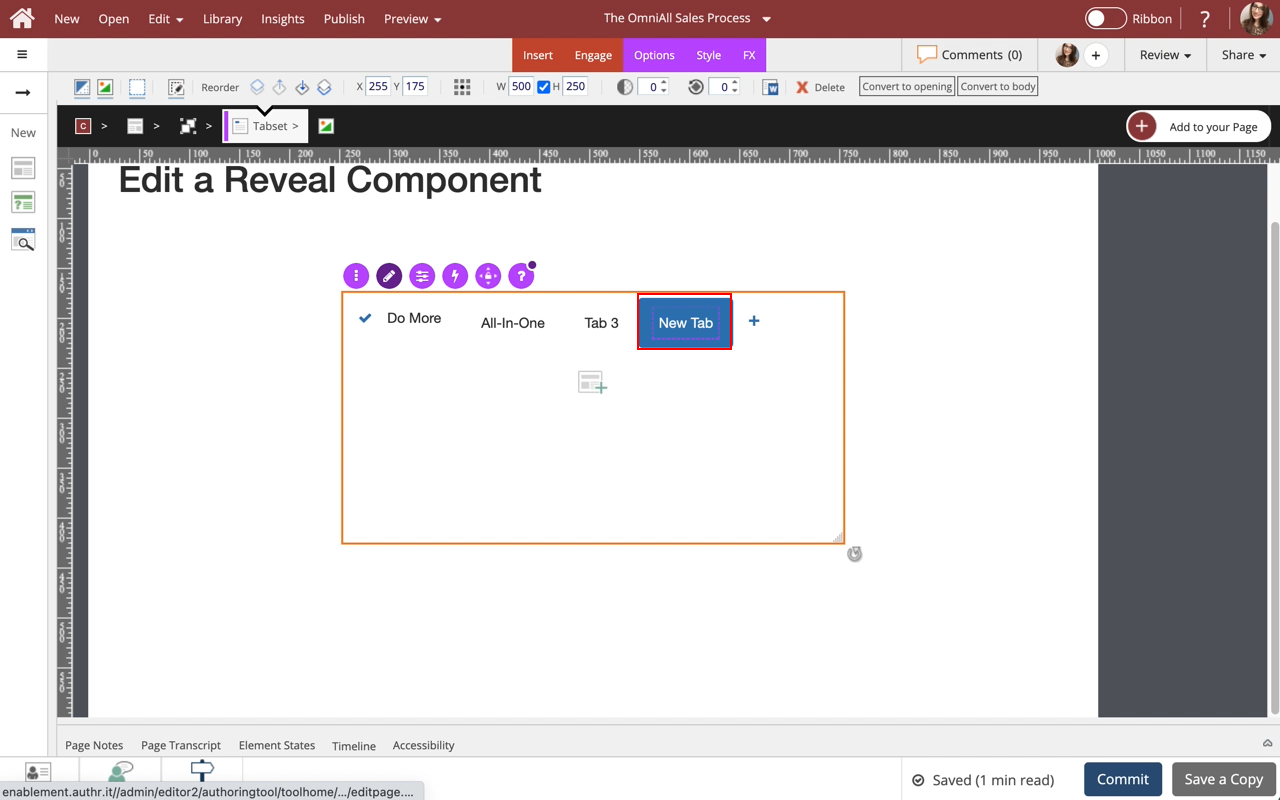
To add a new tab, select the + Icon at the bottom of the component.
Step 24
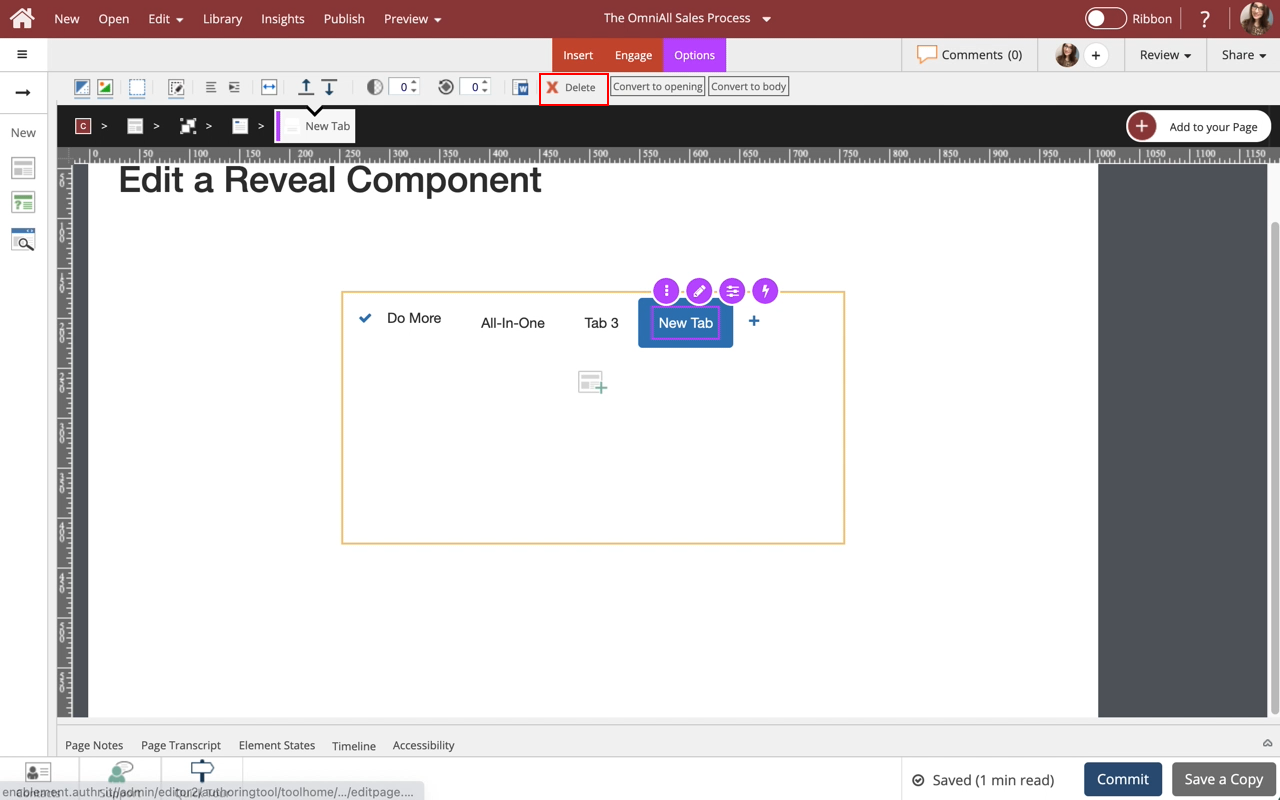
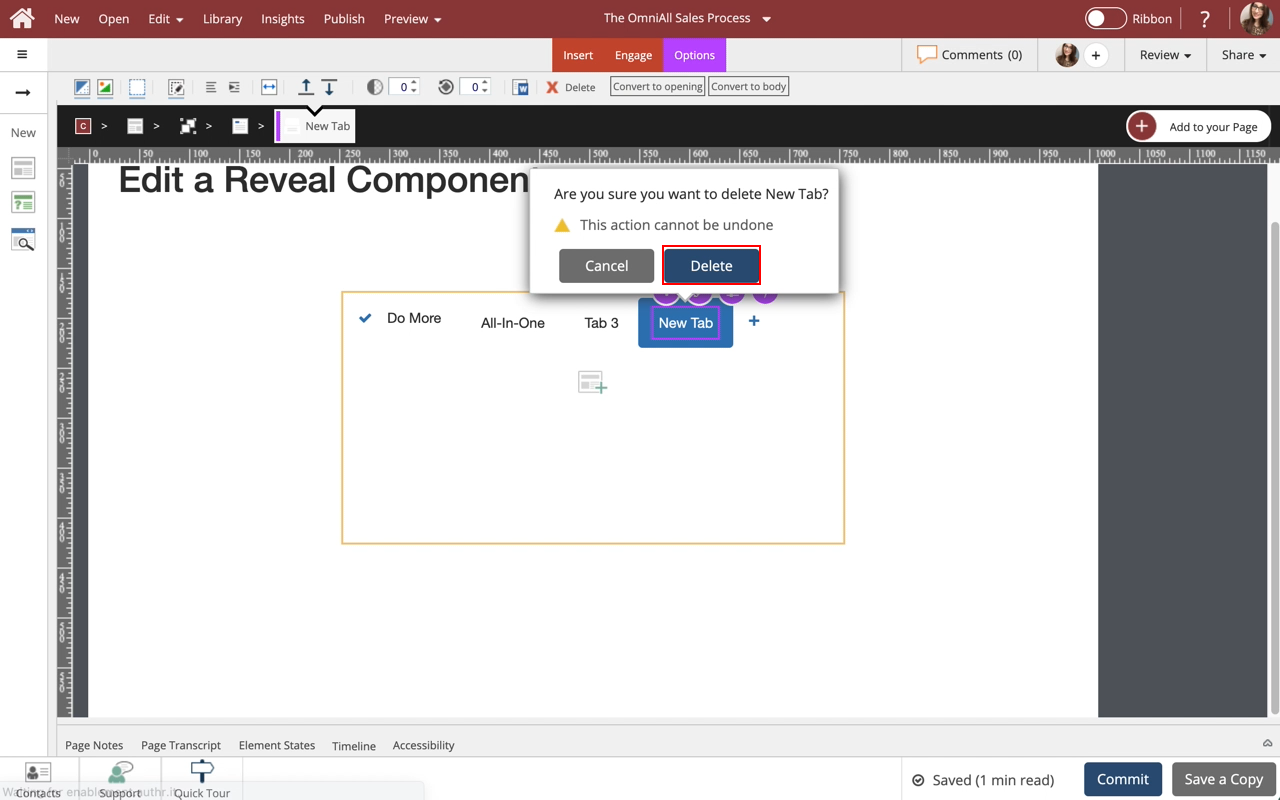
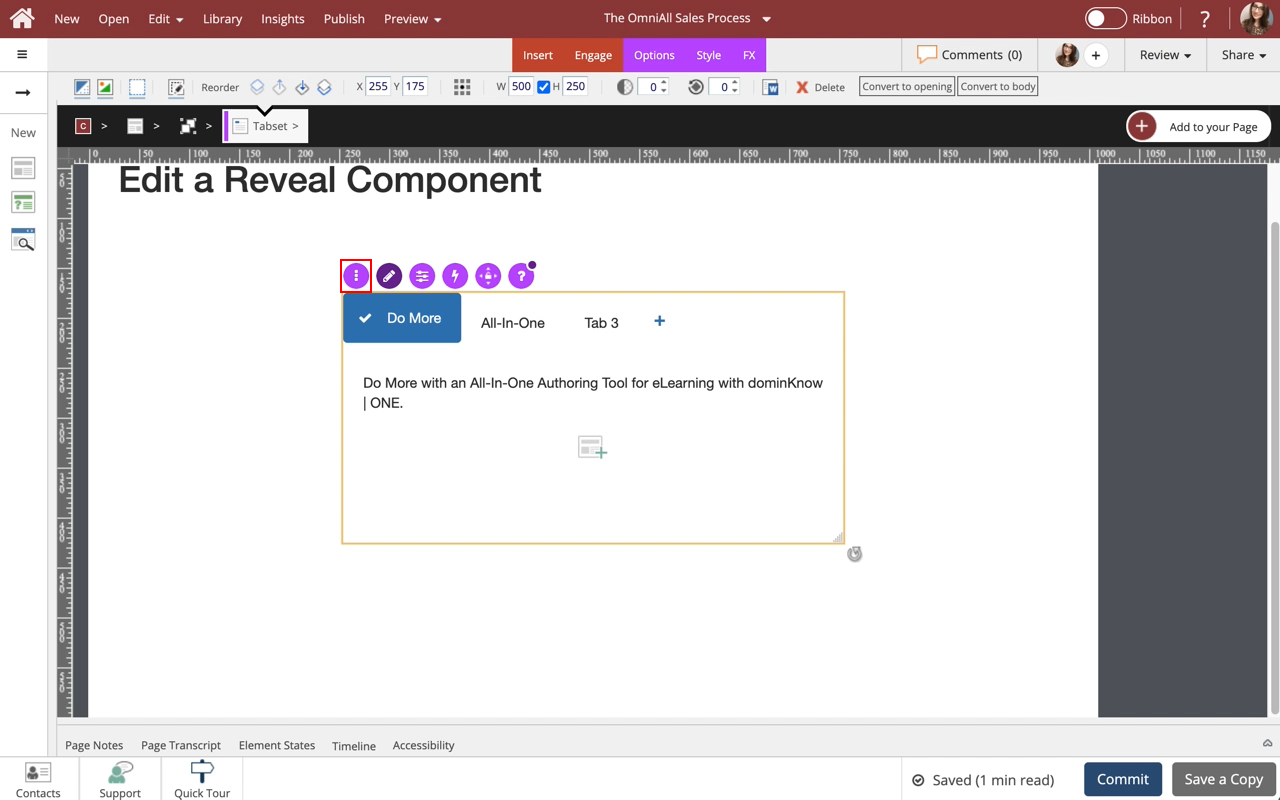
The tab is deleted.
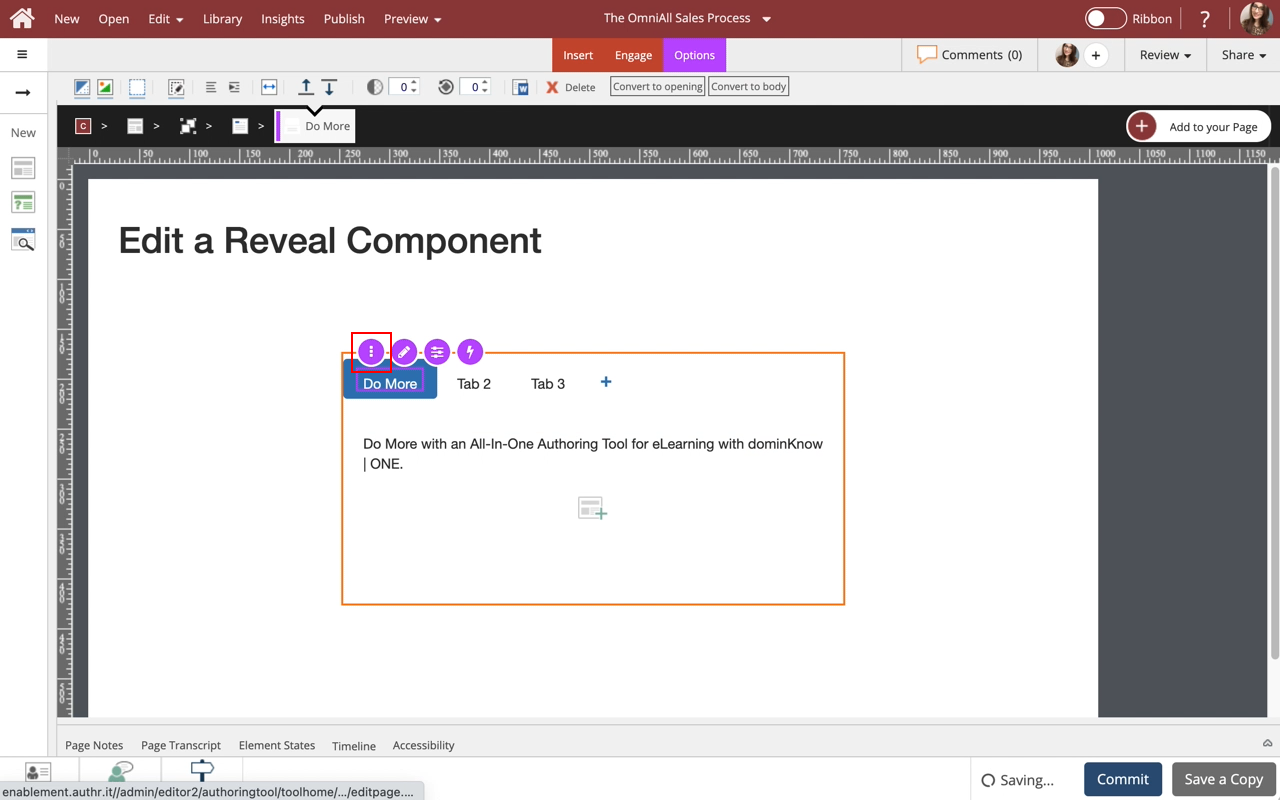
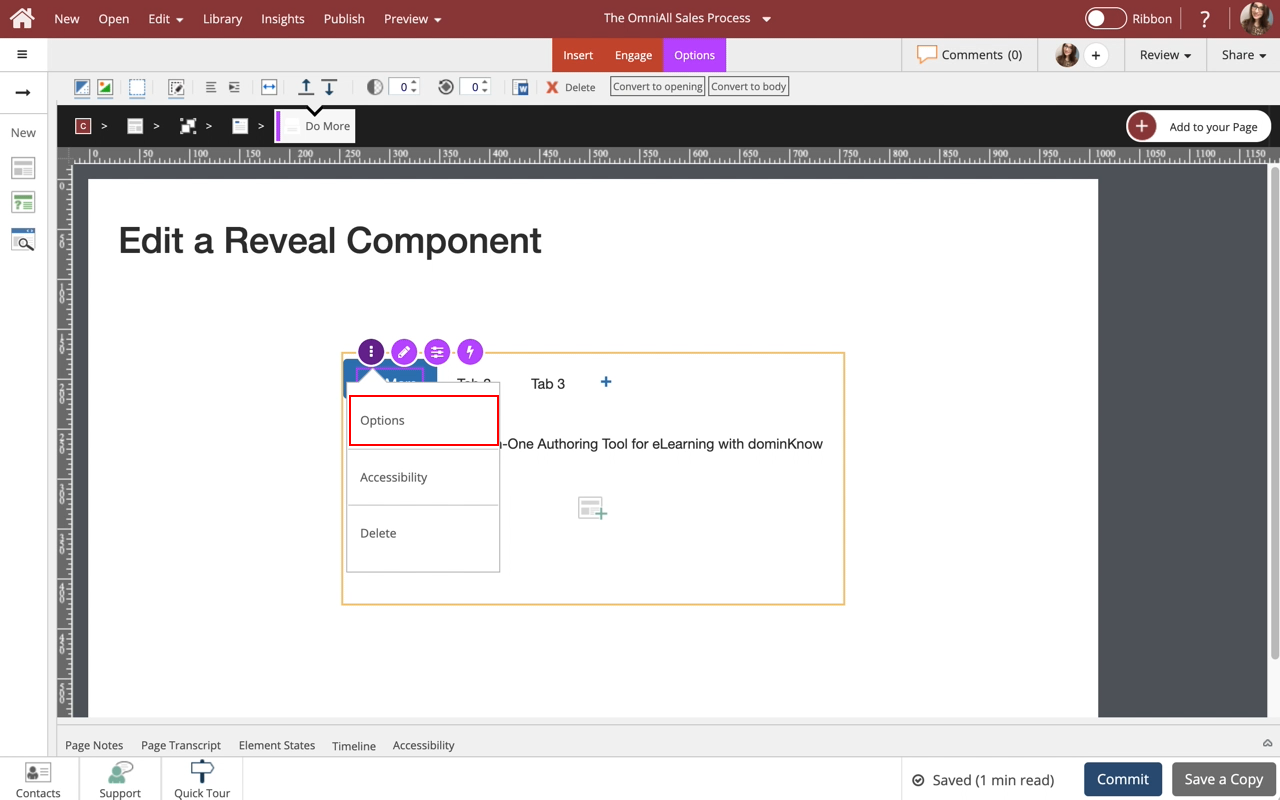
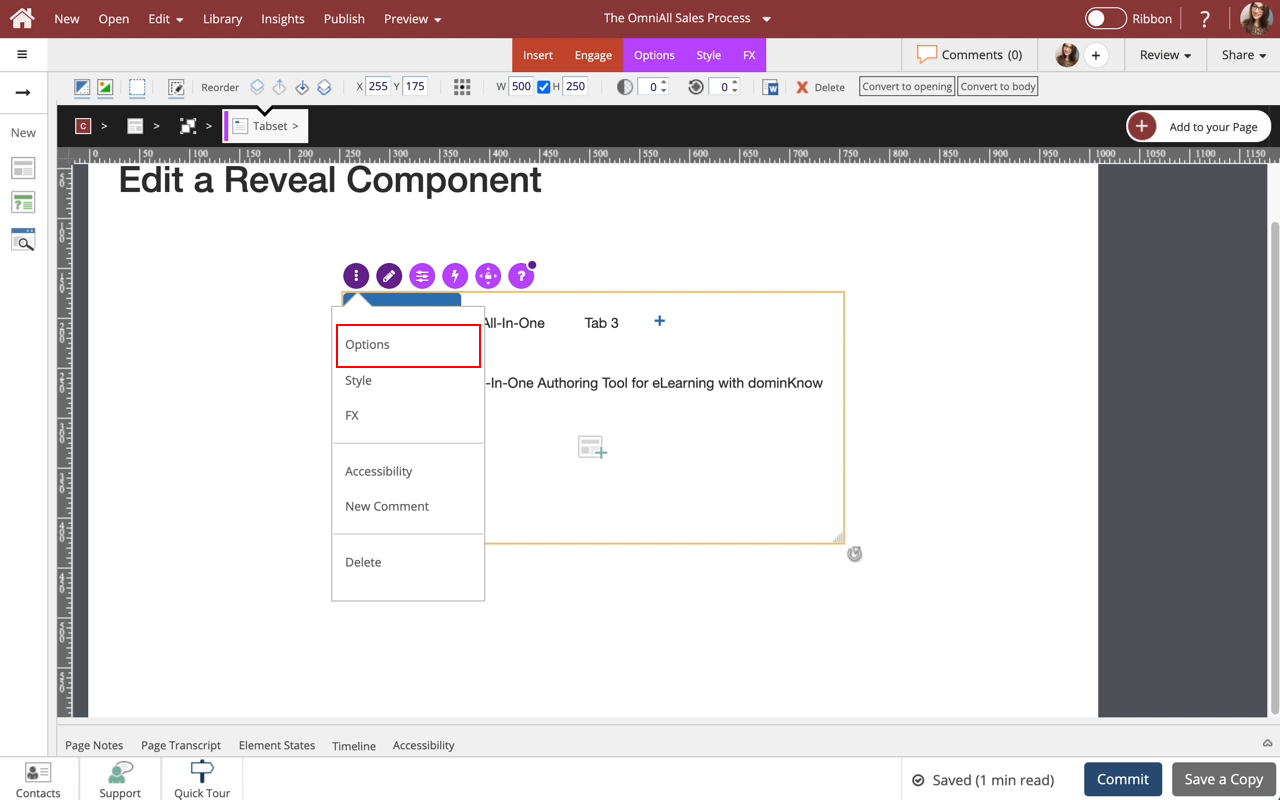
The tab is Select the three-dot menu in the Inline Toolbar. Have access to the Options, Styles and FX tabs, Accessibility panel, and add a New Comment, or Delete the component.
Step 26
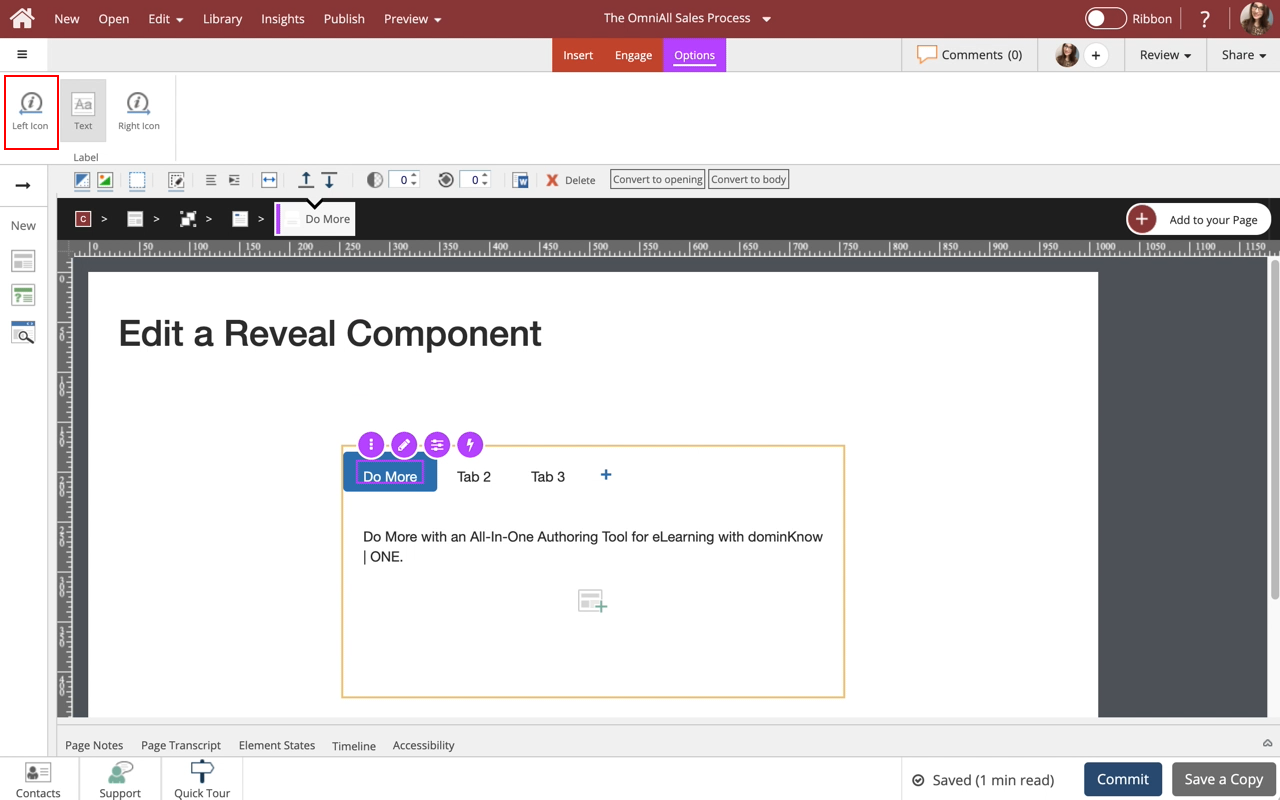
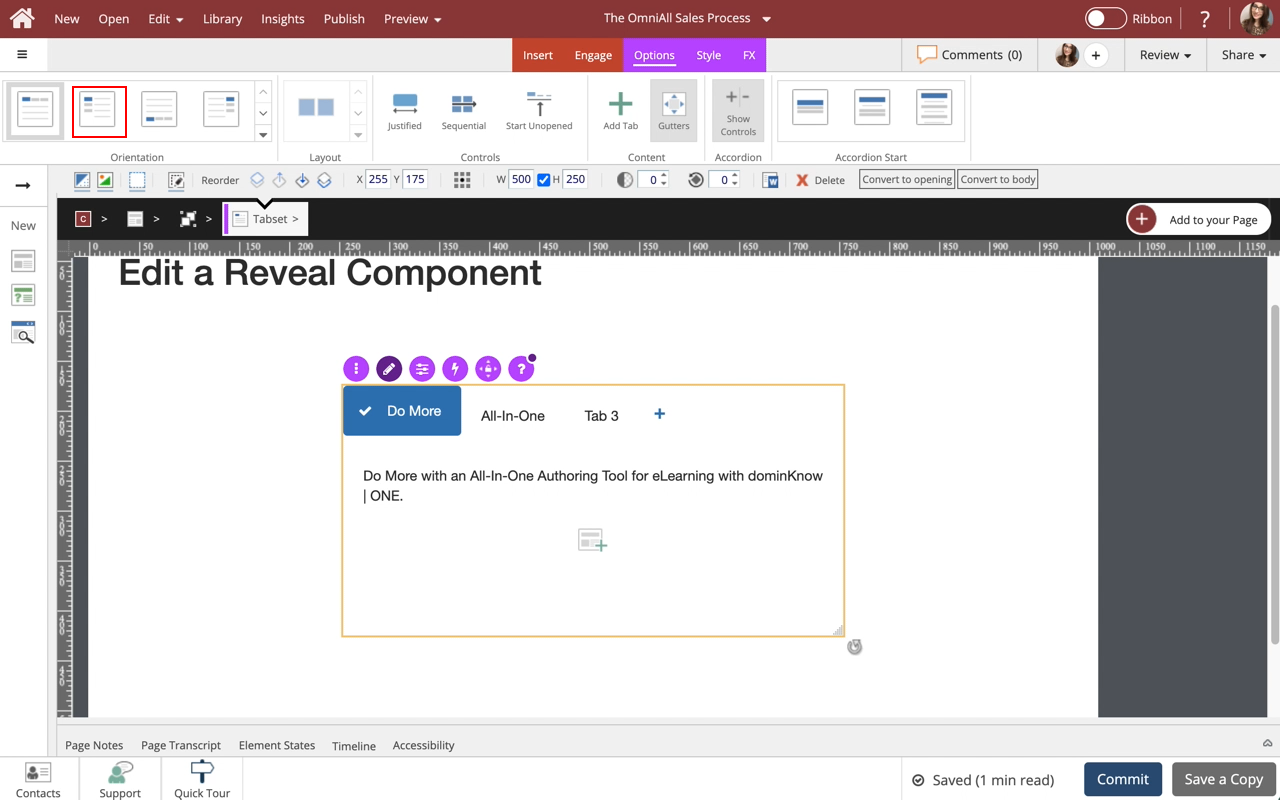
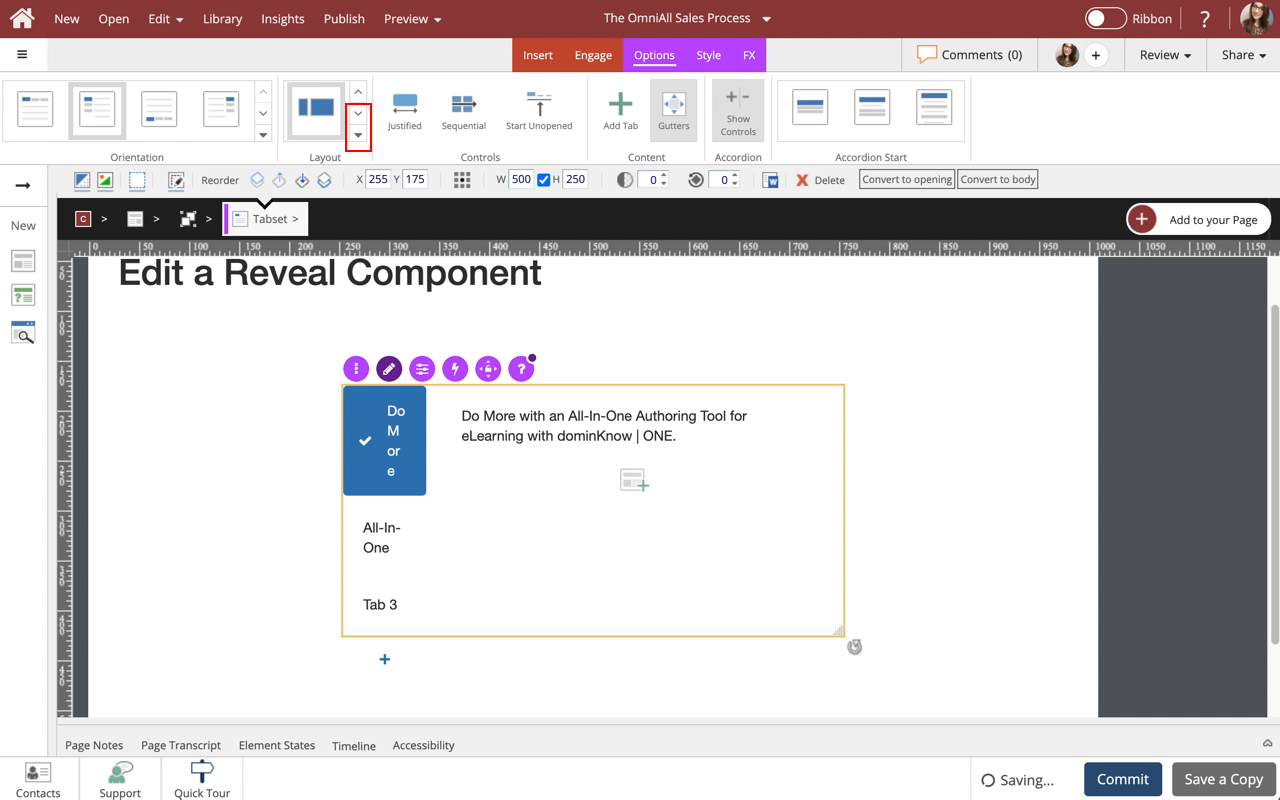
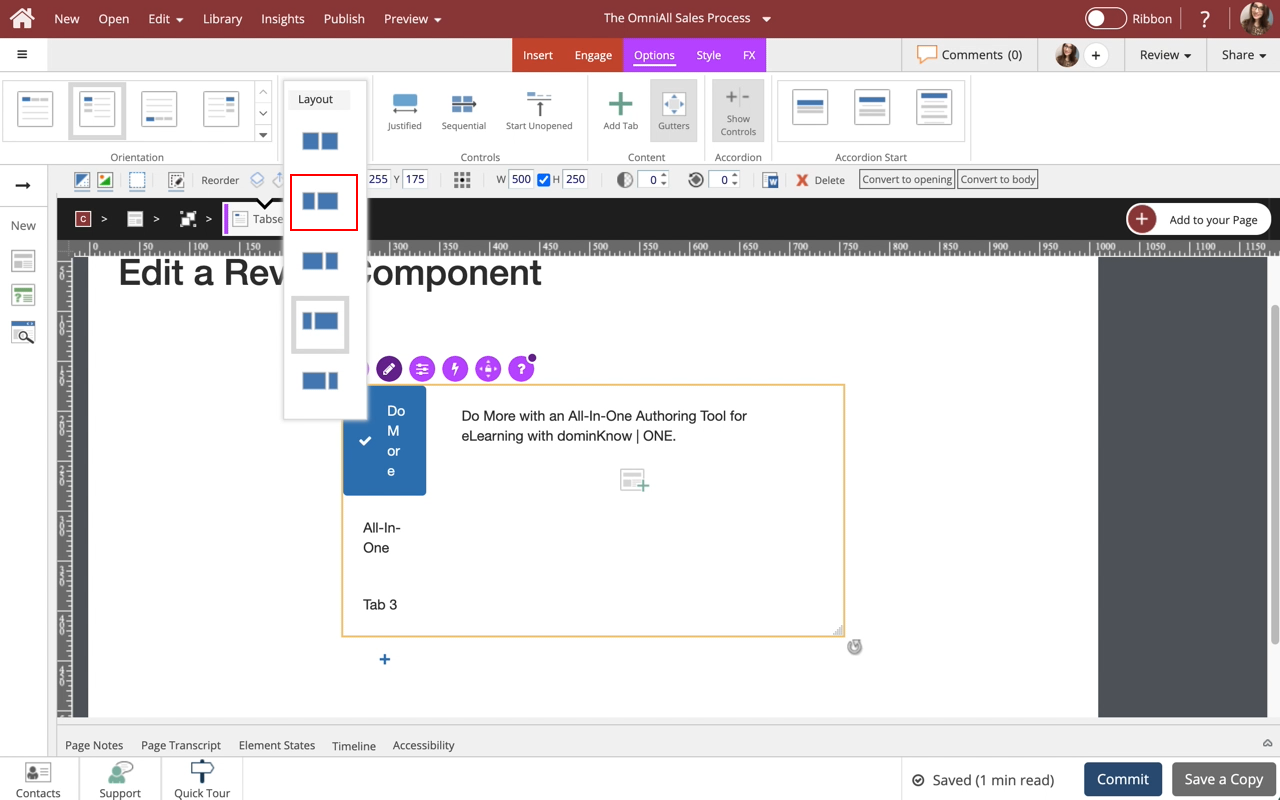
The Options and Style tabs have a number of control and design options for the Reveal Component as a whole. You can change the Orientation, Respond At (in Flow), Enable/Disable Justified, Enable/Disable Sequential, Enable/Disable Start Unopened, Add Content, Enable/Disable Controls, Starting layout, Adjust the Shape of the tabs, Color, Opacity and Background Fill. Use the FX tab to add effects to the component. Note: When in Essentials, only a limited number of Options are shown. To see all Options, make sure you are in Designer Mode.
In the Options tab, under Orientation select Option 2.
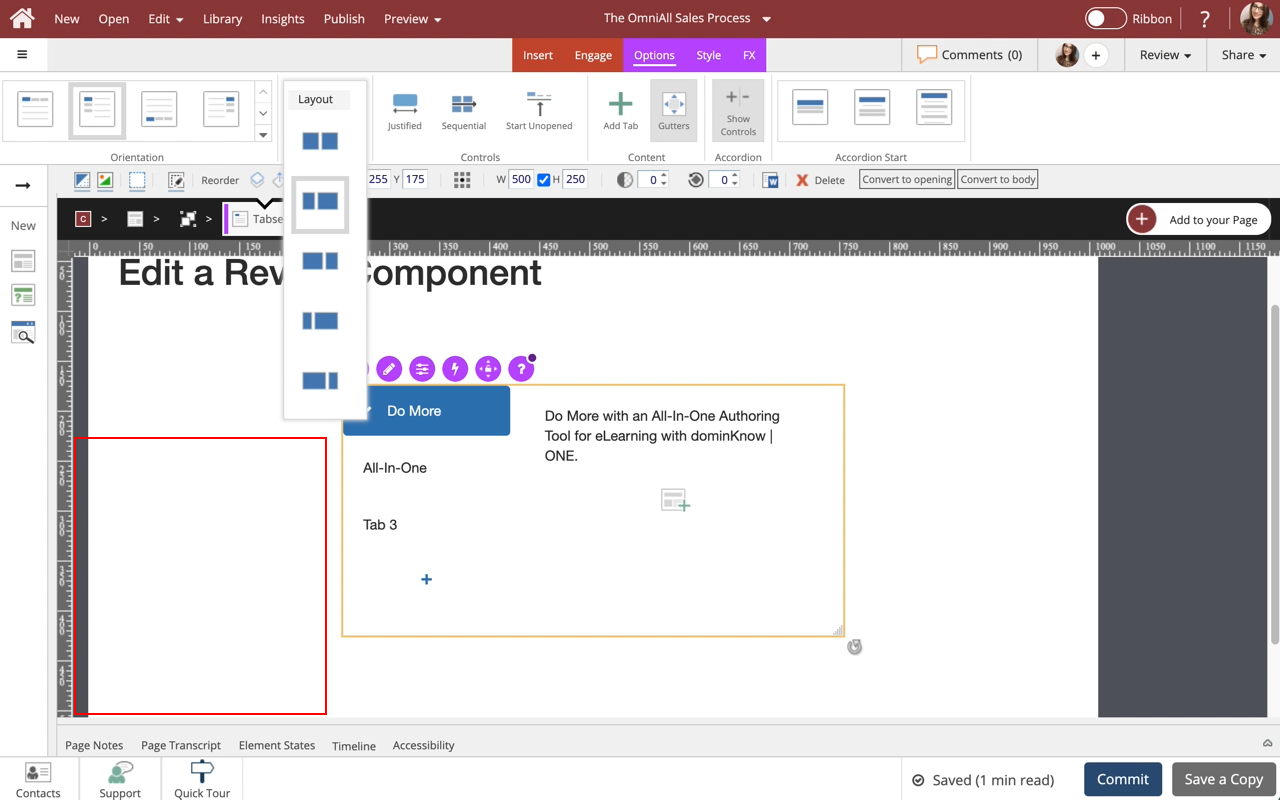
Step 29
The Layout of the Reveal Component has changed.
Select the Page to return to the Page content.

Step 30
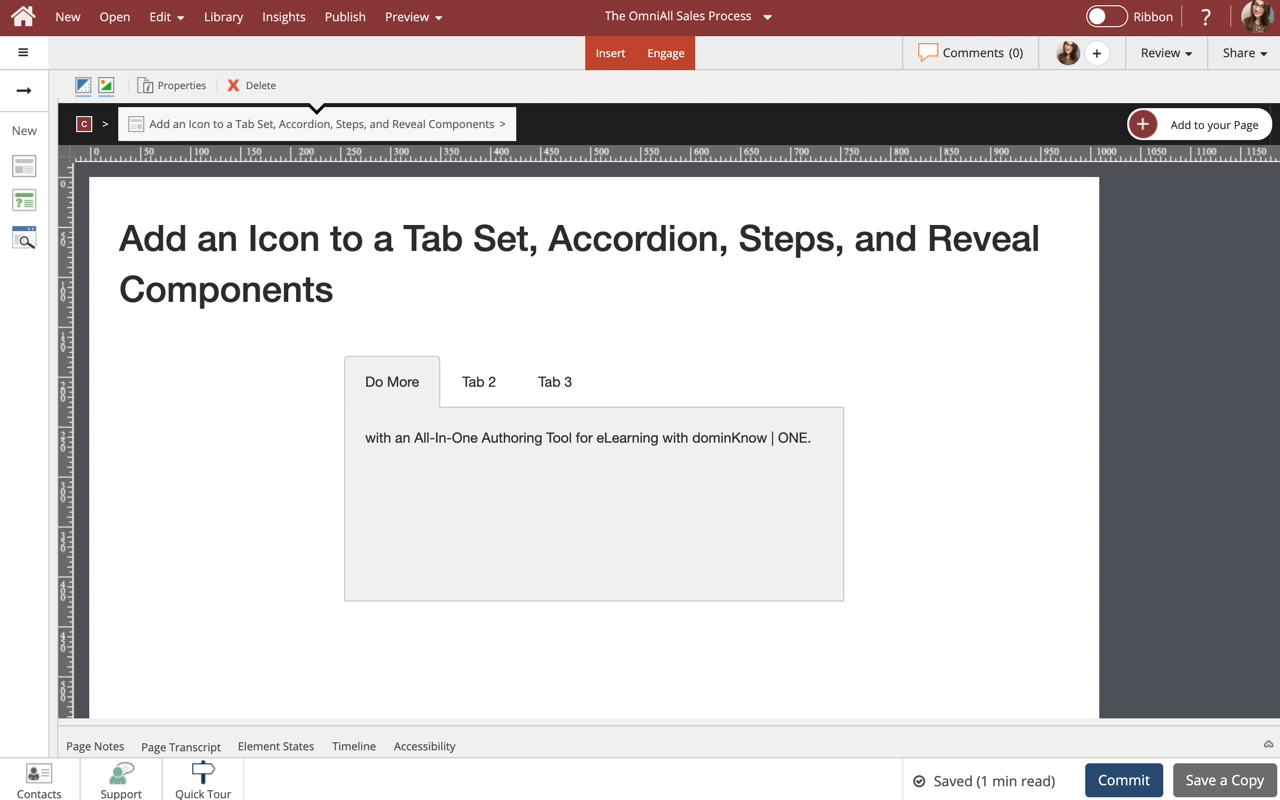
Preview the Current Page to see how the Reveal Component will look and behave for your learners.

Comments ( 0 )
Sign in to join the discussion.